How to Create a Bootable Windows Vista or Windows 7 Flash Drive - Booting from Flash Drive
Booting from Flash Drive
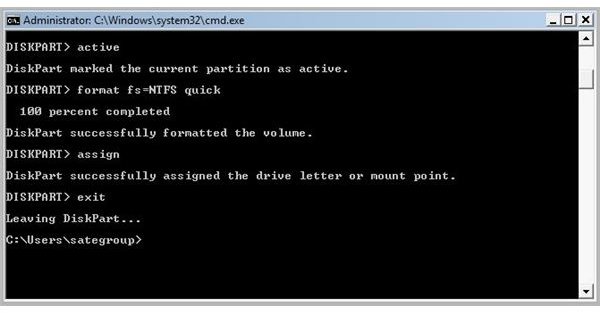
In the previous part of the tutorial, we prepared the flash drive to become a bootable flash drive. That is the most important part of the step, because, if the flash drive is not formatted properly, then you will not be able to boot from the flash drive.
Step 1: Now that you have formatted the flash drive, you need to make it bootable. To create a bootable flash drive, we need to write the boot record to the primary partition, we create in the 1st part of the tutorial.
First, type the “bootsect” command in the command prompt window, to check if you really have that file. If not, then copy the bootsect utility folder in the root of the C partition.
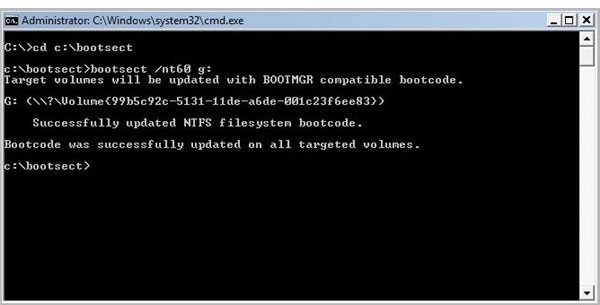
In the command prompt window, type the following:
cd c:\bootsect
bootsect /nt60 x:
Here, x: is the actual drive letter of your flash drive. Please check the exact drive letter, before you do something wrong.
Step 2: After the operating gets completed successfully, you will receive a message that says, “Bootcode was successfully updated on all the targeted volumes”.
Step 3: Finally, you have prepared a bootable flash drive. But, you also need to place the Windows Vista or Windows 7 files in the flash drive to actually boot from the drive. Exit the command prompt, by typing ‘exit’.
Insert your Windows Vista or Windows 7 DVD in the DVD drive, and using the windows explorer, copy all the files from the DVD to the flash drive.
Alternatively, you can also use the “xcopy” command to copy the files from the DVD to the flash drive, but that is a slow process and takes time.
After you have copied the files to the flash drive, reboot your system and make sure that you have inserted the flash drive. Press the corresponding key to select the Boot Sequence and then select your flash drive, from the list of available bootable drives.
On Dell Inspiron 1420 notebook, you need to press F12 key to change the boot sequence. You can either check it for your computer while it boots, or you can go to the bios and change the boot sequence order there.
Images
Images Credit
command prompt screenshots by Microsoft
This post is part of the series: How to Create a Bootable Windows Vista or Windows 7 Flash Drive
Using a bootable CD or DVD to install Windows is a story. Today, embedded chips are being used everywhere from a flash drive to a digital watch, so why not move along with the technology. In this tutorial, I will guide you on How to Create a Bootable Windows Vista or Windows 7 Flash Drive.