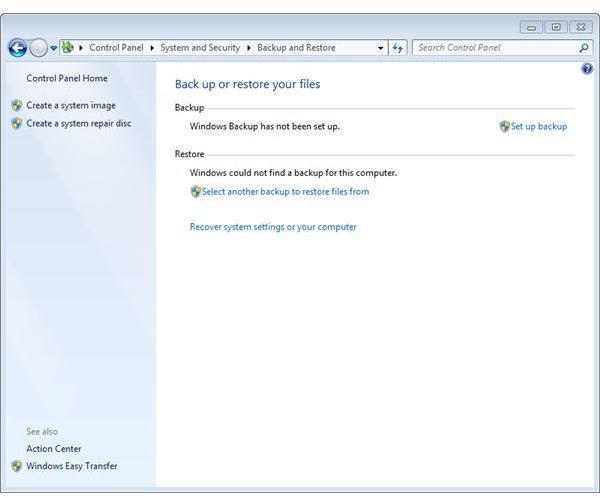
Here you find all new Windows 7 Backup and Restore features including customized backup location, optional images as well as decoupled images. What’s more is that this article contains useful information regarding the change of backup and restore features in the different Windows 7 editions.
If you haven’t recently looked at Windows’ integrated Backup and Restore, perhaps because Windows Vista backup and its predecessor NT Backup weren’t really great, now you perhaps should. I can assure you things have changed for the good and you will perhaps be surprised about what’s new in Windows 7 backup and what Windows 7 Backup and Restore is capable of.
As we have discussed Windows 7’s backup and imaging features in depth in Bright Hub’s article How to Use Backup and Restore in Windows 7 , in this article here we will shed a light on what has changed since Microsoft brought forward the first consolidated Backup and Restore Center in Windows Vista:
Customized Backup Location
When you set up Windows 7 Backup then you will be given a choice of potential backup locations including internal and external drives for example. Backing up to or restoring from a network location is restricted to the Windows 7 Professional and Ultimate editions and not available in Windows 7 Home Premium [1].
However, please note that in the same manner as Vista does Windows 7 automatically put your backup in the selected location’s root in a folder called WindowsImageBackup.
Optional Images and Imaging Decoupled
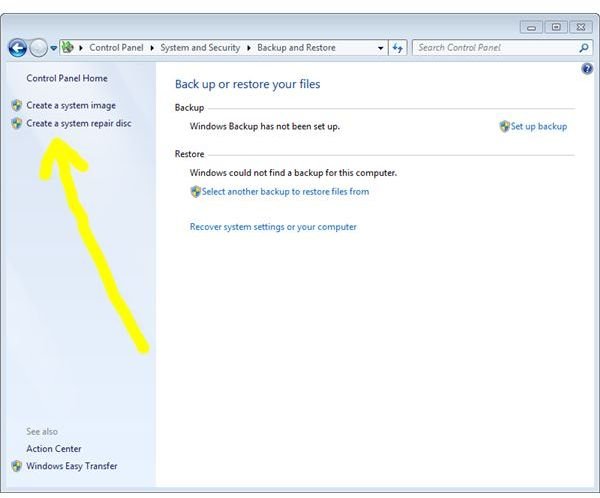
While Vista automatically included a system image whenever you created a Windows Complete PC Backup Windows 7 now lets you opt in and opt out of system images in the context of file and folder backup as the imaging feature of Windows has been decoupled from file and folder Backup and Restore. Create a system image has been given an independent menu entry on the left pane in the Backup and Restore Center of Windows 7 located in control panel.
Backup and Restore in Windows 7 Editions
Whereas Microsoft Windows Vista provided automatic backup functionality to all editions with the exception of Starter [2] do all editions of Windows 7 include full backup and restore functionality as explained in Bright Hub’s article How to Use Backup and Restore in Windows 7.
Windows 7 Backup and Restore is really worth checking out. Also make sure you don’t miss what imaging has to offer, however be careful when re-imaging your Windows 7 as this operation renders Windows 7 in the state the operating system had when the image was taken. It is recommended following the best practice of testing backed up files by means of a restore.
References:
[1] https://windows.microsoft.com/en-us/windows7/products/compare-editions
[2] https://www.microsoft.com/windows/windows-vista/compare-editions/default.aspx


