How to Use Windows 7 Firewall
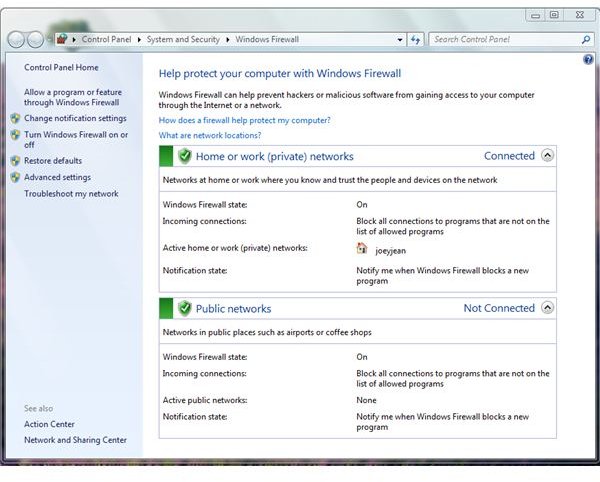
A firewall will help protect your computer against malicious software and hackers. Without a firewall, you risk your computer becoming a zombie–able to be controlled by outside forces. A firewall makes sure no outside person, application or network can gain access to your data or make a connection without your consent.
Windows 7, the latest operating system from Microsoft, includes a free firewall protection. The firewall is enabled by default and you can use it to customize existing firewall rules or add and delete a new one. Windows 7 Firewall is different from earlier editions of Windows because you will have the option to use the firewall rules based on your network location: Home, Work Group or Public networks. This is a very useful feature for people who are on the go!
The User Interface (UI) of Windows Firewall in Windows 7 is also different from earlier editions of Windows:
The options to manage Windows 7 Firewall are available at the left pane of its UI. Below are available options in managing Windows Firewall program in Windows 7:
-
Allow a program or feature through Windows Firewall: an important option in Windows Firewall or any firewall software is the option to choose which programs can make an incoming or outgoing connections.
-
Change Notification Settings – allowing Windows Firewall to ask you is the easy method to use the firewall software. If you’ve created your own firewall rules for any web-based programs, the notice to alert them can be disabled.
-
Turn on and Turn off Windows Firewall for particular network location – It’s not recommended to turn off Windows Firewall wherever you will connect (public or private networks) but they have provided the option. This allows you to troubleshoot anything that is preventing you from using the connection or to prevent any interference with installing important security updates that requires full permission to update and make a connection (e.g. validation or downloading more updates from update servers).
-
Restore defaults – if any time you want to start the firewall settings or rules from scratch, this option is easily offered in the left pane of its UI.
-
Advanced Settings – For advanced end-users or network administrators, Windows Firewall in Windows 7 also provides advanced options to create, modify or delete any firewall rules for a particular network location and application.
New Features in Windows Firewall 7 and Status Check
To be sure that the firewall is on, you can check by viewing the status from the Windows 7 Action Center:
- Type Firewall in the Search box. Windows 7 includes Windows Search 4.0 which has the ability to find the program or documents by simply typing a few characters. For example, “fir” or “fire keywords” will list Windows Firewall and other applications with similar names.
- Type firewall.cpl in the search or run box to bring up the Windows Firewall’s Control Panel.
- Type wf.msc to open the Advanced Security window for Windows Firewall
- Some antivirus or anti-malware programs have a built-in security center that will detect if the firewall is enabled or has been disabled.
This post is part of the series: How To Set Windows 7 Firewall Rules?
In this series of articles, we will discuss about Windows Firewall in Windows 7. In Part 2 and 3, we will touch topics if you need third party firewall in Windows 7 and how to use Windows Firewall and create firewall rules on the new operating system.