Creating a Password Reset Disk for Windows Vista

Written by:  • Edited by: Bill Bunter
Updated May 6, 2010
• Related Guides: Control Panel | Windows Vista | Operating System

Have you ever forgotten a password? If you're on the internet, all you have to do is click lost or forgotten password and retrieve your password in your email. If you forget your password for Windows Vista and you have forgotten your hint, You should have a reset disk ready.

Passwords

Users often forget passwords for accounts on the internet. Internet accounts often have hints and email options to email your passwords back to you in the event you forget what it is. With operating systems, hints can be given but are often long forgotten. What do you do if you forget your Windows Vista password? Generally you can’t get in and the operating system has to be reinstalled or a password break cd is used by a professional to gain access to your system.

Users can help prevent this disaster by creating a password recovery disc or key that allows you to gain access to your locked operating system.

Creating a Password Reset Disk

Windows Vista has the option to create a recovery disc or key that allows you to get into an otherwise locked operating system. In Windows Vista follow these steps to create your recovery disc or key.

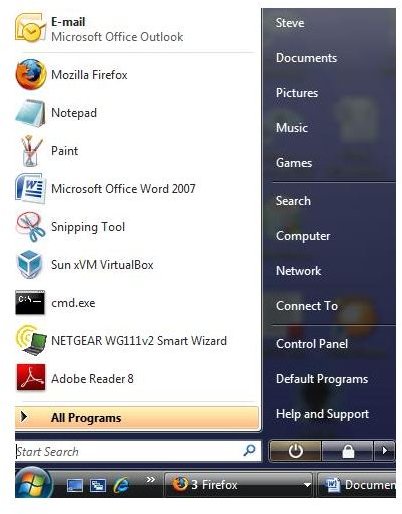
Click on Start (In Vista, click the round Windows Logo)

Select Control Panel

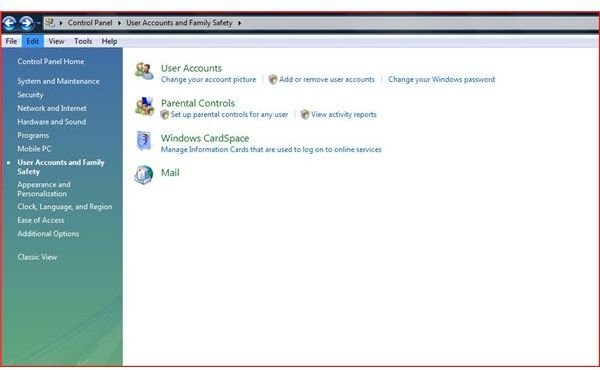
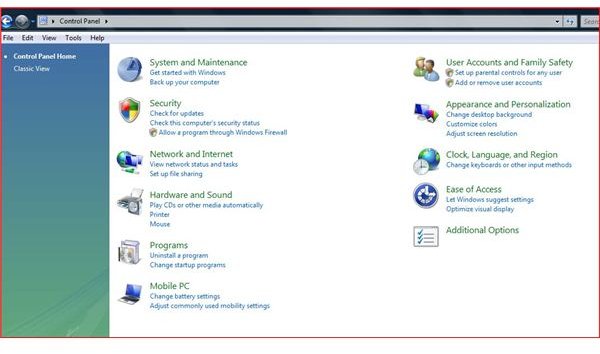
In the Control Panel, select User Accounts and Family Safety

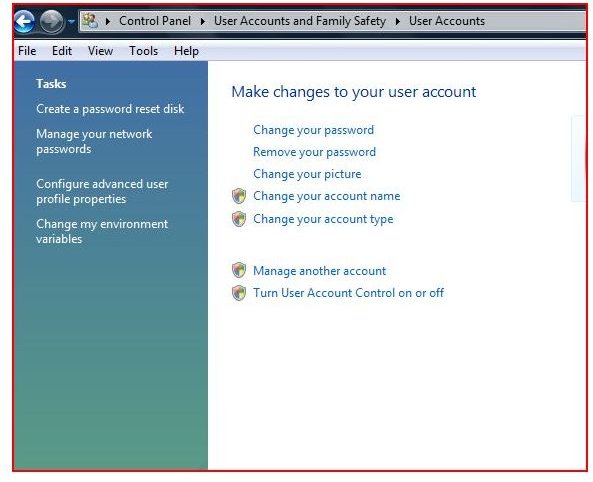
Select User Accounts

At the top of the menu on the left side, select Create a Password Reset Disk

Once you select Create a Password Reset Disk, you will be prompted for a USB Flashdrive (thumbdrive) or a floppy disk if your system has one.

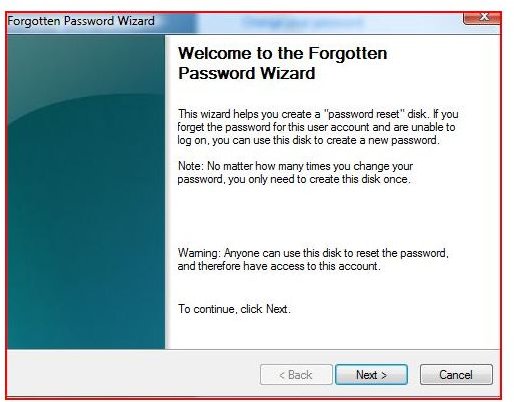
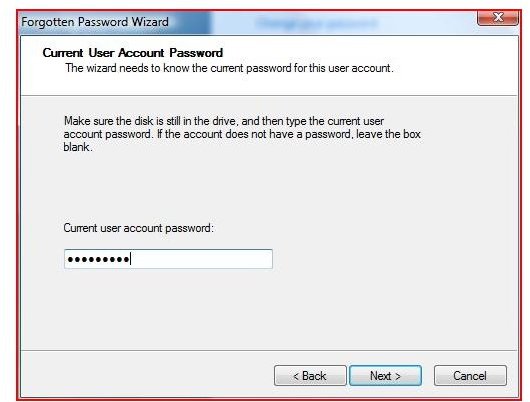
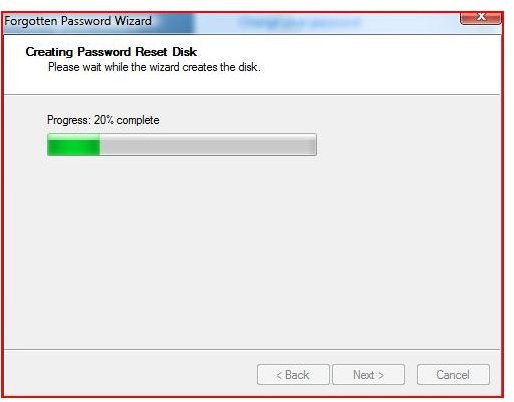
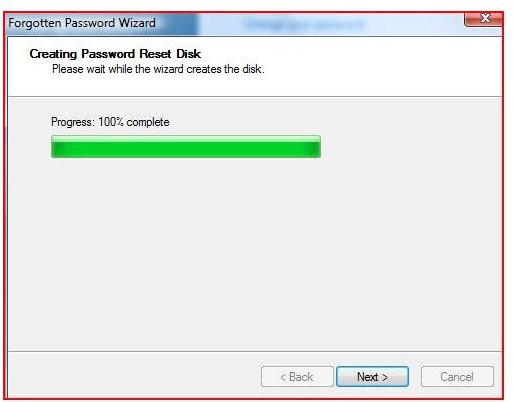
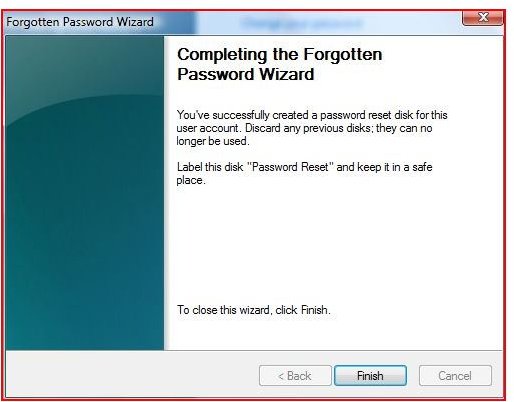
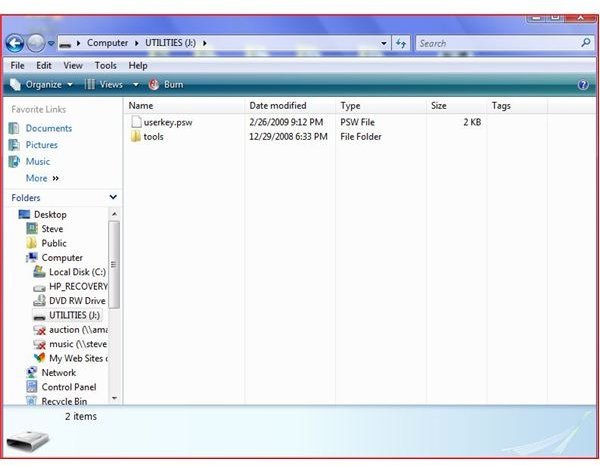
The password reset disk creation wizard will appear. Follow the wizard, selecting the removable flashdrive or floppy as your source. You will be asked for the current password. Select the next screens in the wizard to create the file on your drive. Once the process is complete, you will see a file (userkey.psw) that is encrypted.

(Note: No matter how many times you reset your password, you will only need this one disk or USB drive. You MUST protect this disk or drive.)

Creating a Password Reset Disk
(untitled)(untitled)(untitled)(untitled)(untitled)(untitled)(untitled)(untitled)(untitled)(untitled)(untitled)(untitled)

How to Use the Disk

Again, it is important to safe guard the reset disk you created. In order to use the disk, follow these steps.

On the logon screen, click on reset password. (A reset password wizard will appear)

Put the reset disk or flashdrive / thumbdrive in the computer. (allow the computer a few seconds to recognize the media).

Select the drive that has the password key. Windows will analyze the key at which time you will be prompted to type a NEW password, confirmation and hint. Once you perform the aforesaid steps, you will be able to use this password at the logon prompt.

Conclusion

If you have forgotten your password and you have a reset disk, all is not lost. The creation of a password is a simple process that can be performed in less than 15 minutes. Anytime a password reset disk has been created, it must be safe guarded in order to maintain security of your operating system.



Comments

Showing all 4 comments
 
Michelle Sep 1, 2010 10:09 PM
if you didn't create a password reset disk before
if you didn't create a password reset disk before,is it mean that you have to reinstall your windows system?
well,there is another way for your to reset your password,it is called Windows Password Recovery program. The program will enable you to reset the password to "Blank"; with no -reformatting or installation. reset Administrator password for you automatically.
just download the product form Password Recovery Official site:
http://www.recoverlostpassword.com/products/windowspasswordrecoery.html
Good luck!
microl Jul 5, 2010 3:55 AM
The best to reset windows password
There’s a way to reset the password and it doesn’t involve reformatting and reinstalling Windows. The solution is called Windows Password Key 8.0. It can reset all Windows passwords in seconds. It is a great windows password recovery tool:
http://www.lostwindowspassword.com . you can log in again just in one second. especially support windows 7 password reset.
beer Jan 6, 2010 10:05 PM
Other four methods to log in windows
Method 1: Take a rest, and try hard to remember the forgotten password
Method 2: Try No Password Administrator Login Backdoor
Method 3: Reset password from another user account with administrator credentials
Method 4: Do-It-Yourself (DIY) third party recovery tool
Such as Advanced Windows Password Recovery 3.0
download from: http://www.recoverwindowspassword.com
Michael Armstrong Oct 13, 2009 3:59 AM
This is very helpful
but if you didn't make this disk.
you should try this methods.
The first thing which you check if you forget login password. When we install Windows, it automatically creates an account "Administrator" and sets its password to blank. So if you have forget Your user account password then try this:
Start system and when you See Windows Welcome screen / Login screen, press ctrl+alt+del keys Twice and it'll show Classic Login box. Now type "Administrator" (without quotes) in Username and leave Password field blank. Now press Enter and you should be able to log in Windows.
Now you can reset your account password from "Control Panel -> User Accounts".
Same thing can be done using Safe Mode. In Safe Mode Windows will show this in-built Administrator account in Login screen.

Windows XP and further versions also provide another method to recover forgotten Password by using "Reset Disk". If you created a Password Reset Disk in Past, you can use that disk to reset the password. To know more about It, please visit http://www.resetwindowspassword.com/
 
blog comments powered by Disqus
Email to a friend