Subs Factory allows users to create subtitles in movie files that can be read by QuickTime. While there are other programs that do the same thing, Subs Factory is freeware.
Subs Factory is supposed to allow users to create subtitles in movie files that can be read by QuickTime. While there are other programs that do the same thing, Subs Factory is freeware.
Download and Installation (4 out of 5)
Subs Factory can be downloaded at the developer’s website . Once downloaded, the file will mount on your Desktop and unzip itself. Then you will have a the Subs Factory application on your computer that is ready for you to put where ever you’d like and start using.
Features (2 out of 5)
Subs Factory creates subtitles, but to do so you need a file format that is recognized by QuickTime and the suitable QuickTime plugins. Once you have all of that ready you get to start making subtitles, or so I thought. Opening a movie to add subtitles to in Subs Factory is easy enough (simply choose the movie file and open it) but adding the actual subtitles is a bit more difficult. If you choose Add Subtitle, that doesn’t work. You have to choose Edit to edit or add new subtitles. All in all the interface is not every intuitive.
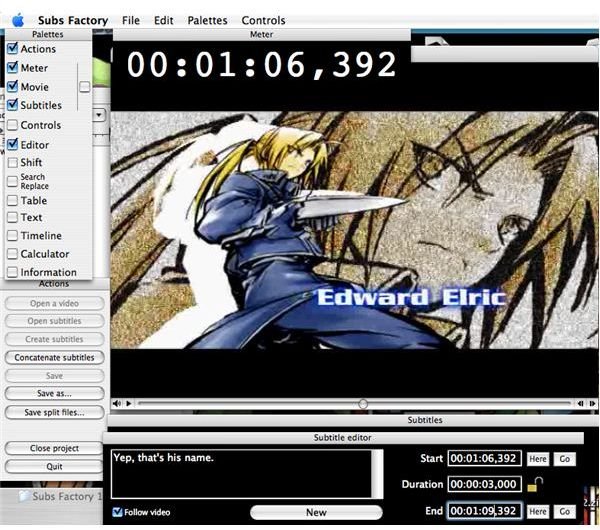
Along the top of your movie is a timer (that you can shut off if you want), but it is handy for adding subs. Also, the movie, timer and subs can all be included in one window or separated into three, which is handy.
There are a lot of tools for adding subtitles that are included, such as a table to see all the times and subtitles listed but all of it is a bit difficult to use, even with the included PDF manual.
There are also constraints but on the subs that, according to the manual, make reading them easier. They just felt like an annoyance to me, but thankfully they can be turned off.
Finally, you can save your subs as an .srt file that are supposed to be opened by Subs Factory, but it never worked properly. I could get the file to open all right, but it wouldn’t run the subs with the movie, even though I had written the subs for that movie. I’m not sure what went wrong. Another problem is there is no way to export the movie, subs and all, out of Subs Factory. The website claimes you can watch the subs with a VLC player but the subs didn’t load when I tried it. As far as I can tell there is no way to add the subs to a video file and the manual doesn’t explain it either.
Usefulness (1 out of 5)
Well, if you want to practice subbing and don’t mind if you can never re-open a project you might like Subs Factory. Or if you can wrap your brain around it better than I could, you might like it too. All in all, it seems too complicated with too few features to be worth much. I’ll stick with iMovie HD, no matter how annoyingly slow it is.
Overall (2 out of 5)
Subs Factory sort of does what it says, but it doesn’t really follow through. I’m not sure if I just couldn’t use it properly (I tried!) or what, but I’m not all that impressed. If you think you can make more sense out of it than I did, give it a try.


