Lock The Dock In Mac OS X

No Undo For Dock Changes
Unfortunately, if you accidentally take something off the dock, there is no undo, but even though it’s easy to bring back the icon you lost from the dock, and although it’s not entirely damaging to the system to lose a dock icon, putting things back the way they were does make a strain on your usual work flow, especially when you’ve gotten used to the order of icons and dock size you’ve set for yourself.
Dock icons are so easy to set up, but unfortunately also so easy to break down … so when your family members, friends, kids, or even yourself play around with your Mac, it’s a common woe that an icon may go missing because of an accidental click, and your icons may go poof to oblivion. There are also times when you might accidentally hit the dock and drag it out and change the size you’ve grown accustomed to: it can either go extremely large, or extremely small for your taste.
Bringing lost items back is fairly easy; simply drag the icon from your Applications folder back to the Dock. Resizing the dock to your liking is also easy to adjust, simply drag it to a size you see fit. However, having to go through this over and over can become a tedious and frustrating thing to have to do, and many have wondered what the best way is to prevent these situations from happening at all in the first place. This article will help you solve this dilemma: by locking the dock. Below are a few ways to make this happen.
Locking The Dock
Sadly, Mac OS X doesn’t let you lock the dock straightforwardly. There is no openly laid out option to lock the dock once you’ve set it up the way you want it to. But it is there deep in your system preferences. It’s just a matter of turning this capability on or off. And this can be achieved in different ways.
If you’re familiar with using Terminal and typing up a bunch of codes to tweak some behavior of Mac OS X, then this is the method for you.
Open up terminal and type the following code:
- defaults write com.apple.dock contents-immutable -bool true
- killall Dock
When you hit enter, you may be required to enter your system password. Setting the boolean to true will lock the dock. Of course from time to time you may want to add or remove items from the dock. Doing the same approach above and setting the boolean value to false will unlock it.
But if you would prefer interacting with check boxes instead of entering codes, you may opt to using apps like Deeper to satisfy your need to lock the dock. There are many other apps out there that can assist you in doing this, but Deeper should do you fine.
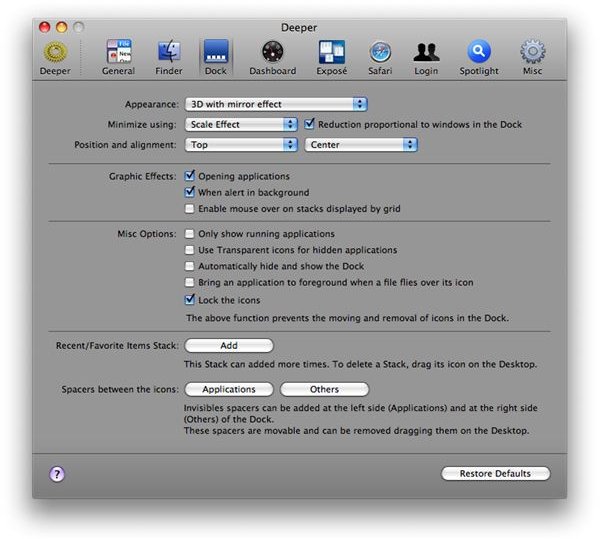
Simply download and install Deeper from here and go to the Dock preference page. Simply click on the “Lock the icons” check box and voila, your dock is now locked. Should there be a time when you need to unlock the dock to add or remove items from it, simple run Deeper again, uncheck “Lock the icons”, and you’ll regain the ability to add or remove items from the it, as well resizing it to your liking.
Free, Easy to Download and Install
Deeper comes free from Titanium Software. The app only supports version of Mac OS X from Tiger onwards. So now, with Deeper, you’ll be able to protect your dock from careless mouse clicks that will take items off or on it, or accidental drags that resize it to unsightly proportions.
Enjoy and be safe!