Change Your Mac's Icon and Folder Appearance: For Older Mac Versions
Editor’s Note: This tutorial has been tested and works on older versions of Macs (I tested it on version 10.6.8.). The process may be different on newer versions.
One of the fun things about having a Mac is the degree of personalization you can put into it. Everyone already knows about Desktop pictures and screen savers, but did you know you can change your Desktop icons and folders too? Talking to other Mac owners I was surprised to learn not many knew they could change the icons and folders to their liking. Well, you can. It is a simple and fun process that will add another touch of personalization to your Mac.
Change Folders and Icons Manually
There are two ways to change the appearance of folders and icons on your Mac. One is through the use of software, and the other is to do it manually. Since doing it manually is free I thought I’d show you how to do it first.
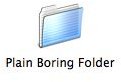
We start with a plain boring folder.
Plain Boring Folder
First find a picture you want to use instead of the folder. I’ll use this.
Awesome Picture

Now copy the picture you want to use. You can do this with a short cut (Apple/Command C) or by going into the Edit menu and selecting Copy.
Then highlight the plain boring folder.
Highlight

Go to File and select Get Info. Or short cut it and press Command I (that’s a capital i, not a lower case L).
A window like this will open.
Get Info Window
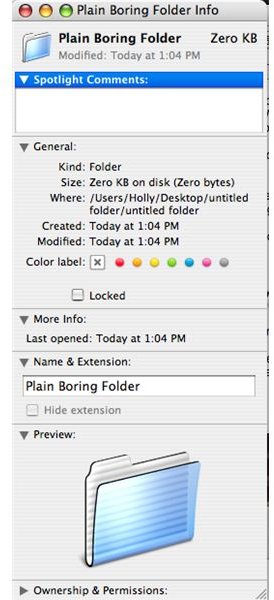
Highlight the folder in the top left hand corner of the window and paste the picture on top of it. Press either Command V to paste, or do it from the Edit menu.
The picture will show up in place of your Plain Boring Folder like this:
Pasted
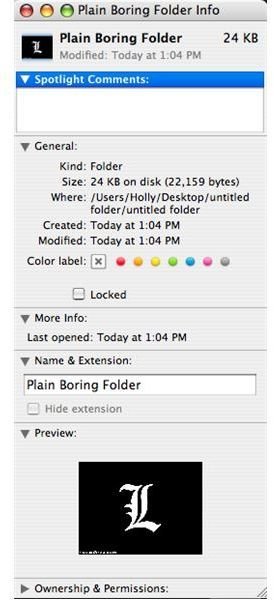
So you’ll have this in the end:
Awesome Folder

This will work with any icon or folder on your Mac!
Software to Change Icons and Folder Appearance
There are a couple of programs that change the appearance of icons and folders for you.
The first is called Folder Forge by Samuco. Instead of replacing the folder or icon with a picture, it colors your folders in a variety of ways or puts pictures on the actual folders while retaining the folder shape. This is handy if you still want the folders to look like folders, or if you are too lazy to follow the steps and do it manually. Folder Forge is a paid product, but there is also a free version available called Folder Magic. Find them both on this page: https://www.samuco.net/software.html
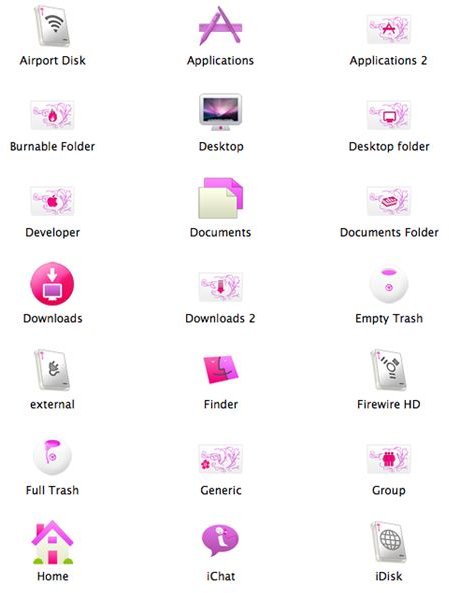
Second is Pixy Dust. It doesn’t replace the icons or folders for you (you’ll still have to do that manually) however it provides you with 50 different icons for your Mac (they are all pink and very girly, you’ve been warned). You can use them in place of the old icons to add a bit of color. The good news is Pixy Dust is completely free to download. If you’re a girl (or just a fan of the color pink) spice up your Mac!