It’s easy to remove your web and search history from Safari. You can also remove your browser’s cache files. This article provides a detailed guide to Safari’s features, and recommends some third-party utilities that offer more options.
Erase Browing History from Safari
It’s a good idea to erase your history and cache data from your Mac’s web browser on a regular basis, especially if several users have access to your computer.
In Safari , one simple method is to go to the Safari menu and choose Private Browsing. This feature was designed for short sessions, such as checking your online bank statement . When Private browsing is enabled, Safari won’t save pages to the history list. However, Safari won’t save or recover information entered into forms, either. Private Browsing is very helpful, especially when you are using someone else’s Mac, but it is not a good solution for everyday use.
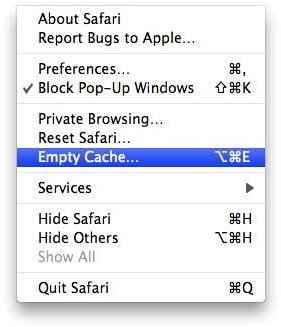
One easy method of erasing your web history in Safari is available on the Safari menu as History, Clear History. This immediately clears the history list in Safari, without any confirmation dialog. There’s a similar command at Safari, Empty Cache that will dump the browser’s cache files.
You can set the history preferences so that Safari will erase the history list on a regular schedule. Safari uses a default setting of one month. Other choices are available in the Safari Preferences, General dialog, including one day, one week, two weeks, and one year. A manual option is also available, so the user can choose History, Clear History whenever they wish.
[Image 1]
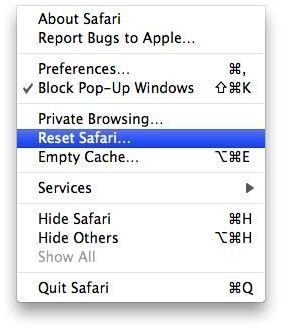
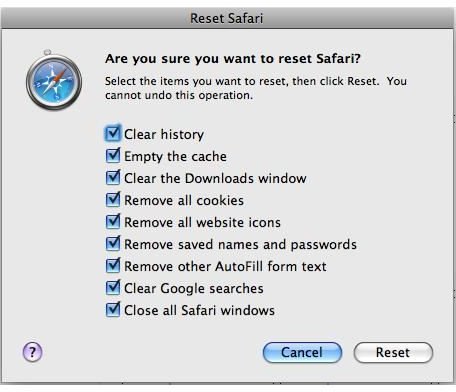
Another method of clearing data from Safari is available at Safari, Reset. [See Image 2] This dialog has several choices, so read the items carefully and select only the ones that you will need. By default, every item is selected in this box. This is any easy way to remove your search history from the Google bar in Safari, too. [See Image 3]
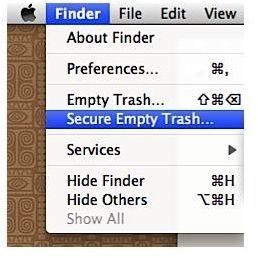
To permanently erase the cache files, go to Finder and open the User folder (the name of the computer). Then select Library, and then open the Safari folder. Move every file except Bookmarks.plist to Trash. After you have removed the files, you should also use the Finder and select Finder, Secure Empty Trash to remove the files from your Trash bin. Secure Empty trash will overwrite the file contents, making it harder for another user to recover the files. [See Image 4]
Third party programs and utilities can also manage the history lists and cache files. SmithMicro’s Spring Cleaning includes an application called Internet Cache Finder that can delete history lists, as well as the browser cache, forms data and cookies. Saft is a shareware Safari plugin that includes a history manager and several other features.
If you don’t want to pay a license fee, there are free utilities that offer history and cache removal features. Two of these are Safari Teflon and Onyx . Another advantage of these utilities is that they can run on their own, without starting Safari. Onyx is a powerful program, so read the instructions carefully before trying its advanced features.
Other Web Browsers
Check Browsing History on Internet Explorer .
Locate cookies on IE and Firefox


