How to View Remote Linux Desktop: Ubuntu Guides
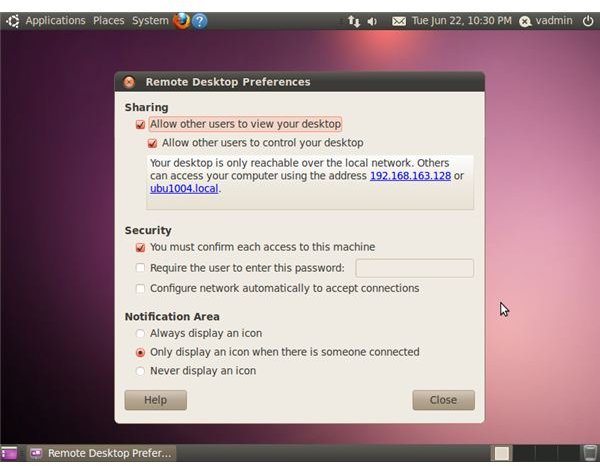
Share Your Ubuntu Desktop
Open the Remote Desktop Preferences Tool by clicking “System,” “Preferences” and “Remote Desktop” on your Ubuntu desktop.
Here’s a detailed explanation of all the available configuration options.
Sharing: “Allow Other Users to View Your Desktop” - With this checkbox checked, users can connect to your Ubuntu system and remotely view your desktop. This one has to be enabled to share your desktop.
Sharing: “Allow Other Users to Control Your Desktop” - Checked by default. If you uncheck this, people remotely viewing your Ubuntu desktop won’t be able to do anything to your computer, just watch what you do. If you’d like to remotely control your Ubuntu desktop, leave this enabled.
Security and Notification
**
Security: “You Must Confirm Each Access to This Machine” - Checked by default. Every time a user tries to remotely view your desktop, you’ll be prompted with a dialog box asking for your permission. This offers fine-grained control and nothing will happen behind your back, but if you want to remotely control your Ubuntu desktop without being at it, you’ll want to disable this. Be sure you set up a password if you disable this.
Security: “Require the User to Enter This Password” - You can type a password that the user is required to enter to connect here. You can enable both this and access confirmation for extra security, or disable confirmation and enable this for secure remote desktop access that doesn’t require to be at your computer. Be sure to use a strong password.
Security: “Configure Network Automatically to Accept Connections” - Ubuntu will try to use UPnP to automatically forward ports on your router so that users on the Internet can connect to your remote desktop server. Leave this disabled if you only want to view your Ubuntu desktop remotely on your local network. Enable it if you want users on the Internet to connect to you.
Notification Area Icons: By default, Ubuntu will show an icon in the notification area at the top-right corner of your screen when some one’s viewing your desktop remotely. You can have this icon show all the time by clicking “Always Display an Icon” or hide it all the time by clicking “Never Display an Icon.”
View Remote Linux Desktops on Ubuntu
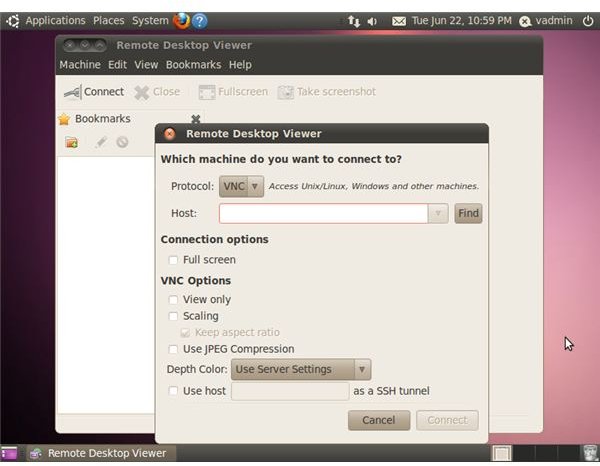
Open the Remote Desktop Viewer on a machine running Ubuntu by clicking “Applications,” “Internet” and “Remote Desktop Viewer.” Many other distributions, including Fedora, also come with this tool.
Click the “Connect” button on the Remote Desktop Viewer toolbar.
Select a VNC connection by clicking the “Protocol” box and clicking “VNC.”
Type the address of the remote Ubuntu desktop shown in the “Remote Desktop Preferences” window into the “Host” box on the viewer computer.
Click “Connect.”
More Information
Learn more about how to view remote Linux desktops with standard VNC client software on Windows with our guide here, or Mac OS X with our guide here.
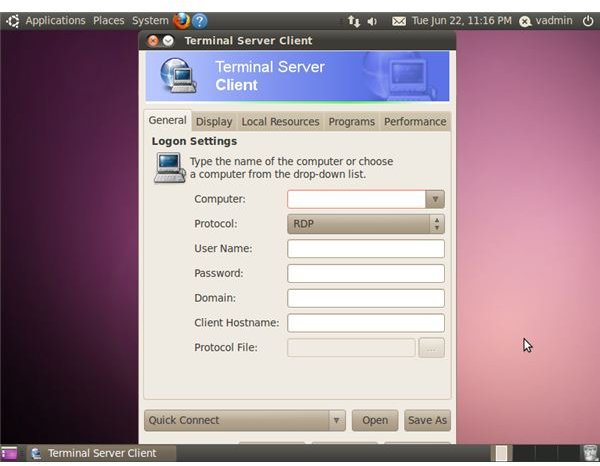
Ubuntu can also access Windows Remote Desktop servers. Click “Applications,” “Internet” and “Terminal Server Client.”