In OpenOffice.org 3.0 you can use a default template. Default templates are handy if you write a lot of letters with the same format or if you have to invoice and want to use your own layout for this. This article explains how to create templates in OpenOffice.org 3.0.
What is a Template? Why Do I Need It?
Templates are used to make our life easier. Administrators who write letters that are often in the same format can just use this template as default in OpenOffice.org 3.0. I would say if you have to make more than 10 documents and the layout is overall the same every time, then you should make a template document and use this to create all the documents from. It saves time, and let’s face it, we can all use more time in a day.
How to Create a Template
I will be using my default Kubuntu installation on my laptop. But basically, this should work the same on all Linux distributions and even on the Windows version of OpenOffice.org 3.0. Before we can change the default template in OpenOffice.org 3.0, we have to create a template. You have two choices – make a template from scratch or adapt one of the templates that OpenOffice.org 3.0 comes with.
You can find the default templates by opening OpenOffice.org 3.0. Go to the start menu select Applications (on you KDE Desktop or in Kubuntu). Then select Office. For the purpose of this how-to, we will use OpenOffice.org 3.0’s word processor. However this will also work in Calc (Excel), OpenOffice.org 3.0’s spreadsheet application. As well as in Presentation (PowerPoint).
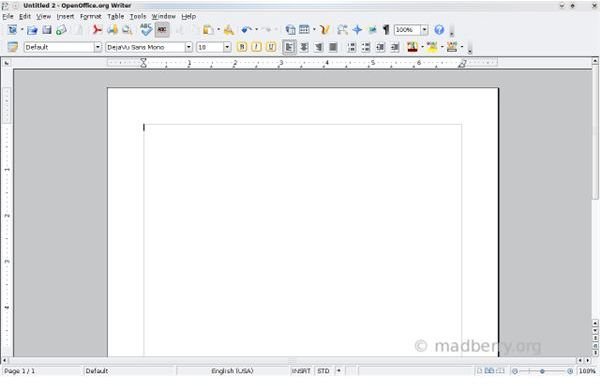
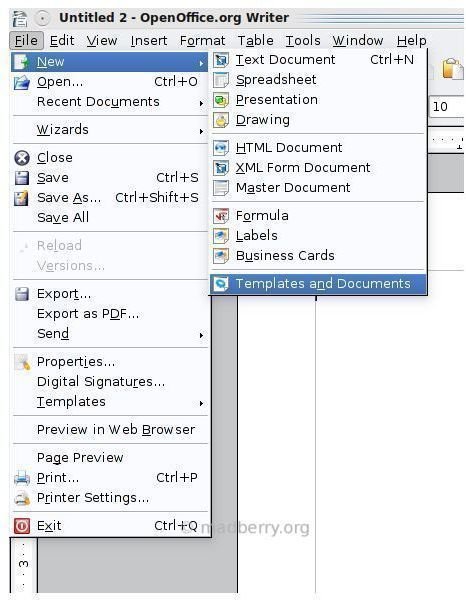
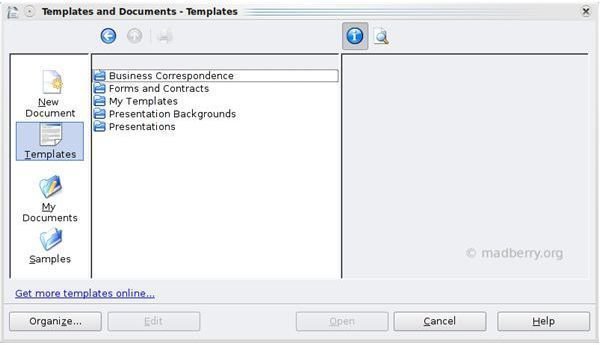
OpenOffice.org 3.0 doesn’t use a default template so you should now have a empty page. To open a template select file from the drop-down menu. Then select new, go to the bottom of that list and click on templates. Select Templates and pick your category. Chances are that what you need is not in the list of standard templates. This means we have to create the template from scratch. See images below for a step by step.
Select a Default Template
Creating a Template from Scratch is Easy
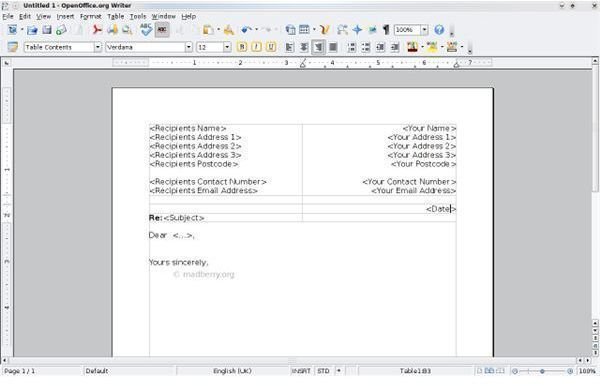
Creating a template is basically the same as creating a new document. If you have already created one of the documents, then you could just use that document. Start by opening a new document. Now create the document. Everything that has to be changed either goes within brackets [Recipient Name] or between the greater than and less than symbols
Of course you should replace
Example
Saving the Document as a Template
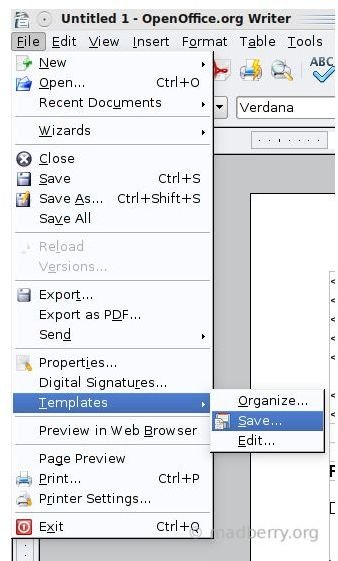
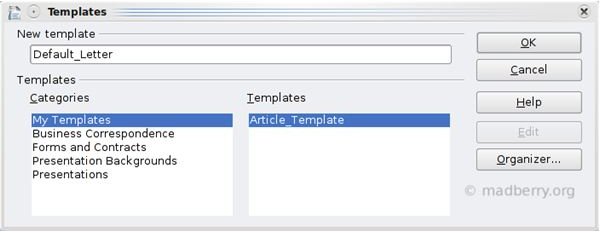
To save the document as a template, go to file in the drop-down menu scroll down to templates and select save out of the list. See images below for a step by step.
Create a Template from Scratch
Making the New Template Your Default Template
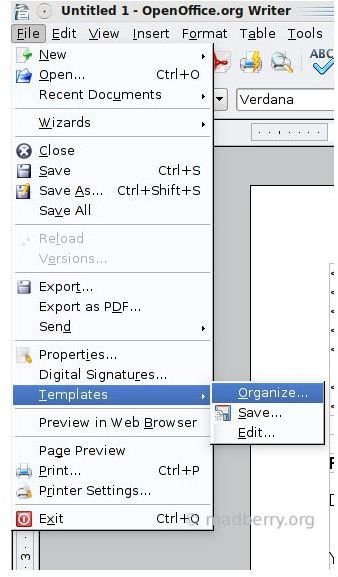
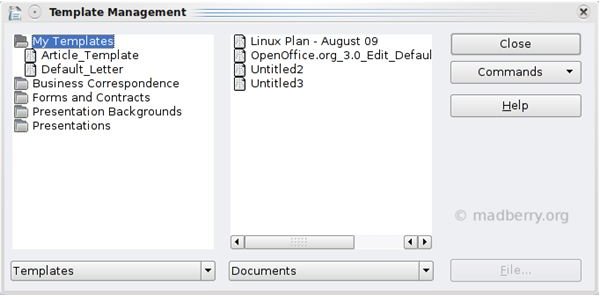
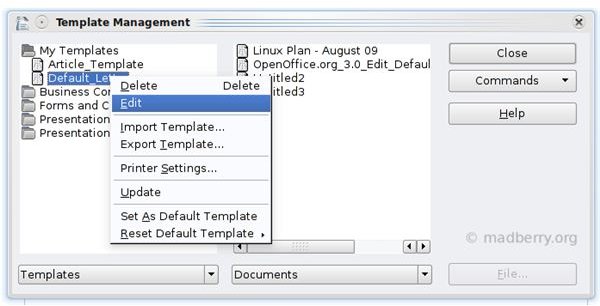
Go to file, and in the drop-down menu scroll down to templates and select Organize. Right click on the new template and select Set as default template. Now whenever you open Writer, it will open the template.
How to Edit The Default Template in OpenOffice.org 3.0
Go to Organize in the template drop-down again. Right click on the template you have set as default. Click edit. Make the changes then save the template by going to the template drop-down en clicking save in the menu. See images below for step by step.
Edit the Default Template in OpenOffice.org 3.0
Online Resources for Finding Templates
There are a few online resources you can use to find already made templates. OpenOffice.org has a website that has templates as well as extensions and some other goodies you can download from the website .
You could also download Microsoft Office templates . However you would have to download them on a windows computer. Then save them as a Office document(.doc) and import them to OpenOffice.org 3.0 file format. Then save the template as an OpenOffice.org 3.0 template.
It’s better to stay with open source. Opentemplate.org is the last site I want to recommend. All templates on this website are free of copyright.
Questions? Or Comments?
If you would like to share your opinion about this article or ask a question then please leave a comment below. Or send me an e-mail using this form .


