In this, the last article in the group “Warming up Children to Use Linux”, we take a different approach with other resources, such as articles, ebooks and parental controls.
Introduction
Setting up a Linux desktop system and installing applications is not enough to make a successful switch to Linux for your children. You need a few additional things to help them feel comfortable and go all the way to freeing them from a Microsoft-only future.
Linux Parental Controls
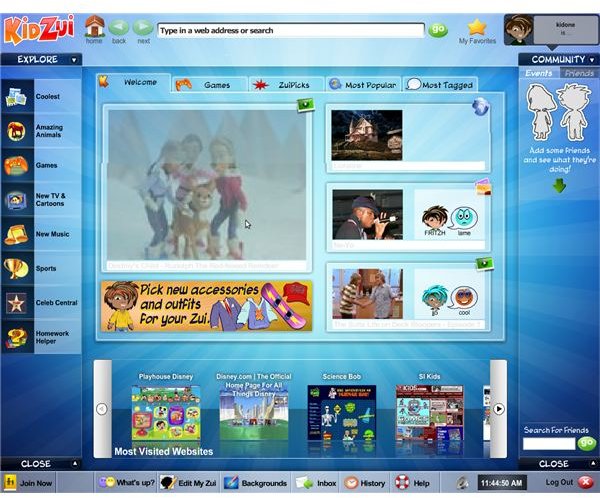
Linux offers in-depth parental controls as well as excellent solutions in other areas. You can find DNS configuration programs such as DansGuardian ; but these type of Linux parental controls are for parents who have a certain level of technical knowledge. There are also easier solutions, such as kid-safe browsers like KidZui .
KidZui is a free web browser for children, which will provide a very high level of Linux parental control. It has both free and commercial releases; the latter on a subscription basis. The subscription offers detailed reports of the children’s Internet usage (the free version offers weekly reports) on websites visited. An excellent report allows parents to determine what are their kids’ interests by their online activity. The kids are able to create their online content, share it with friends, get help on their homework with “Homework Helper” and decorate their own Zui with clothes and accessories. The program gives the kids the fun they want both through the program itself and online. These features make Kidzui an excellent package for Linux parental controls.
Parents can configure the program to their liking, or even set it so the children are not able to close KidZui and open another web browser. Or, parents can set KidZui to start automatically when the computer boots to desktop so kids can use it as an “environment” rather than a browser.
Ebooks and Audiobooks
Children today are “Digital Natives” in the term coined by John Palfrey and Urs Gasser in their Born Digital: Understanding the First Generation of Digital Natives , so a Linux for children cannot rule out ebooks and audiobooks. They will want to have ebooks and readers in their digital library. The Linux kids will want to have some audiobooks, which they can send to their media players and listen on-the-go. For the parents, TuxMobil is a great place to visit and save as a bookmark for children to download royalty-free texts and ebooks. When your kid can sync “20,000 Leagues Under the Sea” to his iPod in Linux, you have eliminated one of the Linux-transition barriers. You can do that in any distribution; you do not need a Linux for children distribution for that.
Articles
A lifetime is not long enough to experience everything in life, so we develop a survival strategy of learning from others’ experiences. Why not read about other parents’ experiences while they were trying to switch their children to Linux? Here are two great articles which you will find invaluable:
Software Resources
SchoolForge is a directory that contains Free Open Source Software (FOSS), including educational software. For each application on site, the platform(s) it runs on; Linux, Windows or Mac, is clearly marked. For kid and family-friendly games, keep MyGameCompany in your bookmarks, which screens the game titles for violence, adult sexuality and foul language and distributes the games that can pass through this screening process.
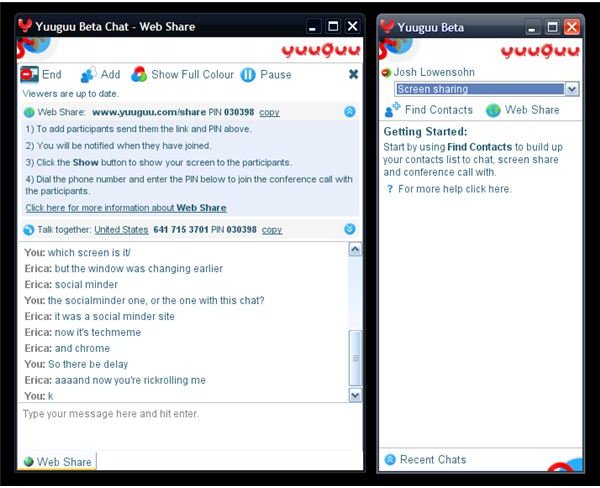
Finally, as you will be providing technical support for your kids (at least at first; they will learn how to fix things in a very short time), it’s useful to have a remote access program that supports Linux. YuuGuu is free and Linux friendly and you can set it up pretty quickly. If you are a tech-savvy parent, consider VNC.
Depending on your kids’ ages and depending on your computing resources, you may also want to give Doudou Linux a try.
Programming
If you think your children may be interested in programming, or if you want to see what they feel about programming and don’t know where to start, check this resource:
This article is a good start for parents and teachers alike, who want to train the Linux kids. The article, as the name says, is about teaching to children.
Conclusion
Keep all this in mind, and consider joining the conversation with other parents in “The Linux for Kids Experiment” page. All of this will go a long way to helping your kids switch to Linux.
Finally, two Bright Hub tips for you:
-
Keep the latest version of WINE installed (you can do that from your distribution’s package manager), so that if your kids ask you why they can’t play a game that they have played together with their friends, you have the possibility of installing it on their computers. If it doesn’t work with WINE, you may want to try Cedega .
-
If you have more than one child using the same computer, open up different accounts for each one and disable their access to one anothers’ files to ensure their privacy. Of course it’s Linux for children and they deserve their privacy.
Advertisement
Please share your experience below, in the comments section.


