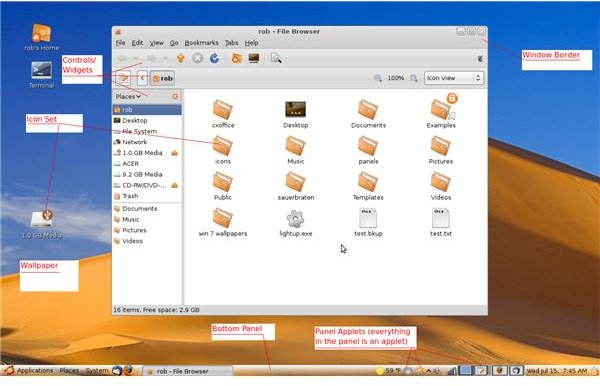
Unfortunately, many people still think of Linux and the Gnome desktop environment as having a look from the Pre-Windows XP days. This is no longer the case. Today you can make Linux look like anything from a minimalistic dark theme to a vibrant nature scene.
Default Desktops
The default colors of the Gnome desktop in many distributions is something I’ve heard many people complain about, within Ubuntu in particular. There is no standard “look” for Linux like there is for Mac-OS or Windows, because Linux is so customizable. Search Google Images , and you’ll find endless unique examples of Linux desktops.
Gnome, the default desktop environment in Ubuntu, has a huge number of available tweaks and add-ons with which you can give your screen a look that’ll get you excited to sit down in front of it each day.
Icon Themes
To my mind, the icons for folders, menus and programs are a big part of a desktops overall look-and-feel. Do you prefer clicking on icons that look cutting edge, or more like Windows 95? Many Linux applications use the system’s icon set for their menus and buttons, even Firefox (since version 3.0), so choose an icon theme you like because you’ll be seeing it everywhere on your computer.
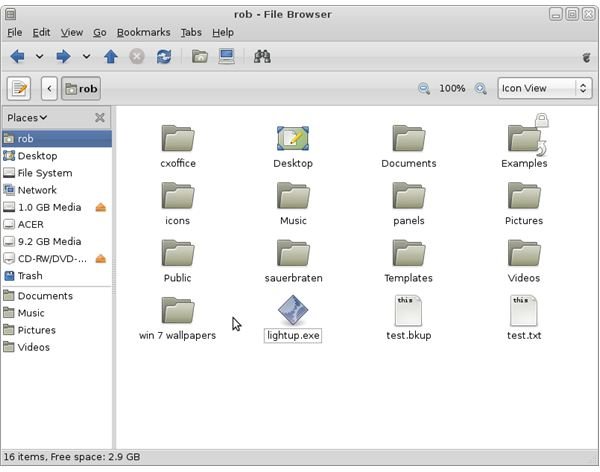
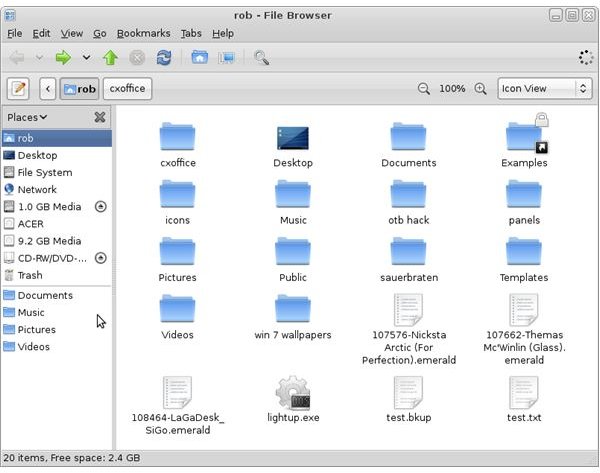
Ubuntu comes with a few icon sets, but there are many more available. Often, icon sets are created from common sets such as the default Gnome set, KDE 3’s Crystal, KDE 4’s Oxygen, Tango or Ubuntu’s default Human. I’ve been using a modified Human theme called Human Elephant Savane .
Gnome-look.org has dozens of individual icons and complete icon sets. If you only want a specific image for a certain program or function, try the categories on Wikimedia . Deviant Art has another nice repository of icon sets.
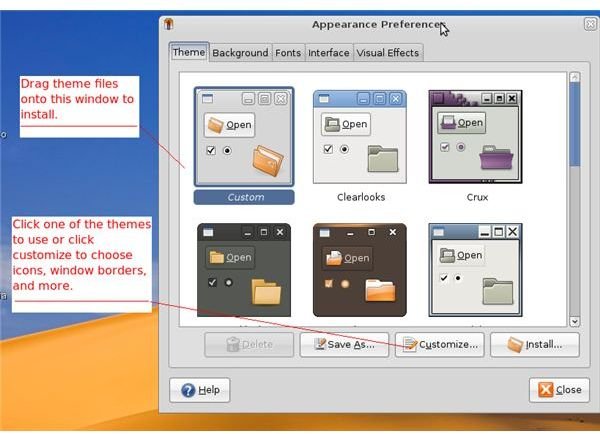
The icon set that you download will probably be a compressed file, so first unpack it. Installing the icon set on Gnome is a simple matter of drag and drop. Open Appearance Preferences from the Preferences menu. In the window that opens up, switch to the “Theme” tab and drag the folder with your icons onto the window. To use your new icons, click the customize button and go to the “Icon” tab in the new window that opens.
Windows, Borders & Decorations
Like icons, the borders and buttons around your windows really impact on the overall impression of your screen. The window borders are controlled by the window manager. To clarify, Gnome is not the window manager, but the desktop environment. There are many window managers that work well with Gnome, but most likely your distribution is using Metacity (the bundled window manager) or Compiz-Fusion for effects like the desktop cube. Many distros, like Ubuntu and Fedora, install both. Both of these offer many themes that are simple to install.
Switching between the two window managers is simple in Ubuntu. In the Appearance preferences, select the Visual Effects tab. Metacity is being used if the top option, “None,” is selected. To change to Compiz-Fusion, select one of the other options. Some graphic cards may need additional drivers installed to use the effects offered in Compiz-Fusion. By default Compiz-Fusion uses the gtk-window-decorator. This is also what Metacity uses, so your Metacity themes will work the same with Compiz-Fusion.
Emerald is another decorator for Compiz-Fusion. To install it, search for “Emerald” in your package manager. Make sure your manager also installs libemeraldengine0.
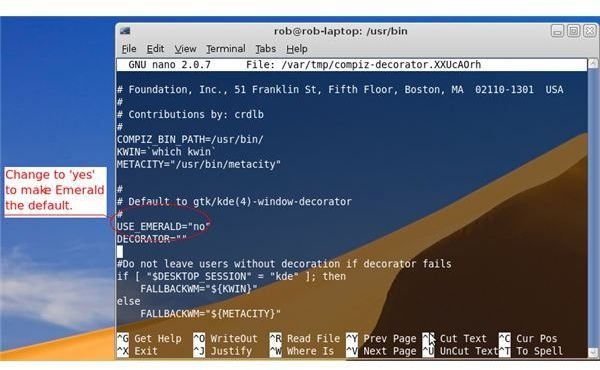
In Compiz-Fusion, the gtk-window-decorator is used by default. To use Emerald instead, in a terminal type: emerald –replace. To switch back to the default decorator, type: gtk-window-decorator –replace. This switch is only for testing. To make the change permanent you have to edit a config file. It depends on your system for which file to edit, but both files are in /usr/bin.
For Fedora, edit the file named “compiz-manager.”
On my Ubuntu 8.10, I had to instead edit file “compiz-decorator.” First, open it up with root access then locate the line USE_EMERALD=“no” and change “no” to “yes.”
You may have to restart your session before seeing changes.
Widgets & Controls
The term Widgets can be confusing. In this case we’re talking about the buttons, tabs and scroll bars that are in the program’s window, not the small applications that ‘float’ on desktops such as clocks and calculators - also known as applets, screenlets, or desklets. Like icons, most Linux programs will use the same widget theme on your system. And like icons, there are many free widget themes available.
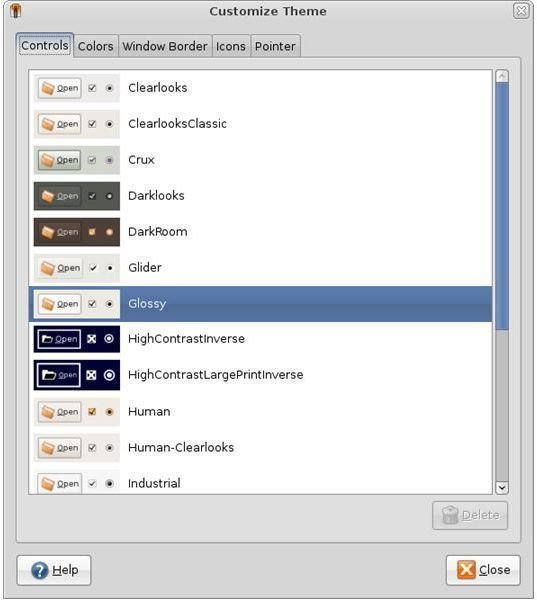
The same websites with the other free themes will also have widget themes. For Ubuntu and other Gnome-based systems, use GTK+ 2 themes. Installation is the same as with icons or window decorators, drag the downloaded file into the Appearance Preferences window. To activate a theme, click “customize” then the “Controls” tab.
Colors
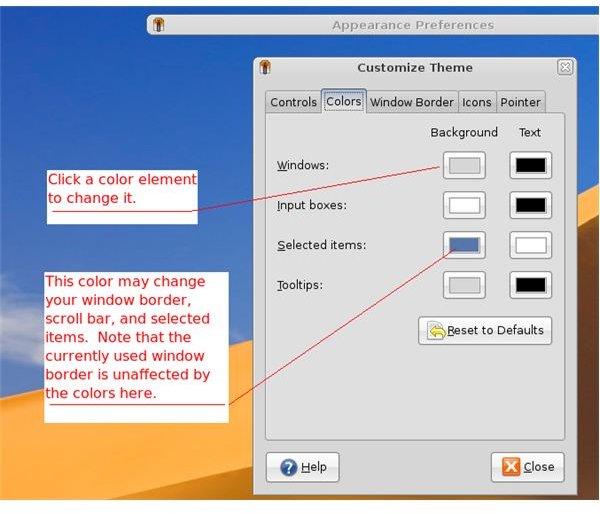
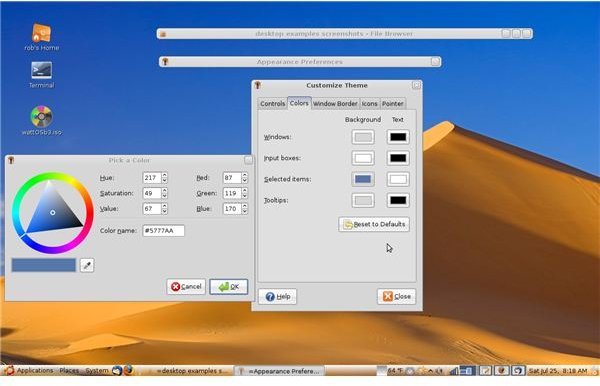
Some widgets/controls and window decorators have customizable color schemes. Not all themes accept these and it takes some experimenting to find what theme elements can have user-defined colors. The easiest and most noticeable customization is the selected items background to change the window scroll bar, highlighted items and in some cases window bar border colors. Use the eyedropper to match colors from other elements in your desktop like the wallpaper.
Wallpaper
Digital cameras have made it easy to turn our snapshots into desktop wallpapers that show off our treasured memories. Not handy with a camera? From nature scenes, to abstract colors, to cyberpunk themes, there is an endless supply of beautiful wallpapers on the Internet. Again, the same websites that have the Gnome icons and themes also have hundreds of free wallpapers to download.
Here are some other sites dedicated to desktop images:
Pixel Girl Presents - Hundreds of interesting images many with a manga style.
InterfaceLIFT - Currently almost 1900 images. This site specializes in wide-screens but will work for most resolutions.
Wikimedia Commons - Public domain images that are free to download. Not quite as well organized as some of the other sites, but worth checking out for the outstanding quality of many of the images.
commons.wikimedia.org/wiki/Category:Computer_wallpaper
commons.wikimedia.org/wiki/Category:Commons_featured_desktop_backgrounds
commons.wikimedia.org/wiki/Desktop_background
Hamad Darwish, a professional photographer who offers a compressed file of twenty-two amazing landscapes he took for Microsoft Windows Vista wallpapers . Through an arrangement with Microsoft, these are free to download - even for us Linux users!
Art4Linux - if you’re looking for something with your favorite desktop environment’s branding combined with a cool image, check out this site. Watch out for the pop-up ads, unfortunately.
Wallpaper Me - These images will help you forget you’re stuck at a desk and are instead in the great outdoors. Many categories.
Conclusion
There are many more customizations you can do to your Gnome desktop, from adding app-launching docks to screenlets. The possibilities are truly endless! Isn’t this what Linux is all about?


