How to List Linux Mount Points? Finding the Mounting Points for your Disks in Linux
Introduction
Finding your drive’s device addresses can be difficult in Linux unless you’re aware of certain ways to do so. I’m talking about the addresses which go something like /dev/sda or /dev/hdb. These devices, or others like these, are used to mount the drive to a folder so you can work with them. Unlike in Windows, your Linux distribution may or may not have automounting features for your drives. This guide will come in handy when you’ve just connected a hard-disk to your computer and need to mount it. We will take a look at a few commands which will help you do so.
fdisk
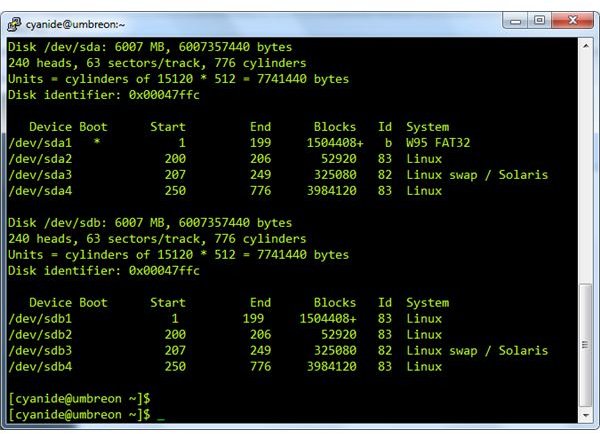
The fdisk utility is a well-known tool for partitioning your disks. But it can be useful to find the device files for your disks. The command “fdisk -l” will list all the detected hard-disks in the system and their partitions. Here is an example of the output you will get with the fdisk -l command.
As you can see, it shows that there are 2 drives connected to the system, /dev/sda and /dev/sdb. Both these drives have 4 partitions and are about 6GB in size. This information can then be used to mount the relevant partitions in Linux by typing the mount command like: “mount /dev/sda1 /mnt/win_disk” where win_disk is a folder you created in the /mnt folder. You can then access the partition’s files in the /mnt/win_disk folder.
dmesg
Another useful tool to find out about your drives is the dmesg tool. Although it can be an overkill for the purpose, it’s an invaluable tool when your drives are not getting detected in Linux or you’re having problems mounting them. dmesg is actually a log file in the /var/log folder where the Linux kernel outputs all messages. This includes a lot of information, warnings and errors, if any.
You can view the dmesg file by typing “dmesg” in the command line. This will display the complete file and scroll through hundreds of lines very quickly. In our case, we will pipe the output of dmesg into less, which will then allow us to view the information much more conveniently. This is done by typing the command like: “dmesg | less”
Here is an example of the dmesg command showing the relevant information about disks.
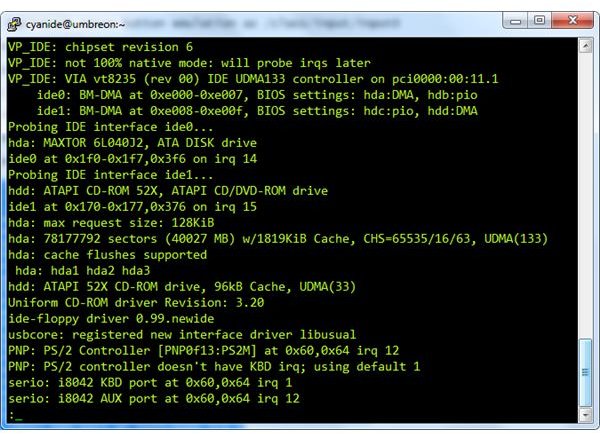
As you can see in this screenshot, the Linux kernel has detected a 40GB Maxtor drive at /dev/hda. You can also see the 3 partitions on the disk, hda1, hda2 and hda3. The CDROM has been detected and will be available at /dev/hdd. This information can then be used with the “mount” command to mount a partition like this: “mount /dev/hda2 /mnt/part” where the part folder will then show the contents of the /dev/hda2 partition.
Final Tips
Once you know how to use these commands, you can peer through the dmesg or fdisk commands for various bits of information that the Linux kernel gives you. Using the dmesg command, you can find out the size of your drive, a list of all the partitions on the disk, including hidden partitions created by your computer’s manufacturer, any errors that the kernel finds in your drives/partitions, and filesystems in use by each partition. This information can then be used while mounting the drives.