WinFF and ManDVD Review - Linux Video Converter and Linux DVD Author
Introduction
Whatever the reason may be, we need to convert files. We want to watch them in our cell phone or portable media player, we want to make a DVD of our last holiday, or any other reason you can think of. In Linux, you can do that very easily, as there are already a couple of very nice and capable open source programs that can do whatever conversion and menu editing you want to make in a couple of clicks.
WinFF: Convert Your Videos
First of all we need to convert our video files in a format that we can use in our DVDs. There are some video file formats that can cause headaches when you want to input them directly to your DVD authoring program; at the top of the list there is the FLV format. FLV (Flash Video) is the file format used in video sharing websites, such as YouTube. If you have some files that are in FLV format, it is better to change them to AVI or MPEG before going on to create your DVD.
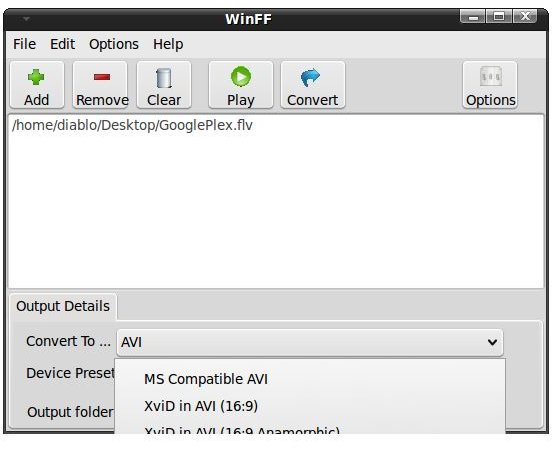
WinFF comes in handy at this point. The graphical user interface is extremely simple, and the program does nothing more than converting video files. You click the Add button, select your video file, in the bottom pane select the output file format in the “Convert to” and select the “Device Preset.” Selecting AVI format in the “Convert to” box and “MS Compatible AVI” in the Device Preset is the safest way to go in many cases. As a side note, there are already preset values for iPod, PSP, Mobile Phones and mp4, so you can use the program to convert video files to your portable device easily.
Save your video file and then open up your DVD authoring program to continue.
ManDVD: Create DVDs Easily and Professionally
ManDVD is a simple but powerful DVD author for Linux. When you start the program for the first time you will be asked to select your language. Then your required output display settings, PAL or NTSC. The resolution is automatically assigned depending on your choice.
In the main window of ManDVD, you select which video files you want to have on your DVD. You select your video from the top left under “Add or Modify Media Segments” box. When you add your video file, you will be prompted to enter the video title. In the same window, you can capture an image from the video to put in to your main DVD menu. This simple but very intelligent feature is not present in any other DVD authoring programs for Linux. Of course there are ways to do that but we want things to be as simple as possible. Within the same window, I suggest you to check the audio and video synchronization and make sure that they are in sync. Better safe than sorry; you would not want to watch a video in which the images and sound are not synchronized.
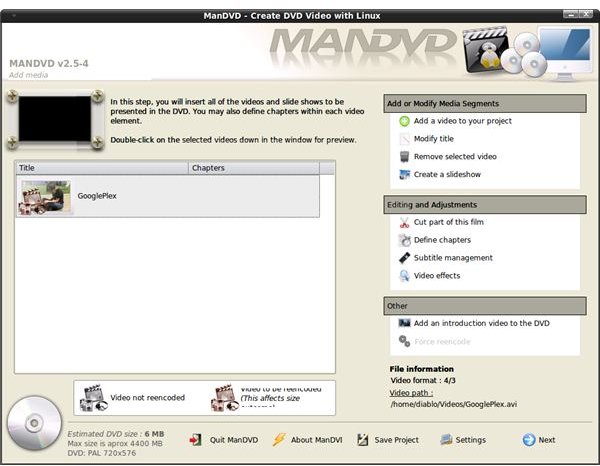
When you are done, you are basically finished. But if you want to go on further, there are options for you to explore. Just go to the “Video Effects” menu under the “Editing and Adjustment” box in the right and apply the effects that you want. Be warned in advance, depending on your computer’s speed and the size of your video file applying video effects can take considerable time.
Here we have finished the basics. Click on the “Next” button in the bottom right to continue with making and placing menus in your DVD. Select your DVD background, set button positions, set tab orders and then click the “Next” button again. In the last screen, click the “Options” button at the bottom to make the necessary adjustments. If your videos do not take too much size on DVD, it may be a good option to increase the video bitrate. Do not forget to check the “Deinterlace video” checkbox if you are planning to watch your DVD on an LCD screen. Finally select “DVD_Menu” under the “Start reading DVD with” dropdown box. When finished, click on the “Options” button again to save your changes. From the right, at the bottom, set your output video’s aspect ratio (4:3 or 16:9) and select the “Force AC3” option. Selecting AC3 is important because some DVD players do not play sound if it is not encoded in AC3 format.
When you finished with everything, just click on the “Generate DVD Structure” at the top right and wait for ManDVD to complete generating DVD player compatible file structure. You can then go on and watch your movie and/or burn it directly to watch in your home theater system.
Conclusion
Video authoring in Linux is very easy thanks to the open source community. The software is freely available and they really do their job as intended.
WinFF and ManDVD are the two top programs that you would want to keep in your video conversion and DVD authoring toolbox.Many of the distributions have these two programs in their repositories, so you can simply go to your distribution’s package manager and install them.