In the past, the only way to have Windows and Linux coexist on a single computer was to dual boot your system. This forced you to log out and reboot every time you wanted to switch between the operating systems. Creating a Virtual Machine allows the two to coexist happily on the same laptop.
System Requirements
There are two sets of system requirements for VirtualBox , the system requirements to actually install the software, and the system requirements for the guest operating system. You can install the virtualization software with the minimum system requirements, but to actually run one or more guest OS, it is good to remember that more is always best.
- Processor: Any recent Intel or AMD processor.
- RAM: 512 mb is the lowest recommended amount. However, whatever memory you allocate for the guest will not be available for the host. It is best to have at least 2G for optimum performance.
- Hard Disk: VirtualBox requires only 30Mb of disk size, but the Guest OS will also need space for installation, applications, and data. It is best to have at least a few Gig of disk space.
Installation of VirtualBox
For our purposes, we are either trying run a Linux Guest on a Windows host, or a Windows Guest on a Linux host. Therefore, we will need either the Windows executable file or the Linux installation files.
Installing on a Windows Host
In order to install the file on a Windows host, you must have Windows Installer 1.1 or higher on your host. As long as you have the installer, all you have to do is download the Windows binary file and install as usual.
Installing on a Linux Host
In order to run a graphical version of VirtualBox on a Linux host, you will need to have Qt 4.3.0 or higher and SDL 1.2.7 or higher (typically called libsdl).
VirtualBox has installer packages for many of the major Linux distributions. This is the easiest way to install the software. Choose the correct package, and use the package installer.
For Ubuntu 9.10 download the correct package and then type:
sudo dpkg -i VirtualBox_2.2.2_Ubuntu_edgy.deb
at the command line.
Installing the Guest Operating System
Start the VirtualBox program.
On a Windows system, you will find it under Programs.
On a Linux system, you will find it either under System or System Settings.
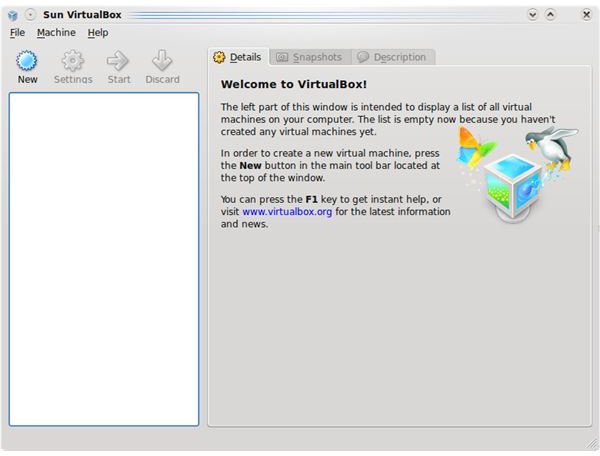
Click the New button to create your first guest operating system. (Click on any image for a larger view.)
The wizard will walk you through the set up.
1. Choose the name of your Virtual Machine. If you are going to have more than one VM you should be as descriptive as possible.
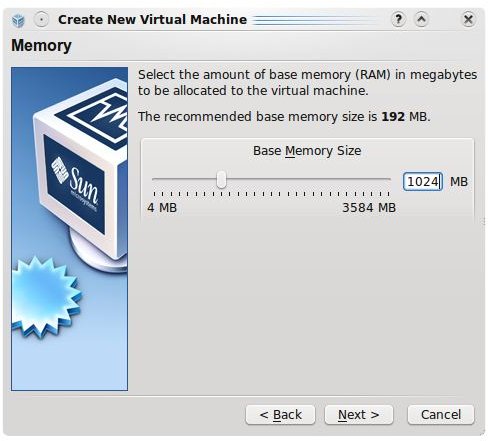
2. Choose the amount of RAM you want dedicated to the Virtual Machine. Be careful when choosing this memory, as it will be completely dedicated to the guest machine. Choose enough that the guest will operate acceptably, but not so much that the host will be not be able to function properly.
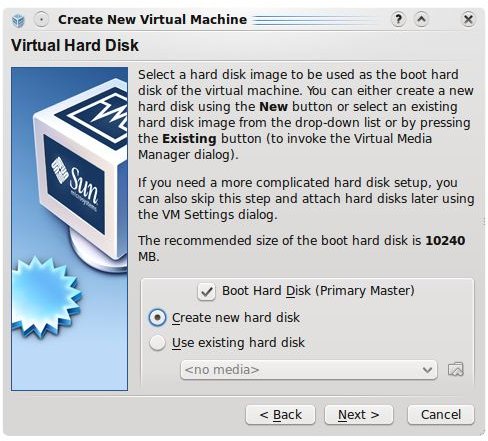
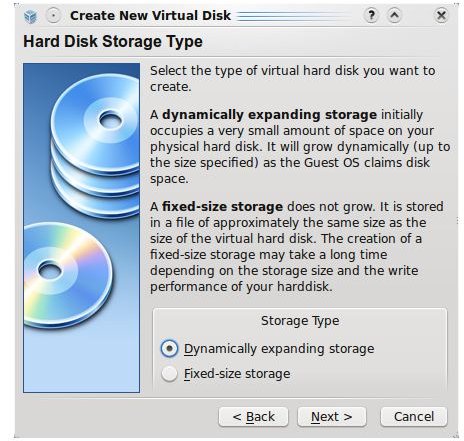
3. Specify a hard disk for the guest OS. Unless you have a dedicated hard disk for the vm, you will probably want to create a new disk image. You can either create a dynamically expanding hard disk, or a fixed size image. I recommend a dynamically expanding hard disk, as it will grow as you add applications and data.
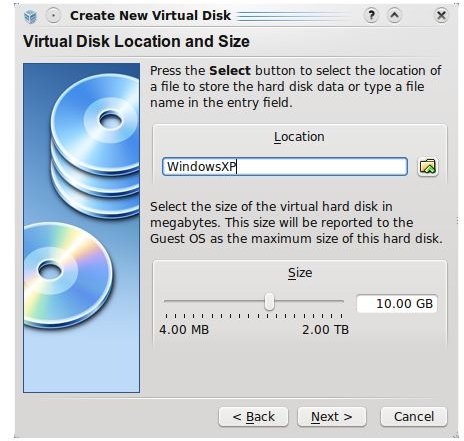
Once the virtual hardware is defined, start the VM and define the cd-rom where the installation media resides, either an iso file or the host’s physical cd-rom. From there, you can install the guest operating system as usual.
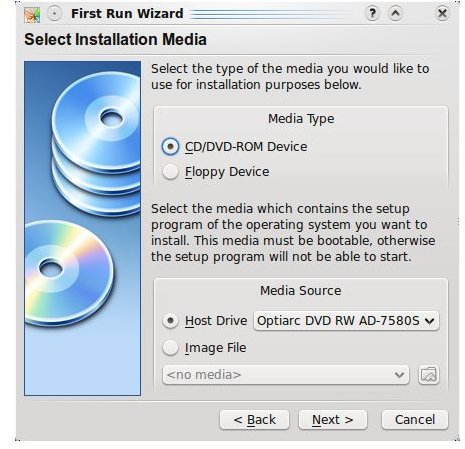
As you are installing the guest, your mouse and keyboard will work differently than normal. To work within the guest, you will have to click within the guest window, to release the mouse and the keyboard, press the right ctrl button.
Once the installation is done you can install the Guest Additions. These additions will allow:
- Mouse pointer integration
- Better video support
- Time synchronization
- Shared folders between host and guest
- Seamless windows Shared clipboard
- Automated Windows logons
When you are finished, your guest operating system will work seamlessly with your host and you have the best of both worlds. A more detailed installation guide can be found by reading the User’s Manual found on the VirtualBox download page.


