Programming in Gambas and Distributing Gambas Files

Gambas Programming
Now we need to make the program DO something. Let’s start with the menus. Click on the “Quit” entry in the File menu and a text area should appear with the cursor in the middle of a pre-named subroutine called PUBLIC SUB Quit_Click(). Whatever code we put in here will run when the user clicks the Quit item (easy, isn’t it?). Enter the following code:
FMain.Close
and save the project. Run the project now and the Quit menu option should close the form for us.
Gambas Basic is an object-oriented language, which means that all our controls, including the form itself, carry baggage around with them in the form of properties and methods. Properties are settings that we can change, while methods are things that can be made to happen. One of the things that can be made to happen to the form is closing, and we just made it happen. Object-oriented programming can either be incredibly easy or horrendously difficult, depending on how far you want to go with it, but friendly user interfaces like this would be virtually impossible without it.
Add the following code to the other menu items:
Clear – TextArea1.Text = " " Copy – Clipboard .Copy(TextArea1.Text) Paste – TextArea1.Text = Clipboard.Paste() In this case, Text is a property of the control called TextArea1, and Copy and Paste are methods associated with the system object Clipboard. Run the program and check that your code works so far.
Programming the Word Count
Programming our word count button is going to be a little more difficult, but not much. If you know some Basic or Visual Basic already you will find that most of it works in a predictable way within Gambas. If not, check the Web or hunt up a good book. There are a variety of ways we can get Basic to count the words in our box, but for the sake of simplicity I will do it by running through all the text one character at a time, counting the number of spaces, and adding one. The result won’t be perfect, but it should be close enough. Click on the Count Words! button and enter the following code after PUBLIC SUB Button1_Click(). Gambas will take care of the spaces and capitalization.
DIM i, w AS Integer
FOR i = 1 TO Len(TextArea1.Text)
IF Mid(TextArea1.Text, i, 1) = " " THEN
w = w + 1
NEXT
Label1.Text = w + 1
Here we are defining two variables as integers (whole numbers) and calling them i and w. As newly defined variables they start off with a value of zero. The Len() function gives us the number of characters in our text area, and the Mid() function pulls out each new character in turn. If it is a space character, the variable w is increased by one. Having looked through all the characters, we add 1 to the value of w for the last word (which isn’t followed by a space) and put the final value in the label.Check if your program is working, make any corrections that are necessary, and save it.
Packaging and Distribution
At this stage we have a working Gambas project file, but the only people who can use it are those who already have Gambas
installed. That leaves out a lot of users! To make your program more portable for distribution, there are two steps you can carry out:
1. Make an executable file
2. Package the file for distribution as a .deb
To make an executable file, go to the Project menu and select “Make Executable.” Within a few seconds this will create a file called XYZ.gambas, where XYZ is your project name, inside your project directory. This can be copied and distributed to anyone who has a runtime version of Gambas installed, which includes by default most of the major Linux distributions. A second option, “Project/Make Source Archive’ will just bundle together all the files associated with the program into a single compressed .gz file.
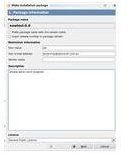
To make the application more portable still, it can be bundled into an installation package. “Project/Make Installation Package” gives
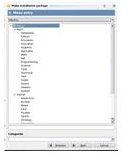
the user the option of making installation packages for any or all of the major distros: Debian, Fedora, Mandriva, OpenSUSE, and of course Ubuntu. A wizard then takes the user through the necessary steps: the creator’s name and email address are added, the appropriate group is chosen for repository storage, and a default Applications menu category and position is specified for each distro package. Gambas then compiles the necessary files into a distributable which can be uploaded to a repository.
What Next?
Now that you know how to do simple Gambas programming, what comes next? There are any number of easy projects you can cut your teeth on. Unfortunately Gambas support on the web is a little sparse, and the built-in help is little more than a list of commands, but a Google search for ‘Visual Basic’ will bring up many tutorials and books that you should be able to adapt to Gambas relatively easily. Later, when you want to extend your skills, here are some topics to look into:
- Saving and opening text files
- Graphics – using Gambas to make patterns and designs in a drawing area
- Connecting with and modifying a mySQL database
- Control groups and arrays: connecting one piece of code with many different controls
- Multimedia: using Gambas to create sound, music and video players
- Games: from simple text games with random numbers and a timer through to complex movements and designs.
With the end of 2013, programmers at Gambas were discussing its continued portability, especially vis-a-vis the Linus kernel. Code writers are determined to continue updating it.
This post is part of the series: Gambas – A Visual Basic for Ubuntu?
Gambas is a GUI-based programming environment that brings the ease and charm of early versions of Visual Basic into the Linux environment.