In this first part of a series about web authoring in Linux, we will look at the most basic methods first, methods as simple as selecting File, Save as… HTML to create and publish your web pages without going into the details of HTML editing.
We will start our web authoring series with basic end-user applications and then progress to the more advanced ones. In this first part, we want to look at the applications that allow us to save and publish our pages in HTML with just a few clicks of the mouse. This means that the actual composition is done in the application and little specific knowledge about HTML editing is needed.
LibreOffice Writer
Users familiar with using Microsoft Word in a Windows environment may already be familiar with Word’s ability to save the current page as an HTML page. The same capability exists in LibreOffice Writer, the popular Linux office suite.
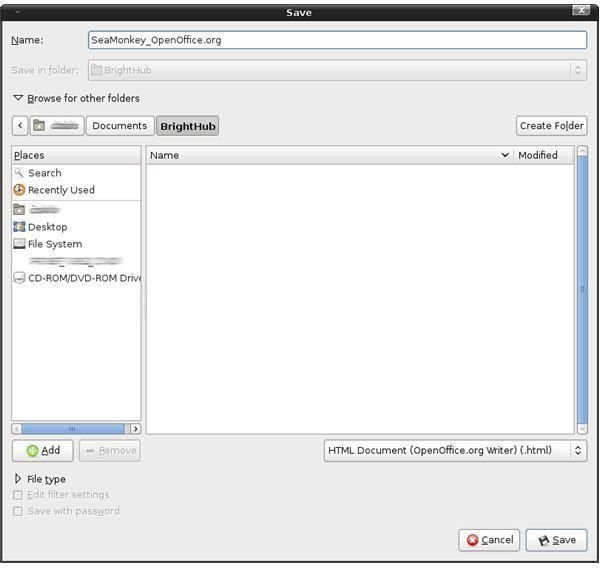
With LibreOffice Writer, you basically compose your text and format it the way you like in an intuitive and familiar word processing interface. You can insert tables and images, change the font and text background colors, and make other customizations. When satisfied, go to File, then Save As… which brings up the dialog below. Select HTML Document (LibreOffice Writer) (.html) and choose the directory in which you want to save your .html file. And that’s it. You’re done.
LibreOffice’s Writer is best suited for people who are not much into HTML editing and who are more concerned about the content of their pages than the design. I would recommend using LibreOffice Writer for
- composing pages without learning too much about web page design. You do not need to care about tags, opening and closing
tags and the like. You simply compose and save.
- writing documents as easily in a word processor and saving them in one place. You can create several articles, import them from text files or from another word processor, apply some formatting, and save them in a directory. Then you can simply link the files to each other and upload them to your web site.
Seamonkey Composer
SeaMonkey’s Composer module offers somewhat basic web authoring. The interface is very clean and elegant. Upon opening a blank file, you can start typing immediately, putting tables, images and links to your page. All of these, including font type/size selection and bold/italic/underline text formatting are presented in the program’s interface.
Advertisement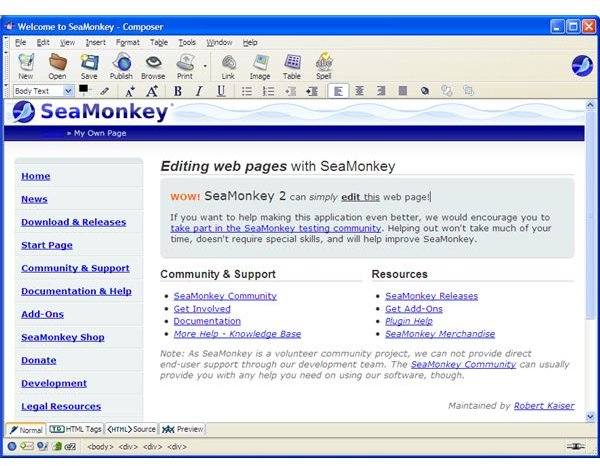
With SeaMonkey’s interface, you can go one step further and analyze how your document is translated to HTML code. At the bottom, you can click “HTML Tags” to see the tags in your document or “HTML Source” to see all the codes that the program prepares in the background without your intervention. You can edit the HTML code to see its effects or just to make changes at the code level. SeaMonkey’s Composer also offers a “Preview” button, which enables you to see your webpage in a browser before uploading it to the Internet.
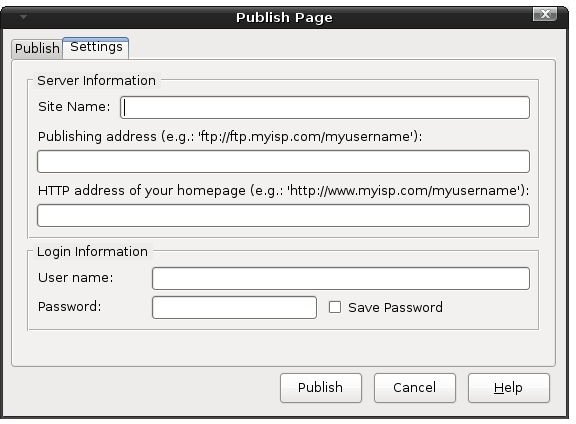
AdvertisementSeaMonkey also offers functionality to upload your web pages to your web site without using another program. To do this, you just select “Publish” from the icons and enter the required information such as web page address, username, password, etc.
 Advertisement
I can recommend SeaMonkey’s Composer module for users
- who have just started learning HTML. You can write a basic sentence, format it and see the changes in the HTML Tab or HTML Code tabs. It’s very useful to get going with HTML coding.
- who want to create their own web pages without too much focus and effort on the formatting.
The reason why SeaMonkey’s Composer is somewhere between a wordprocessor and an authoring program is that it does not allow the user to author a website completely. You cannot create a project, see your website’s structure (file/folder views), or see where you upload your images.
AdvertisementWe must mention that W3C validation is one click away. You can go to Tools → Validate HTML and see how your website is evaluated by the World Wide Web Consortium (W3C). You can see any mistakes you have done by HTML coding, any tags that you forgot to close, etc. Believe me, W3C’s HTML validation tool has no mercy.
Thank you for reading this. Please watch for further articles in this series as we move from basic webpage creation and editing to complete website authoring, all in Linux.
AdvertisementImage credits:
SeaMonkey Page Editing: SeaMonkey 2.0, https://www.seamonkey-project.org
AdvertisementSeaMonkey Publishing: SeaMonkey 2.0, Tolga BALCI
This post is part of the series: Web authoring in Linux
You are getting ready to install Linux as your primary operating system but still talking with yourself: “How can I manage my website? I only know the programs in the common operating system!”. Hop right in because in this series we are proving that you have no reasons to think about this.
Advertisement- Web Authoring in Linux: (Novice) LibreOffice Writer & SeaMonkey Composer
- Web Authoring in Linux: (Intermediate) NVU/KompoZer
- Web Authoring in Linux: (Advanced) QuantaPlus
- Web Authoring in Linux: (Advanced) Screem/Bluefish

How to Install and Use Linux Bash on Windows 10
This article will walk you through installing and configuring the Bash shell on your Windows 10 machine. It’s not quite …

Using Android Cortana to Enable Alerts in Windows 10
This article will show you a great new feature in the Windows 10 Anniversary Update – Cortana integration on Android …

Windows 10 Celebrates with Anniversary Update
Windows 10 was released just over a year ago. Microsoft has released their second major update to the new OS, but what’s …
More topicsAdvertisement