Installing an operating system onto a computer has never been easier. Puppy Linux is fast, straight-forward and easy to install on any computer. Its small size and feature-packed design allows you to be up and running in a matter of minutes. And I’ll show you how.
Installing Puppy Linux
Ready, Set, Go!
With the Puppy Linux Distro burned onto a CD from its downloaded ISO image, and a computer that is ready and willing to accept this fascinating little Linux-based distribution, you are now ready to commence the installation process. And while there are a few options available for end-users to choose from during the installation, it is always advisable to stick to the default settings offered during the installation process.
Before commencing, make sure that your computer is capable of booting from the CD-ROM. You will first need to run the Live CD version before installing it. This is also a good practice run to ensure that your hardware is capable of running Puppy Linux.
Booting From CD
- Insert your Puppy Linux CD into the CD-ROM drive of your computer.
- Power up your system and allow it to boot from the CD.
During the initial boot from CD, you will only be prompted for a select number of variables. Additionally, the selection process also provides detailed information on the available options, allowing you to make the proper decision. But, it is advisable to choose those options they recommend, as they have been proven to be highly effective and operational over the other available options.
- Select the keyboard layout you are using (the default setting is QWERTY - USA).
- Select the XORG graphics mode.
- Select the default resolution setting (this is typically 1024x768x16).
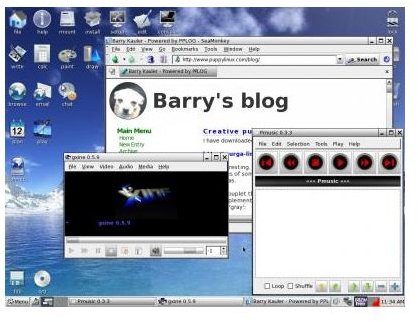
Following the resolution settings, you will be greeted with the Puppy Linux desktop. Notice the pink colored bar across the top center. Click on it to get a quick “How To” tutorial about Puppy Linux. But if you prefer to jump right in and permanently install it on your hard drive… follow me.
Hard Drive Installation
**
Install To Hard Drive
Puppy Linux has a really neat feature called the Puppy Universal Installer. This is an installation wizard designed for the purpose of installing Puppy Linux on a number of different devices: from USB flash drives to CDs and even the hard drive. Today we will focus on installing Puppy Linux on your hard drive. The process will also depend on variables you will supply answers to: selecting default settings where applicable and/or recommended.
- Right click on your desktop, and under Setup, select Puppy Universal installer.
- From the available media options, select Internal (IDE or SATA) hard drive.
- Choose the drive you wish to install it to, if more than one is displayed.
- Puppy Linux will display the specifications of the drive you are about to use.
NOTE: It is highly advisable to install on a hard drive that has been formatted with either EXT2 or EXT3 file system. If your hard drive is not reflecting either of these file systems, you should run GParted application to correct this.
- When ready to install onto the hard drive, click the icon next to Install Puppy to… (Please note that the drive description could change from one system to another based on configuration. In the case of most older single IDE drive based computers, this will typically display as SDA1.)
- Acknowledge your selection to install the distro to the hard drive by clicking on the OK button.
- Select the CD option on the next window. This tells the wizard where the installation files reside.
- Make sure the CD is still in the drive and click OK to proceed.
- Select the FULL installation option to install Puppy Linux on the entire drive. (Although the Wizard recommends the Frugal option, it is best to dedicate the entire drive to Puppy Linux, since this is what we are actually aiming to do. If you prefer to run the Frugal option, you will need to choose partition sizes and other variables that may not be suitable for beginners. More experienced Linux users will typically choose the Frugal option.)
- Puppy Linux will begin its installation to the hard drive and prompt you when it is done.
- For its booting option, select Install/Update GRUB.
- Select Install to proceed; then choose OK at the next window to confirm.
- For the GRUB Configuration, choose the default simple value and click on OK.
- Choose the default standard resolution and click on OK.
- For the GRUB partition, keep the default path and click OK.
- For the GRUB destination, keep the default Root value and click OK.
- When the installation is complete, you will see the GRUB INSTALL SUCCESS window. Click OK.
- You may be prompted to reinstall GRUB. If so, simply select No to exit.
Finalizing The Installation
Making Puppy Linux Bootable From Your Hard Drive
When done, reboot the computer. During this first reboot following the installation, you will be prompted to save a few configuration files.
- Save your session by selecting SAVE TO FILE.
- On the warning message that follows, select OK to proceed.
- Keep the default partition to create the pup_save.2fs file and select OK to proceed.
- Allow the system to generate its own name for the file… just select OK without entering anything in the blank field.
- Select Normal for no encryption.
- Keep the default value of 512MB for the personal save file and select OK to proceed.
- Verify your settings in the Final Insanity Check window and select YES, SAVE to finalize.
- The last part of the install asks if you wish to install other save files onto the hard drive. Before responding, make sure that the CD is back in the drive and select Yes. (Depending on the size of these files, the process will take a little while to complete. This is normal.)
- Once complete, the system will complete the reboot process that was previously initiated.
Booting Up For The First Time
Following the reboot, Puppy Linux will display a couple of options following the Linux choice. Unless there is a booting problem, there is no need to choose any of the GRUB related options. Simply press the enter key on this screen to continue the booting process.
During the very first boot of Puppy Linux, you may be prompted to select the keyboard, video mode and resolutions. Choose the default values and proceed to boot into Puppy Linux. Following this initial boot, you will not see these 3 variables prompt you for a selection again, unless a corresponding piece of hardware is modified and the OS detects it.
You are now officially ready to enjoy Puppy Linux!
.
This post is part of the series: Puppy Linux - Comprehensive User Guide
What do you get when a Linux-based operating system distribution is designed for all user levels, from beginner to pros; is feature-packed with every essential application you need; runs on just about any PC; takes less than 100 megs of space; and is absolutely free? A Puppy: Puppy Linux, that is.


