Nautilus is the file manager in the GNOME desktop environment. But you can extend its capabilities very easily. How? By installing and using scripts.
Introduction
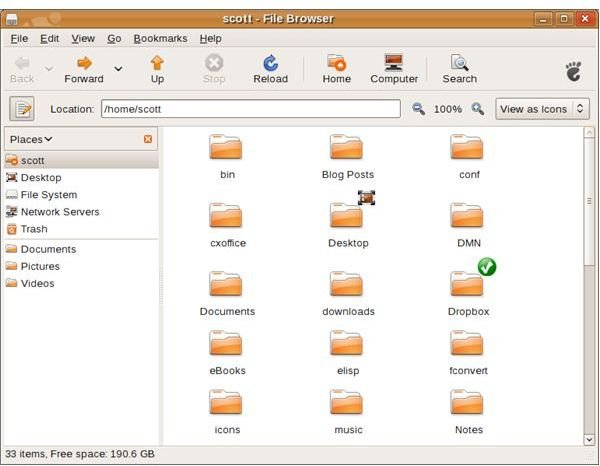
If you’ve used the GNOME desktop environment, you’re probably more than just slightly familiar with the Nautilus file manager. But Nautilus is a lot more than that. At least it can be. Using scripts, you can expand the capabilities of Nautilus to do … well, any number of things.
Scripts, you say?
If you’re familiar with scripting, skip this paragraph. If you’re not, then all you need to know is that a script is simply a text file (written in what’s called a scripting language ) that you can run at the command line to perform a specific task.
A Nautilus script can be written in any scripting language. It simply carries out an action on one or more files and folders. You run the scripts from within Nautilus; there’s no need to drop to the command line.
Getting some scripts
One of the great things about Linux, and free and Open Source software in general, is the user community. Members of the community go out of their way to create some interesting software and scripts for a variety of Linux applications. And Nautilus scripts are no exception. There are literally hundreds available that enable you to:
- Move files or transfer then via FTP or email
- Convert audio and video files to different formats
- Mount ISO files and Windows shares
- Rename multiple files
- Install fonts
And more.
You can download scripts from a number of sites, including G-Script , this site , and GNOME-Look .
Installing the scripts
Once you’ve downloaded one or more scripts, they’re easy to install. If the script came in an archive (a file with the extension .zip, .gz, or .bz2), double click on the archive to open it in the GNOME archive manager. Extract the contents to the folder .gnome2/nautilus-scripts in your /home directory.
If, on the other hand, you downloaded a script file just copy it to the scripts directory. Remember that the directory is hidden. To view it within Nautilus, select View > Show Hidden Files.
Installing the scripts, continued
You should also make the scripts executable. To do this, first open a terminal window – select Applications > Accessories > Terminal – and type cd .gnome2/nautilus-scripts. After that, type chmod +x followed by the name of the script.
Then, to make the scripts visible in the file manager, restart Nautilus by opening a terminal and typing killall nautilus.
Using the scripts
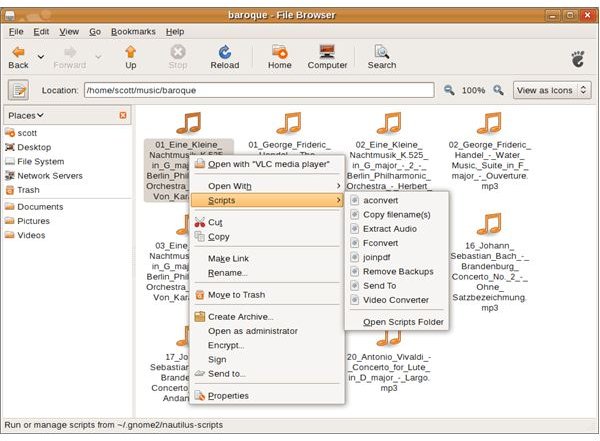
So, how do you use these things? Start Nautilus, and go to a directory that contains files you want to toy with. Right click on a file, and choose Scripts from the menu that appears. Another menu that contains your scripts will pop out. Select the script that you want to run, and the script will do the rest.
Depending on the script, the function that script performs will either take place in the background or you’ll be prompted for input. Note that sometimes you may need to install additional software for the script to do its job.
Some useful scripts
As I mentioned earlier, there are a lot of interesting Nautilus scripts out there. You’ll probably only find a handful of them useful. Here are a few of my favorites:
I listen to quite a bit of music, and I prefer the open Ogg Vorbis format to such popular but closed formats as MP3 and WMA. The audio-convert script enables me to quickly convert files between formats.
Sometimes I’m lazy. And when I need to combine PDF files , I can’t always be bothered dropping to the command line. The Merge PDF script lets me do the deed without leaving Nautilus.
Copying and moving files can be a bit of a chore. It could involve typing long strings at the command line, or selecting and copying/cutting and pasting within Nautilus itself. The Copy To and Move To scripts make both processes easier.
Final thoughts
Nautilus scripts add a lot of power and flexibility to what seems like a simple file manager. The scripts are easy to install and use, and can make your computing a lot easier.


