Bright Hub Review of the Trendnet TEW-633GR Wireless N Router - Unboxing and Setup
Packaging and Presentation (4 out of 5)
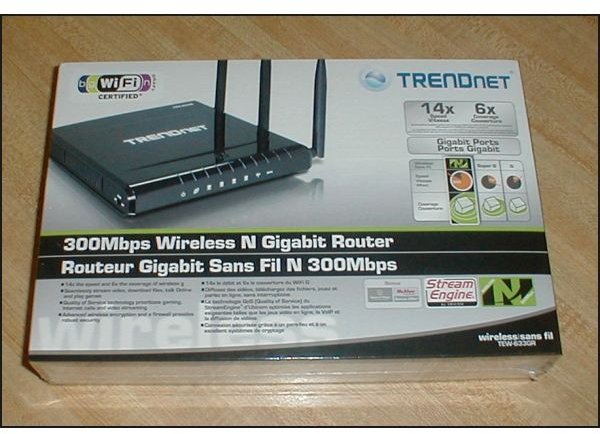
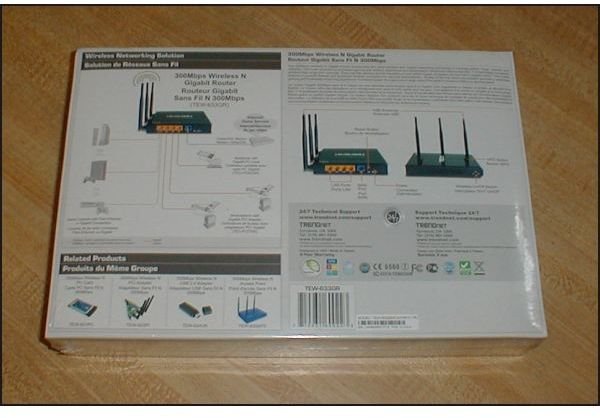
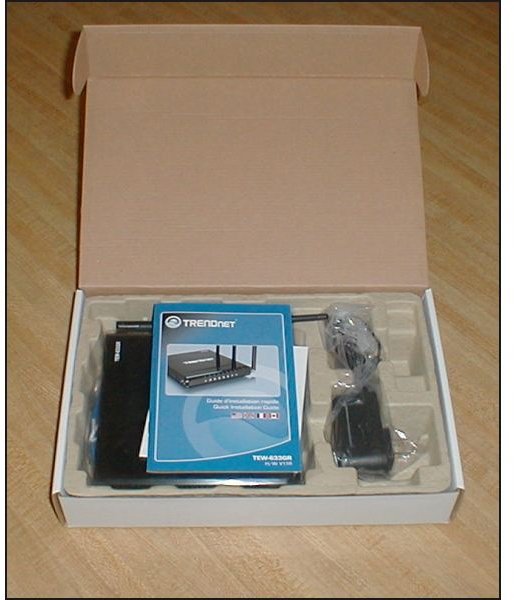
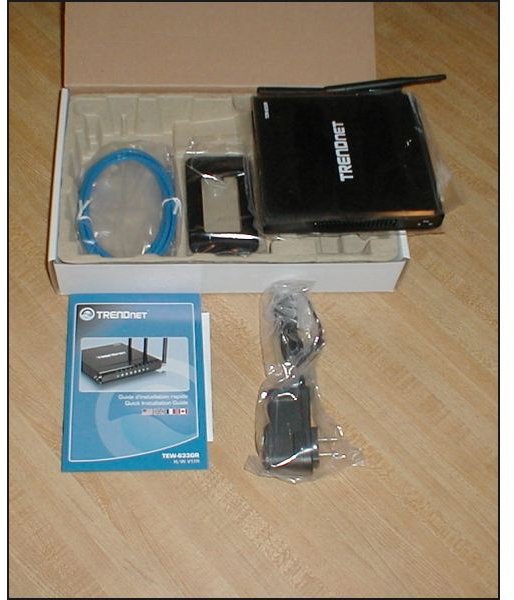
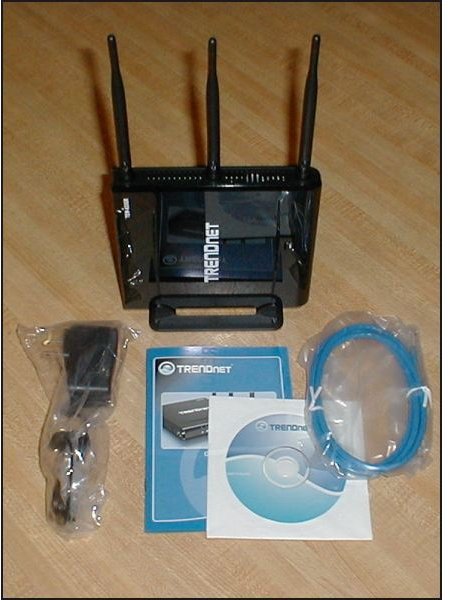
The product came in a shiny box that proved to be a liner over an OEM cardboard box. The box was sturdy and the components were nestled in paper-mache-like egg-crate material. The router had transparent plastic applied to each side for protection. An Ethernet cable, a brief User’s Guide in French (first) and then English, an end-plug power adapter, as well as the driver CD were included. No parts were missing or damaged.
Fit, Finish, and Design (5 out of 5)
The router proved to be a shiny, piano black fingerprint magnet. That seems to be par for the course in today’s products. A snap-on base was included if you want to stand the router upright. Conveniently, the router also has four rubber feet in case you want it to sit horizontally.
Fit and finish were excellent. Trendnet did a great job of hiding the assembly fasteners.
Design is very straightforward. A “WLAN On-Off” switch is located under the “nose” end if the unit is upright. This shuts down the wireless network without affecting the local Ethernet connections. A “WPS” or “Wi-Fi Protected Setup” button is also provided. We did not test this as we did a mixed manual and wizard setup and did not need it. However, in theory, it should make creating a home network easier - if the client adapters also support it.
On the back of the router are four Gigabit Ethernet ports that can take cross-over Ethernet cables as well as standard cables. This is where the LAN connection to the modem is made, as well as where the power adapter plugs in. A reset switch is also provided in this area.
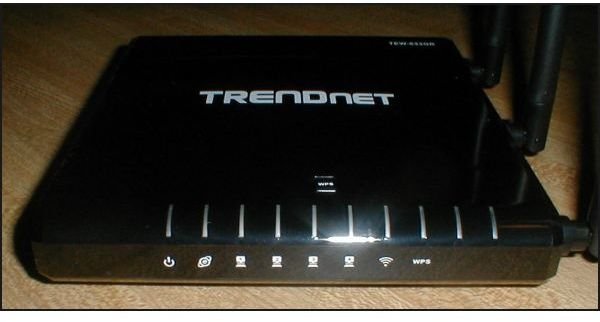
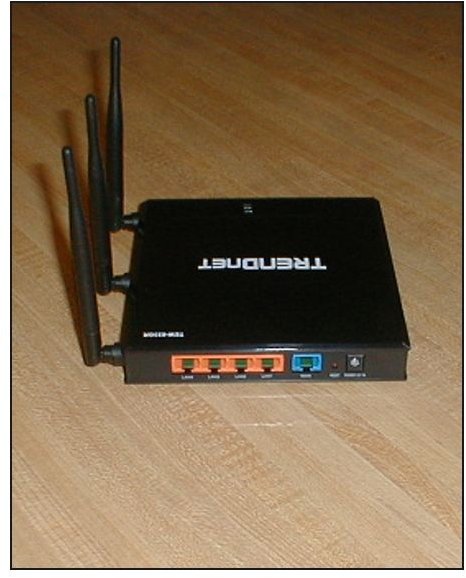
I would have preferred to find antenna connectors rather than the fixed masts provided, but this is an economical router intended for in-home use. Some nice touches are simply not needed for the majority of users.
Software Installation (4 out of 5)
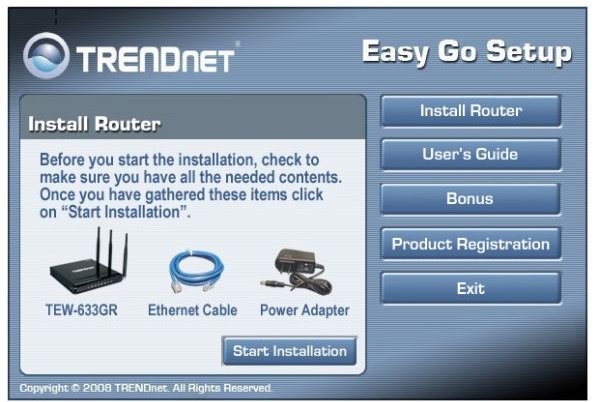
The User’s Guide simply steps through the set-up program’s screens. (The more comprehensive manual is on the CD in the “Manual” subdirectory.) The installer is labeled “Easy GO Setup,” although later screens are credited to “Network Magic Technology.”
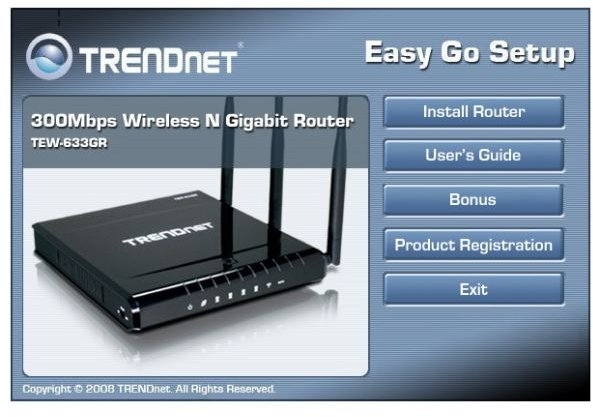
It first advises you to collect all the needed components…
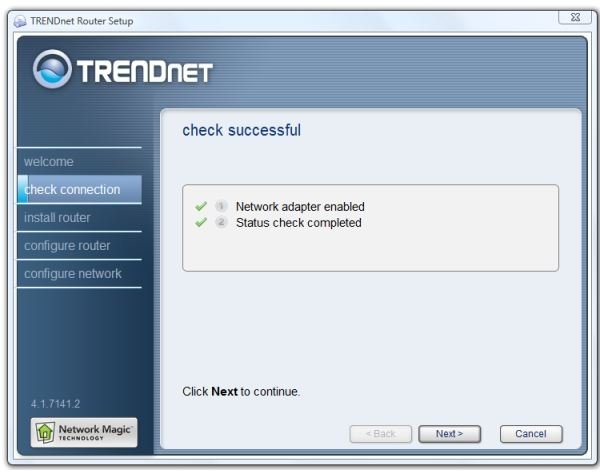
And then the installer looks for the Internet connection. (At this point, you should have the modem plugged directly into the PC.)
Here’s where I ran into a problem. The installer correctly detected that my ADSL+ modem, a BellSouth/AT&T Motorola 2210-10, is also a router. However, it then gave me two options, neither of which I wanted. One was to use the 633GR to replace the Motorola. The second was to add the 633GR “behind” the Motorola and use them both.
To make a long story short, I discovered that the Motorola modem can be used as a router. Since it only has one Ethernet port, however, that didn’t make much sense to me. Happily, it can be switched over to a “Bridged Ethernet” mode, and then the Trendnet wizard will find it as a regular modem.
I also wrote about that, so if you need help with a Motorola 2210-10 (BellSouth version only, as the setup menus are different in other AT&T service areas), please see Trendnet TEW 633GR Router vs. AT&T/Bellsouth Motorola 2210 Modem.
Assuming that your cable or DSL modem will be detected as a modem (and not as a router), the installer next guides you through the steps of hooking up and configuring the router. Along the way, you’ll be specifying a password to access the router, a (hopefully strong) password for accessing the wireless network, a name for your new network, deciding whether or not to broadcast the SSID (network name), and a choice of network security - WEP or WPA. WPA is preferred unless you need to connect older hardware.
On the other hand, if your equipment is all very recent and capable of draft N connections, you can go into the modem settings (as is well described in the manual on the CD) and turn off mixed environment mode. This refers to the router providing a mix of A, G, and N connections. A slight performance benefit will be provided by specifying N only.
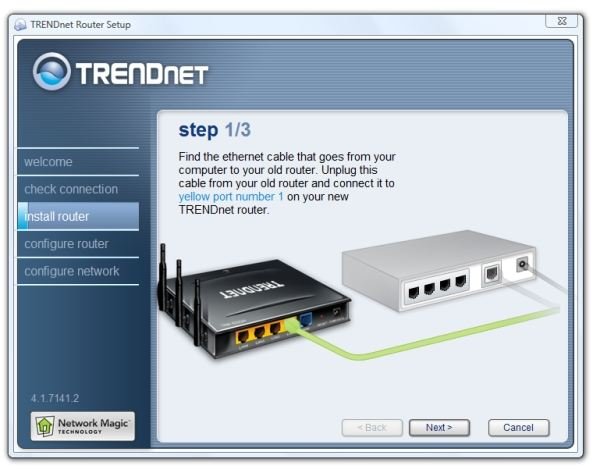
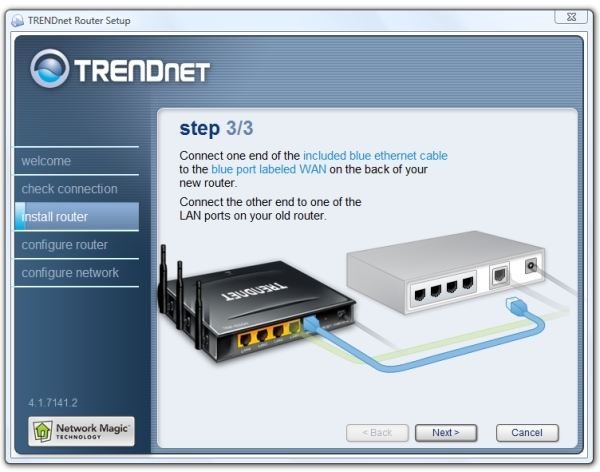
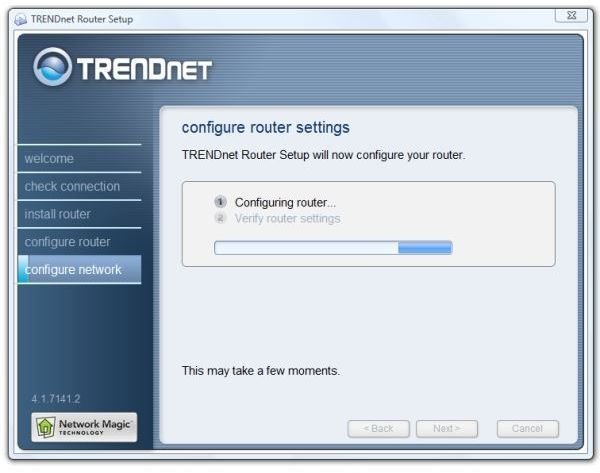
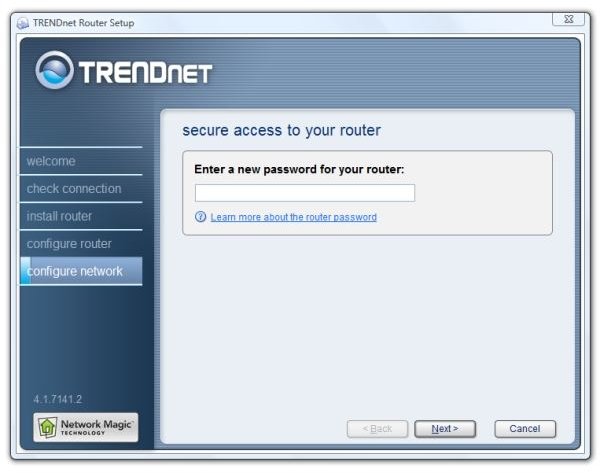
At this point, the installer program sends the programming to the router. It warns that “This may take a moment.” Actually, it may take several minutes. When you see the activity light on your modem flash, the router setup is almost half over.
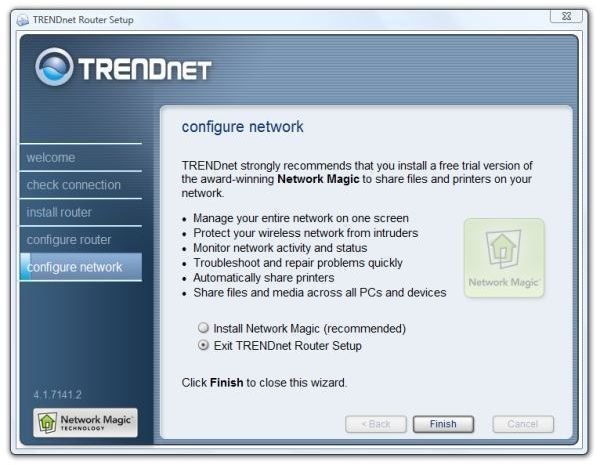
The installer also offers to install a trial version of Network Magic, a home network manager by Pure Networks.
Next: Wireless Performance, Testing Method, Testing Results, and Conclusion
Wireless Performance (5 out of 5)
And here we get to the meat and potatoes of the review. Standard testing methods for networks talk about the throughput and response time. That’s sort of boring. Let’s look instead at the two things that make a wireless N network desirable: speed and range. For this, we’ll use speedtest.net and a ThinkPad T61p notebook with built-in Intel 4695 AGN wireless.
Testing Method
My office is actually a dedicated, set-aside space in a barn. It was originally a storage room, but with an added outside door, a couple of windows, and some creature comforts like floor covering, it became a welcoming working room. The house is eighty feet away. The barn is wood framed with vinyl siding, and the Trendnet was placed in a rear corner. Standing with the antennas straight up, the Trendnet was placed at a 45° angle to the corner walls and the base of the unit was fifty-two inches from the floor. We did some measurements in the house, and then we put the laptop in the car and drove around the place some. We used Vista’s “Connect to” dialog to determine the signal strength and used Speedtest.net over the Wi-Fi connection to test the speed. We tracked our progress with a GPS device, and we converted the latitude and longitude readings to distance using the coordinate distance calculator at https://boulter.com/gps/distance/.
Testing Results
Baseline - in the office, the laptop provided 3921 kb/s down and 394 kbs up. Results taken outside were:
- 303 ft - Signal Good - 4146 down, 357 up
- 187 ft - Signal Excellent 4115 down, 401 up (straightline view)
- 199 ft - Signal Good - 4320 down, 375 up (on the opposite side of the house)
- 226 ft - Signal Good - 4139 down, 375 up
And, upon returning, we recorded 4232 kb/s down and 367 kb/s up.
We found that the throughput remained good as long as the laptop had good or excellent reception. Once it fell to fair, webpage timeouts and page not found errors began to occur. In the longer distance test, which included 303 feet of slightly uphill terrain, we found that going just a few feet past the high point caused the connection to degrade rapidly. When the reception was rated as poor, Vista disconnected. Once this happened, we had to get much closer than the last successful connection point in order for it to reconnect.
This suggested that a Draft N connection is tenacious and fast, but once you exceed the comfortable range, it rapidly degrades and becomes useless. Fortunately, a large umbrella of coverage is formed, especially in comparison to my previous “Super 108” setup. Super 108 or Super G is a dual wireless G connection that requires a matching card in the laptop from the same manufacturer as the base station. This network barely reached into the house 80 feet away.
Results inside, by the way, were comparable, in that all attempts rated a good connection, and it was consistent in every room of the house. We won’t list the test results here, but suffice it to say that neither the laptop nor the Trendnet had any trouble maintaining both the connection and throughput.
Conclusion
And that’s the Bright Hub Review of the Trendnet TEW 633GR wireless N router. Although I’ve had a N-capable notebook for over a year now, this was the first time it’s been used with a wireless N network. I was absolutely startled by the first connection, in which I decided to take the notebook outside and see how far I could stay connected to the network. I stayed within line-of-sight, and the connection dropped at what I later determined to be 723 feet.
Of course, I later found out that the router tries to decrease the connection speed when the signal from the client is weak. In more formal subsequent testing, I found that the range of a good or excellent connection is very much limited by terrain. This is the distance within which you can actually connect to the Internet and do useful things. After that, things degrade suddenly and totally. (It reminds me of digital TV signals. You either get them or you don’t. There’s no half-way point.)
Test 3, the one at 199 feet from the router, was actually on the other side of our two-story house. The signal had to pass through at least four sets of walls, or did it?
Maybe not. Wireless N networks use MIMO, for multiple input-multiple output, which depends on a reflected multipath signal, or parts of the data coming in from slightly different paths. Since I don’t know what path the signals followed to reach my laptop, I can’t definitely say whether most of it, all of it, or some of it actually had to pass through the house.
But that’s sure what it looked like to me.
So should you run out and purchase a Trendnet wireless-N router? (I’m sure that would make Trendnet happy if you did.) It’s a very fast and economical wireless N router with mainstream features and attractive modern styling. If you already have a laptop that is wireless N-capable, it’s a great accessory to liven up and replace your wireless ad-hoc network. Should you worry about the 802.11n standard still being in draft? I think not. I used a Lenovo laptop with an Intel chipset for testing, and it worked great with the Trendnet. I think it’s not likely that the standards body will break what’s already out there working.
300Mbps Wireless N Gigabit Router - MSRP $112.99