A firewall on a router or other network device isn’t always necessary. There may be times when you need to turn it off. Netgear don’t make it easy, but come inside and learn how to do it!
Firewalls are great tools. They are like the locks on your doors and windows, keeping nefarious characters at bay. They protect you from the bad guys and do a good job of it too. They aren’t infallible, and a determined hacker can defeat them given time, but they are well worth the time and trouble of installing and configuring.
Some users have the luxury of sitting behind a dedicated hardware firewall, or have built one out of old PC components as a project. In these cases an extra firewall on the router is probably redundant. If you’re just running a software firewall on your computer, it isn’t always enough, so if you’re considering disabling the Netgear one because you have one on your desktop, don’t. An extra layer of defense is always worthwhile. As it adds no real workload on the router, there is no harm keeping it running.
The Netgear series of routers has a packet filtering firewall that is as effective as those of any other manufacturer. What they don’t provide though, is an easy method of switching it off. Netgear regards firewalls as so important, that there is nowhere in the GUI to disable it. We all agree that firewalls are important, and should only be turned off if absolutely necessary. So although I’m going to show you how to turn off a Netgear firewall, I won’t advocate actually doing it.
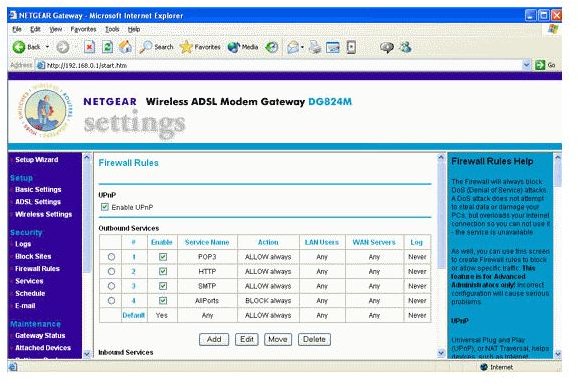
To get around this little stumbling block we have to make a firewall rule and add it to the firewall configuration. The devices have two main rules.
Inbound Services: Block all access outside the network except responses to requests made inside the network.
Outbound Services: Allow all access from the inside out.
These rules can be manipulated in order to go around the firewall. While not turning it off per se, we are negating its effect on traffic over the network.
To do this you need to access the devices admin screen in a browser. This is usually https://192.168.1.1 or https://192.168.0.1 depending on the device. Access the administration application by entering your username and password, then navigate to the Security page, then to Rules.
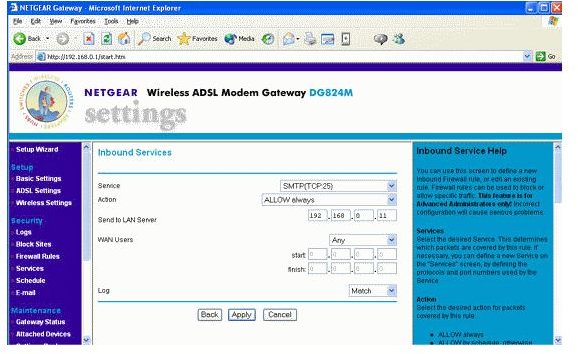
Add a new rule to the Inbound Services section with the Service name Any and the action of Allow always. Move it so it is the first rule in the section and check Enable.
Ensure the new configuration is saved and then close the browser. Your network is now no longer protected by the Netgear firewall. Were you to change your mind and want to reinstate it, just uncheck Enable and save the configuration.