How to Tweak a nVidia Video Card Using the Control Panel and Other Settings
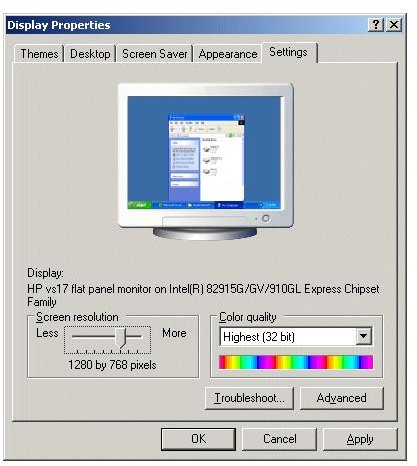
Windows Control Panel Options
The first step in tweaking your Nvidia graphics card is the Windows Graphics Control Panel. Make sure the display reading gives your actual display type, if not locate the drivers for your display and install them. Having the proper drivers for your display ensures proper picture reproduction. The color quality is also a setting that’s useful in tweaking your card and higher quality equals richer pictures. Just be sure to remember, the higher the quality, the more power your graphics card will have to devote to rendering images. Under ‘troubleshoot’ there will be a slider for hardware acceleration. This slider should be set all the way to the right so that graphic functions that can be handled by your video card efficiently are sent directly to the card and not dealt with by the CPU.
Nvidia Control Panel Options
The Nvidia Control Panel offers most of the options that are used when tweaking the card. The panel interface is customizable through the view window. Users can select the ‘Define Custom View’ option to access a list of categories. This list displays the components of the control panel that can be tweaked. By selecting the’ Advanced’ view, all options will be shown.
3D Settings
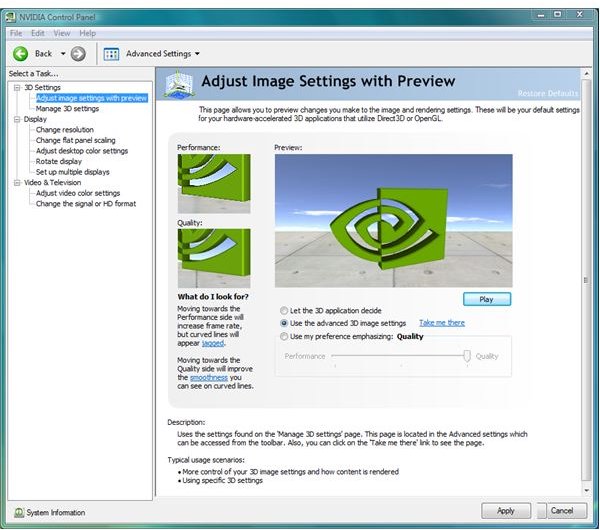
Many of the advanced features of Nvidia graphics cards were implemented in order to handle 3D computing tasks. As such adjusting the 3D settings in the control panel can have a large effect on card handling. Users can simply select ‘Let the 3D Application Decide’, but for genuine tweaking, users should go with the ‘Advanced 3D Image Settings’ followed by the ‘Manage 3D Settings’ option which lets the user manually adjust the image settings.
The real work in tweaking an Nvidia card is done in the ‘Manage 3D Settings’ area. You can tweak every aspect of 3D graphics for your card, applied globally to all games and 3D applications. From the long list of options the user can alter anisotropic filtering and antialiasing settings, set performance for threaded CPU optimization and the use of multi display systems, filter the textures and control vertical sync operation, and choose power management settings for the card. For the ultimate tweaker there’s the Manage 3D Settings program settings mode which allows users to make program specific settings, usable with any game or application that utilizes 3D graphics.
GPU Based PhysX
Newer Nvidia graphics cards, such as the GeForce 8, 9 and 200 families with 256 MB or more in onboard memory, can provide enhanced physics effects using the PhysX technology. For those games which were hardcoded to support the feature enabling it will improve framerates. For games that only support the feature you can expect the framerate to take a performance hit.
Tuners and Overclocking

The performance settings utilize the nTune or System Tools Utility provided by Nvidia to further adjust video card settings. Using the performance settings users can configure SLI settings for systems containing more than one graphics card. The user can also monitor the temperature level of the card adjusting the temperature at which Nvidia cards slowdown due to overheating. There’s also the ability to overclock the graphics card from the performance section. Overclocking can get the best performance possible out of an Nvidia card, but these settings run closely to the card’s tolerances, and can cause damage if used improperly.
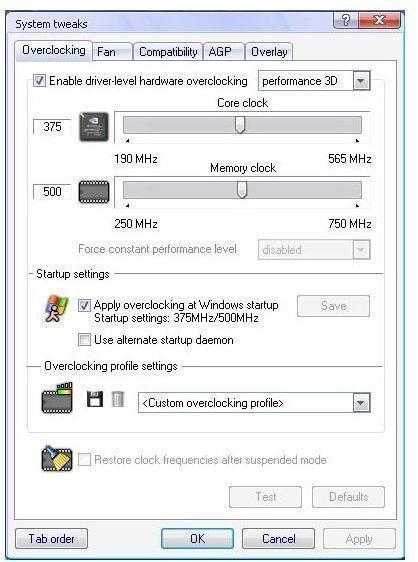
In addition to the Nvidia Control Panel users wishing to tweak their video card can use the Riva Tuner. It is a graphical tweaking utility with everything needed to tune Nvidia graphics cards. The tuner works at the driver level and can tune Direct3D and OpenGL options. The Riva Tuner supports Nvidia cards from the TNT family up. For expert tweakers it provides the most flexibility including overclocking capabilities.
When tweaking an Nvidia graphics card, overclocking will gain additional performance, but it’s an advanced tweaking activity that if done wrong will destroy the video card in the process. A graphics card is built much along the same lines as a computer, with various components working together. These components have default settings that are well within performance tolerances. What overclocking does is to change these defaults and push the components well beyond the levels deemed safe by the manufacturer. It can happen in moments, or it can happen in months, and it’s often a warranty breaker. Overclocking should only be done with the possibility of damage in mind.
Conclusion
Can Nvidia Video cards be tweaked? Absolutely, and often with amazing results. There’s a constant balancing act with graphics cards between performance and visual output, but with Nvidia graphics card owners, that balance is made easier by the vast number of options available for adjustment. A proper tweaking job on a card can both add to the visual appeal of games and applications, and improve their performance. It just takes a bit of time along with a lot of trial and error.