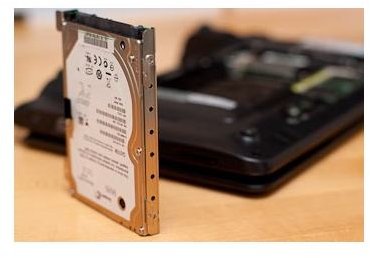
In this article, we look at how replacing the existing hard drive in your netbook can speed up, expand the storage, extend the battery life, and quiet your netbook. Read more to find out if the benefits are worth the effort!
Why a New Drive?
In addition to replacing the memory, the hard drive is the next area that is nearly as easy to replace. In our previous article, we looked at how adding RAM can allow you to better multitask and run things faster. In this section, we look at the benefits of replacing the existing hard drive with a newer, larger, faster drive. It is not as hard as it sounds. I say nearly as hard because the physical installation is just as easy ( with the addition of a few more screws), but the transferring of files and operating system can be a bit more involved. The fastest way to get your files and operating system transferred, is to use a hard drive cloning software like Norton Ghost (which I have personally use and recommend), Paragon’s Drive Backup , or Acronis’s Backup and Recovery .
Most netbooks come with a small or slow hard drive (likely 80GB, 160, or 250 GB). Some of the earlier netbooks came with on-board solid-state disks in the range of 2GB-20GB. These express-card slot solid state drives were awfully small and slow, but there are also a few remedies for this. With the ever-growing popularity of larger photo, video, and music collections, your files can get quite cramped over time.
Choosing a Replacement Drive
The first thing to consider when upgrading your hard drive is the size and speed of the new drive. See this article for the top internal hard drives (lower section for notebook/netbook 2.5" drives). When choosing mine, I wanted something spacious and fast, so I settled on the Seagate 500GB 7200RPM Momentous 7200.4 2.5” hard drive. It is the only drive, at the time of this writing, in the 7200RPM class to offer 500GB, the next largest size is 320GB. As this drive will up an upgrade to your current drive, I would recommend a new drive in the 320GB, 400GB, or 500GB range at either 5400RPM or 7200 RPM, whichever fits your budget. 7200RPM drives are noticeably faster than 5400RPM drives, but are more expensive. A good hard drive of these specs will usually run you about $60 - $120. To replace your hard drive, consult the owner’s manual. Again, you usually start by removing a few screws on the underside of the laptop and removing a panel to gain access to the inside. Once inside, the hard drive usually sits in a little compartment and once the holding screws are removed, it can slide right out. Unlike a desktop, there are no cables to plug in. The drive slides right in to connect the SATA data cable and SATA power connector. If you have a express-card solid state disk, then there are a few aftermarket options that are larger and a bit faster that are specifically designed to plug right into the express card slot.
An alternative to a classic hard disk drive is a solid state disk (SSD). These are the latest and greatest in storage, but read our article to find out if they are worth it . They use fast flash memory (like RAM) to store your data. These drives are very expensive but mean near instant load and boot times because there are no spinning and moving parts to recall data. Things happen in an instant. These run in the $100 - $800 price range and come in a variety of drive capacities and speeds. In addition to lighting fast load times, they run cooler, have longer predicted life spans (due to the lack of moving parts), and can greatly increase your battery life.
Recommended Hard Drives and Solid State Drive To Consider
Hard Drives
- Seagate Momentous XT 500GB - This fast 7200 RPM (succeeded the 7200.4 generation) combines 4GB of solid state memory to accelerate common tasks like booting and loading frequented programs (Firefox, Internet Explorer, Word, PowerPoint, Excel, etc). If you are looking for speed and storage capacity, this is it!
- Western Digital Scorpio Blue 750GB 5400 RPM (WD7500BPVT) - If you are looking for more storage capactiy than a 500GB drive, but still want a decently fast performer, this is a good choice. At 9.5mm thin (standard hard drive size), it will fit in any notebook. It currently stands as the largest 9.5mm 2.5" notebook hard drive and it is no slouch when it comes to speed.
Solid States
- Intel G2 X25-M 80GB or 160GB Solid State Drives - 80GB is about the minimum for a netbook, let alone a full-sized computer. These fast intel solid states have the best reliability, TRIM support, random access times, and warranty.
Benefits to a New Drive
By upgrading the hard drive, programs will start and run faster. Your computer will be even more responsive than the memory upgrade alone. Videos will be able to buffer faster and play smoother allowing more HD content to be played. Chances are too that the new hard drive will also be quieter and give better battery life. Surprisingly, even a 7200RPM hard drive does not drain any more battery than a 5400RPM hard drive because it spins faster, it spins less to access data
This concludes our hardware upgrade section. See the next article for some software tricks and downloads to speed up your netbook.
Photo by dr4gon
This post is part of the series: Guide to Increasing the Speed of Your Netbook
In this comprehensive guide, we look at various ways to boost the performance of your netbook.


