How to Make a Sony PS3 Sixaxis Controller Work on Your Windows 7 PC
Editor’s Note: Download MotionInJoy at your own risk. Many users have had positive experiences with this product, while some report that it caused problems on their machine. It can reportedly also be very difficult to remove. We have left this article up for those that would like to continue with the process of downloading the tool.
PS3 Sixaxis and Windows 7
If you already own a PlayStation 3 then you should have at least one PS3 Sixaxis controller that came with that video game console. Now, suppose you want to play games on your Windows 7 computer. You don’t need to go buy a PC-specific gaming controller because you can actually make that PS3 Sixaxis controller work with Windows 7. You need to download some drivers and do a little configuration, but then you can use the Sixaxis on your computer without having to buy anything else. Be sure to read through this entire article before starting the install process, because if you don’t follow every step then it may not work.
If you don’t have Windows 7, be sure to read my article on how to use a PS3 Sixaxis controller with Windows XP or Vista. The process is completely different than what you have to do to make it work with Windows 7.
Before You Begin
Before you begin this installation process, read the following:
Make sure your PS3 is turned off. The reason for this is that the Sixaxis connects via Bluetooth and depending on how close your PS3 is to your computer, you might turn on the PS3 when you hit the PS button on the Sixaxis. This will override the connection and make the controller not work in Windows 7. To turn off the PS3 completely, flip the power switch on the back of it so there are no lights on in the front.
Unless your computer supports Bluetooth, you will need to keep the USB cable connected. On my article for making the Sixaxis work with Windows XP/Vista, I received several comments from people complaining that the controller stopped responding when they unplugged the USB cable. The reason is that you’re setting it up to work via USB and many desktop computers don’t even support Bluetooth.
Install the PS3 Sixaxis Windows 7 Drivers
Now that you’ve got your PS3 turned off, it’s time to install the PS3 Sixaxis drivers and configure the new hardware to work with Windows 7. Follow these steps below:
- Download the appropriate drivers from Motioninjoy.com by clicking on the Downloads link at the top of the page. For this article, I used the 32-bit Windows 7 drivers.
- Save the drivers to a folder, then run the installer executable. As of this writing, it should be named MotioninJoy_060001_x86_signed.exe and is 1,961 KB in size. Follow the onscreen instructions to install the D3 Tool software.
- Connect your PS3 Sixaxis controller to the USB cable that is used to charge the controller, then connect the other end to a USB port on your computer. It will detect new hardware and automatically install the drivers as a ‘USB Input Device’.
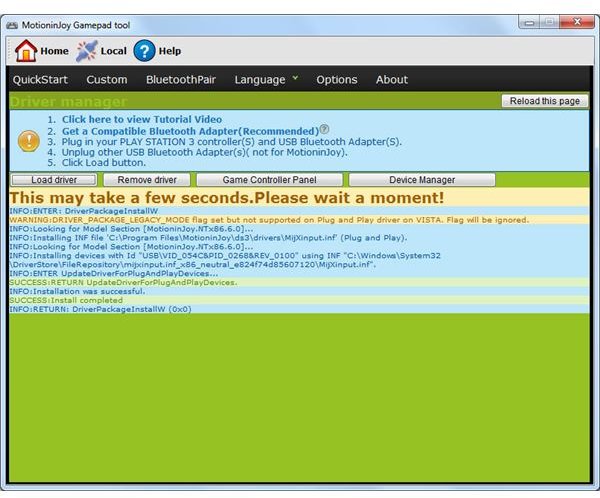
- Open the D3 Tool software and click the Load Driver button. It will take a few seconds to load, then you will feel the Sixaxis vibrate once when it is ready. (See screenshot for reference.)
- Click the Game Controller Panel button and go into Properties on the next screen to test the calibration.
At this point, all of the buttons should register when pressed, and you’ll see them light up on screen. However, only the directional pad will be functional. To get the analog sticks working, I had to close the D3 tool and unplug the controller, then plug the controller back in and open the D3 tool, then under the Quickstart menu I selected Analog Gamepad 3 and clicked the enable button. After that, I could go into the calibration screen and the analog sticks worked.
If you need extra help getting your PS3 Sixaxis to work in Windows 7, be sure to read their help page. There’s also instructions on making it work using Bluetooth, but my desktop doesn’t support Bluetooth and I was not able to test that function.
Big thanks go to the geniuses at Motioninjoy.com for not only making this work, but for also spending hundreds of dollars to get a digitally signed driver authorized. If you regularly use your PS3 Sixaxis controller with your computer, you should consider donating a little money to them via the PayPal Donate link on their home page.