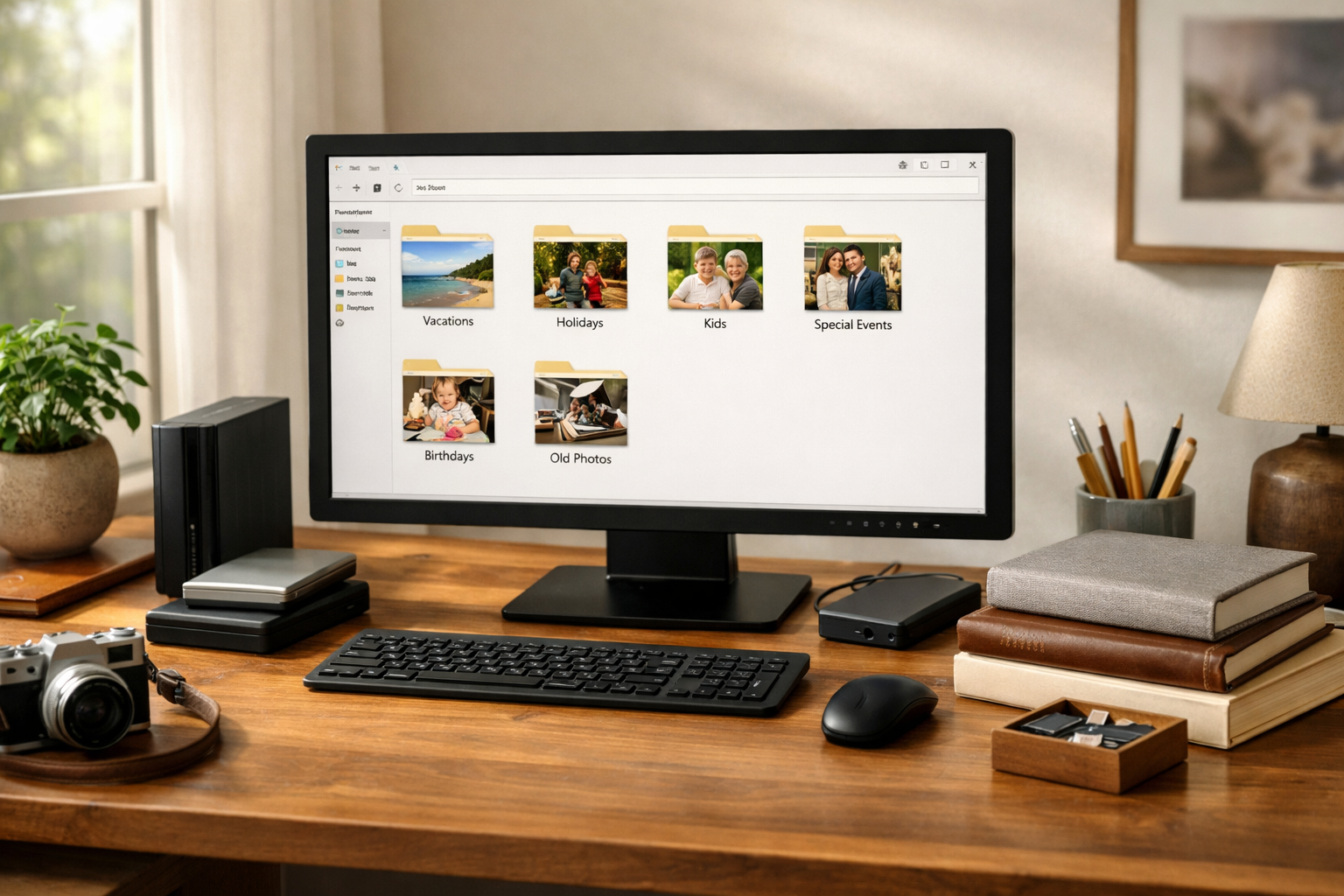
Learn practical strategies to back up family photos effectively while maintaining a well-organized digital collection free from clutter and confusion.
Backing up family photos is essential to preserving precious memories, but without a clear system, digital chaos can quickly take over. A well-structured backup plan combined with thoughtful organization prevents confusion and ensures your photos remain accessible and safe.
Start with a Clear Folder Structure
Creating a logical folder structure is the foundation of an organized photo backup. Consider organizing photos by year, then by event or month. For example, a main folder named “Family Photos” might contain subfolders such as “2023” and within that, “2023-07 Summer Vacation.” This approach makes it easier to locate specific photos quickly without scrolling through thousands of files.
Avoid vague folder names like “miscellaneous” or “photos” that don’t provide context. Consistency in naming conventions also helps, such as using YYYY-MM-DD format for dates, which keeps folders in chronological order.
Use Descriptive File Names
File names that describe the content can save time when searching. Instead of generic names like “IMG_1234.jpg,” rename files to include the date and event, such as “2023-07-15_Beach_Day_01.jpg.” Many photo management tools allow batch renaming, which speeds up this process.
Be cautious not to overwrite original files when renaming. Always keep a copy of the original files in a separate folder or drive as a backup.
Choose Reliable Backup Methods
Backing up photos to multiple locations reduces the risk of data loss. Here are some common backup solutions:
- External Hard Drives: Affordable and reliable for large data storage. Keep the drive disconnected when not in use to protect against malware.
- Cloud Storage: Services like Google Photos, Dropbox, or OneDrive offer automatic syncing and off-site protection.
- Network Attached Storage (NAS): A home-based server accessible over your network, useful for tech-savvy users with large collections.
Combining local and cloud backups is the safest approach. For example, store your primary collection on an external drive and have a cloud service as a secondary backup.
Automate Backup Processes
Manual backups are prone to forgetfulness and errors. Automate backups using built-in software tools like Windows File History or macOS Time Machine for local drives. Many cloud services offer automatic photo uploads from smartphones and computers.
Set a schedule for backups that fits your habits-weekly or monthly backups are common. Automation reduces the chance of missing important new photos.
Regularly Review and Cull Your Collection
Over time, duplicate photos, blurry shots, or irrelevant images accumulate. Periodic review helps maintain a streamlined collection. Use tools like Duplicate Cleaner or built-in photo app features to identify and remove duplicates.
Deleting unnecessary files frees up storage and makes backups faster and less expensive. Be sure to back up before culling so you can recover accidentally deleted photos.
Protect Privacy and Security
When using cloud services, choose providers with strong privacy policies and encryption. Enable two-factor authentication to secure your accounts. Avoid sharing backup credentials and be cautious about syncing photos to devices that others can access.
For sensitive photos, consider encrypting files before uploading or storing them, using tools like VeraCrypt or built-in encryption features.
Keep Metadata and Edits Organized
Preserving metadata like dates, location, and camera settings helps keep your photo collection meaningful. Many photo apps maintain this automatically, but avoid renaming or moving files outside these apps unless you know how to preserve metadata.
If you edit photos, save copies of both originals and edited versions. Store edited versions in a separate folder or use photo management software that tracks edits non-destructively.
Plan for Long-Term Maintenance
Digital storage mediums can fail or become obsolete. Every few years, check your backup devices for signs of wear and consider migrating data to newer formats or drives.
Keep track of your backup locations and verify that backups are complete and accessible. Regularly test restoring files from backups to ensure your system works when needed.
Practical Example: A Simple Backup Workflow
- Import photos from your camera or phone to a main folder on your computer organized by year and event.
- Rename files in batches to include dates and event descriptions.
- Use an external hard drive for a full backup once a month.
- Enable automatic cloud backup for new photos.
- Review and delete duplicates every six months.
- Maintain strong passwords and enable two-factor authentication on cloud accounts.
By following these steps, you create a reliable and clutter-free backup system that protects your family memories.
Backing up family photos doesn’t have to result in a digital mess. With consistent organization, reliable backup methods, and regular maintenance, you can keep your memories safe, accessible, and enjoyable for years to come.