Preparing your laptop for a new school or work year involves cleaning, updating software, organizing files, and optimizing settings to ensure smooth performance and productivity.
Clean Your Laptop Inside and Out
Start by physically cleaning your laptop to prevent overheating and improve usability. Use a soft microfiber cloth to wipe the screen and keyboard, removing dust and smudges. For stubborn dirt between keys, a can of compressed air can help dislodge debris without damaging components. Remember to power off and unplug your laptop before cleaning. Cleaning vents and fans can prevent dust buildup that causes overheating, which can slow performance or damage hardware over time.
Update Your Operating System and Software
Keeping your operating system and software up to date is crucial for security and performance. Check for updates through your system settings, whether you’re using Windows, macOS, or Linux. These updates often include security patches and bug fixes that protect your laptop from vulnerabilities. Additionally, update your essential applications like web browsers, office suites, and antivirus programs. For example, updating your browser ensures compatibility with educational or workplace websites and improves speed.
Organize Files and Back Up Important Data
A cluttered hard drive can slow down your laptop and make it difficult to find important documents. Take time to sort through your files, deleting unnecessary items and organizing the rest into clearly labeled folders. Use consistent naming conventions to make files easy to locate. For example, create folders for “School Subjects” or “Work Projects” and subfolders by semester or client.
Backing up data is equally important. Use an external hard drive or cloud storage services like Google Drive, OneDrive, or Dropbox. Regular backups protect against data loss from hardware failure or accidental deletion. Set up automatic backups if possible to maintain ongoing data safety without extra effort.
Optimize Startup and Background Processes
Many laptops slow down because of unnecessary programs running at startup or in the background. To speed up boot time, review your startup programs and disable those that aren’t essential. On Windows, you can access this via Task Manager; on macOS, use System Preferences > Users & Groups > Login Items.
Also, monitor background processes that consume resources. Closing unused applications and browser tabs can free up memory and CPU power, improving responsiveness. For example, if you have cloud syncing apps running constantly but don’t need them during focused work, temporarily pausing them can help.
Check Battery Health and Power Settings
The battery is a critical component for laptops, especially for students or professionals on the go. Check your battery’s health using built-in diagnostics or third-party tools. If your battery wears down significantly, consider replacing it to maintain reliable portability.
Adjust power settings to balance performance and battery life depending on your needs. For instance, enabling power saver mode during long lectures or meetings extends battery life, while high-performance mode is better for demanding tasks at a desk.
Secure Your Laptop and Accounts
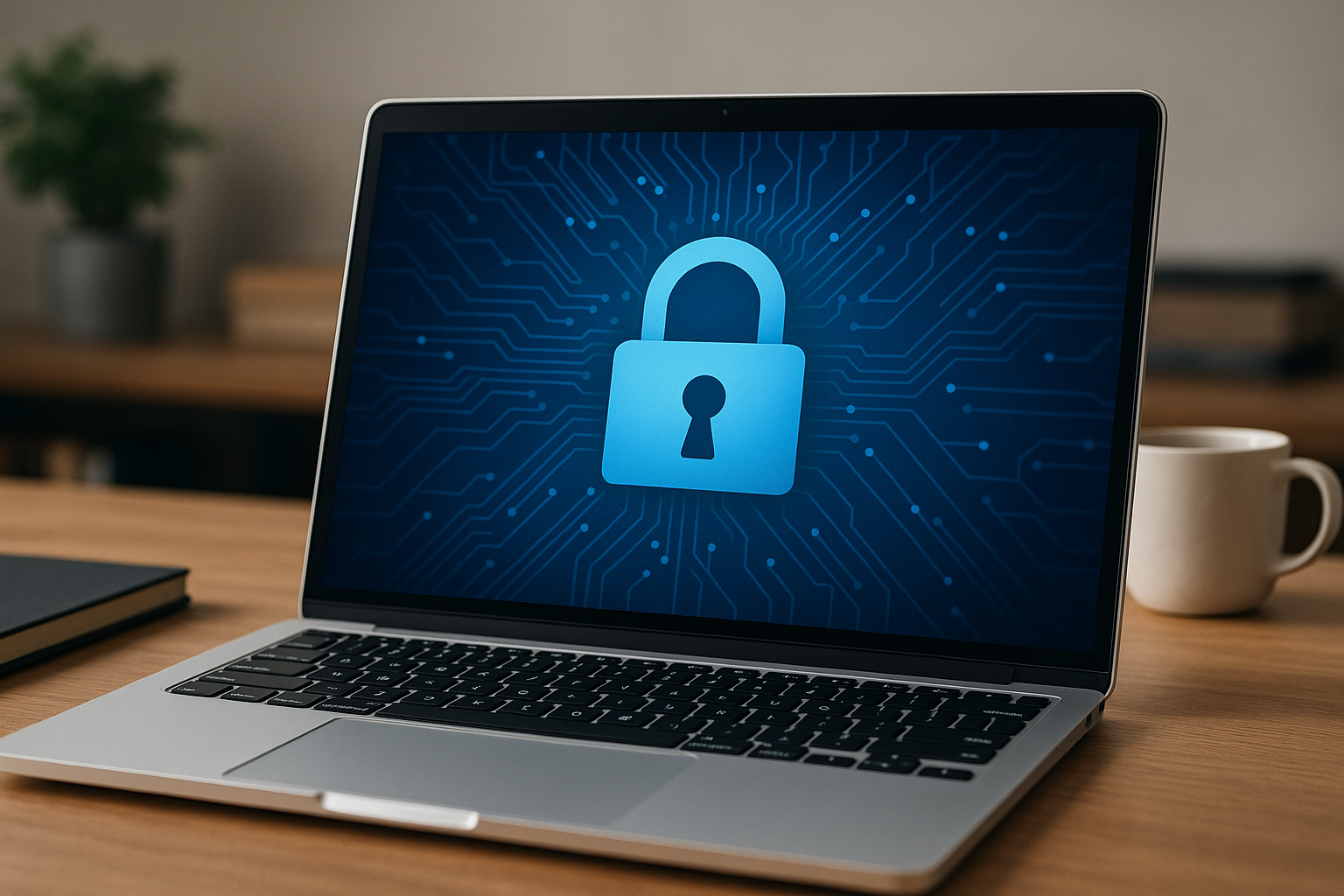
Security is paramount when using a laptop for school or work. Ensure your laptop has a strong password or biometric login enabled. Use a reliable antivirus program and keep it updated.
Enable firewall protection and avoid connecting to unsecured public Wi-Fi networks without a VPN. Regularly review permissions for apps and browser extensions to maintain privacy. Additionally, use two-factor authentication (2FA) on key accounts like email and cloud storage to add an extra layer of security.
Customize Settings for Comfort and Productivity
Tailor your laptop’s settings to suit your workflow and comfort. Adjust display brightness and color temperature to reduce eye strain during long sessions. Set up keyboard shortcuts or touchpad gestures that speed up common actions.
Consider installing productivity tools like note-taking apps, task managers, or focus timers. For example, tools such as Microsoft OneNote or Todoist help keep assignments and deadlines organized. Also, configuring notifications to minimize distractions can improve concentration.
Plan for Sustainability and Responsible Disposal
If your laptop is aging or you’re considering an upgrade, think about sustainability. Donate or recycle old laptops responsibly rather than discarding them. Many manufacturers and electronics stores offer recycling programs.
When purchasing accessories or replacement parts, opt for energy-efficient options and avoid single-use items. Extending the lifespan of your laptop through maintenance reduces electronic waste and environmental impact.
Preparing your laptop comprehensively for a new school or work year ensures it runs efficiently, securely, and comfortably. Regular maintenance and thoughtful organization help you stay productive and avoid technical disruptions. Taking these steps at the start of the year sets a positive tone for your digital work habits and helps protect your investment in technology.