Selecting the right monitor setup for work, study, and photo editing involves balancing screen size, resolution, color accuracy, and ergonomic needs to enhance productivity and visual clarity.
Understanding Your Primary Use Cases
Choosing a monitor setup starts with identifying your main activities. Work tasks such as document editing, spreadsheets, and video calls often benefit from larger screens and multiple displays for multitasking. Studying online or attending virtual classes demands clear text rendering and eye comfort. Photo editing requires high color accuracy, wide color gamut, and resolution that reveals fine details. Knowing this helps narrow down features to prioritize, such as resolution for clarity or color precision for creative work.
Screen Size and Resolution Considerations
Screen size directly influences how much content fits on your display. For general work and study, a 24- to 27-inch monitor strikes a balance between desk space and visibility. Photo editors may prefer 27 inches or larger to see details better. Resolution matters too; 1080p (Full HD) is sufficient for basic tasks, but 1440p (QHD) or 4K UHD resolutions provide sharper images and more workspace, which is especially helpful for photo editing and multitasking. For example, a 27-inch 4K monitor offers crisp visuals but requires scaling adjustments to keep text readable.
Color Accuracy and Calibration
Color fidelity is crucial for photo editing and any work involving images. Look for monitors covering at least 99% of the sRGB color space for accurate color representation. AdobeRGB coverage is ideal for professionals working with print media. Some monitors come factory-calibrated, ensuring color accuracy out of the box. Otherwise, investing in a color calibration tool can help maintain consistent color over time. For everyday work and study, standard color accuracy is sufficient, but creative tasks demand more precise color handling.
Panel Type and Viewing Angles
Monitors typically use IPS, TN, or VA panels. IPS (In-Plane Switching) panels offer the best color accuracy and wide viewing angles, making them ideal for photo editing and collaborative work. TN (Twisted Nematic) panels have faster response times but poorer color and viewing angles, better suited for gaming than professional work. VA (Vertical Alignment) panels provide deeper blacks and higher contrast but can suffer from color shifts at angles. For mixed use, an IPS panel is generally the most versatile choice.
Ergonomics and Desk Setup
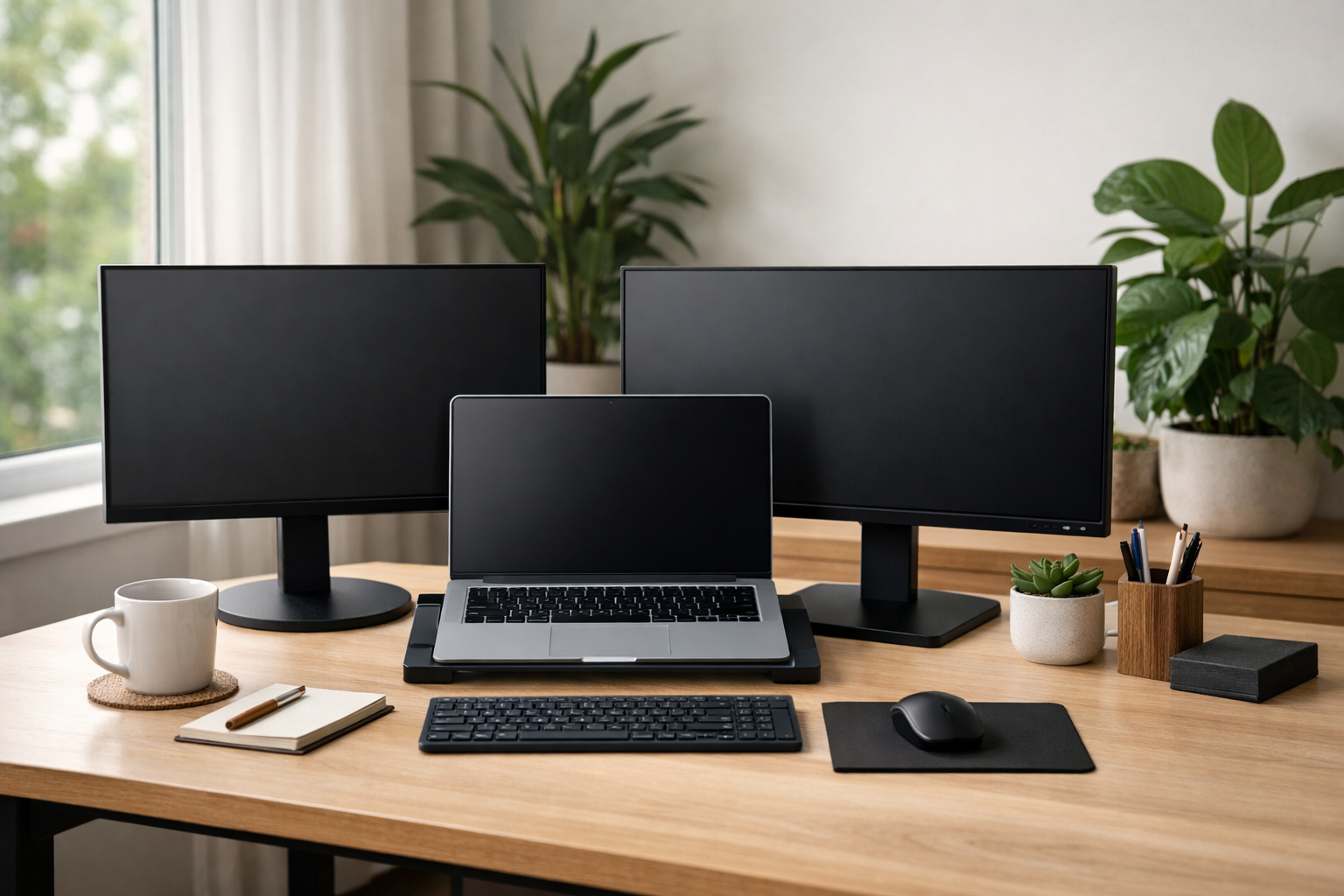
A comfortable monitor setup reduces eye strain and physical discomfort during long sessions. Adjustable stands that allow height, tilt, swivel, and pivot adjustments enable you to position the screen at eye level and reduce neck strain. Consider mounting options like VESA-compatible arms for greater flexibility. Proper distance from the screen-generally about an arm’s length-and good ambient lighting also improve comfort. For dual or triple monitor setups, ensure your desk has enough depth and width to accommodate them without clutter.
Single vs. Multiple Monitors
Deciding between one or several monitors depends on your workflow and space. Multiple monitors increase screen real estate, allowing you to keep reference materials, communication apps, and editing tools visible simultaneously. For example, a writer might use one screen for research and the other for writing, while a photo editor could have editing software on one and image previews on another. However, multiple monitors require more desk space and can increase power consumption. For smaller areas or simpler workflows, a single ultrawide monitor can provide ample horizontal space without bezels dividing the view.
Connectivity and Compatibility
Check the ports available on your monitor and computer to ensure compatibility. Common connections include HDMI, DisplayPort, USB-C, and older options like DVI or VGA. USB-C with Power Delivery can simplify setups by delivering video, data, and charging through one cable, especially useful for laptops. Some monitors offer built-in USB hubs or card readers, adding convenience. Make sure your graphics card supports the resolution and refresh rate of your chosen monitor to avoid performance issues.
Practical Examples of Monitor Setups
- For Work and Study: A 24-inch 1080p IPS monitor with adjustable stand paired with a laptop can provide a comfortable and affordable setup. Adding a second identical monitor can enhance multitasking.
- For Photo Editing: A 27-inch 4K IPS monitor with 99% AdobeRGB coverage and factory calibration ensures detailed and accurate color work. Using a colorimeter regularly maintains consistency.
- Hybrid Setup: An ultrawide 34-inch monitor with 3440x1440 resolution can serve both productivity and creative tasks, offering wide horizontal space without bezels.
Final Tips for Choosing Your Monitor Setup
When selecting a monitor setup, consider your budget alongside your needs. Prioritize features that directly impact your tasks, such as screen size and resolution for clarity, or color accuracy for editing. Test monitors in person when possible to evaluate image quality and ergonomics. Remember to maintain good posture and take regular breaks to reduce eye and muscle strain. With a thoughtful approach, your monitor setup can greatly improve your efficiency and comfort whether working, studying, or editing photos.