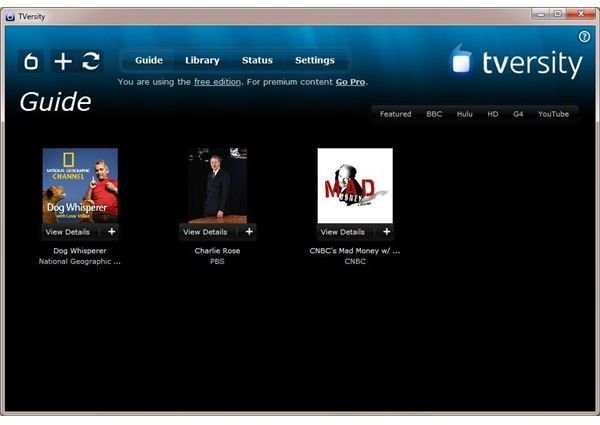
Windows 7 is the latest version of Microsoft’s popular operating system. Often switching to a new operating system can be a problem, with applications refusing to install or run. Thankfully TVersity is designed overcome these issues.
TVersity and Windows 7
If you’re using TVersity on XP or Vista and plan to install or upgrade to Windows 7, or you’re shopping around for a media server solution for a Windows 7 PC and are interested in how TVersity runs on the latest Microsoft operating system, then this guide should put your mind at rest.
TVersity can be installed, setup and configured to run on Windows 7 as quickly and easily as it can on Windows XP and Vista.
This isn’t such a surprise – Windows 7 is effectively a more polished and usable version of Vista – and it’s great to be able to stick with the superb freeware solution of TVersity rather than searching out a Windows 7 specific solution.
Can I Upgrade?
For Vista users planning on upgrading to Windows 7, the new operating system features an Upgrade Wizard – however this isn’t 100% perfect and is designed only to retain personal files and settings.
As such a new install of TVersity is required. The most recent version of the media server application can be found at www.tversity.com/download .
Upgrading from directly from Windows XP to Windows 7 sadly isn’t possible via the Windows 7 disc – the new operating system will require a clean install either on a secondary hard disk or partition or after a reformat of your current partition.
Whichever options you choose however, do make sure you backup your vital files and settings to a safe location before performing your Windows 7 installation.
Installing TVersity in Windows 7
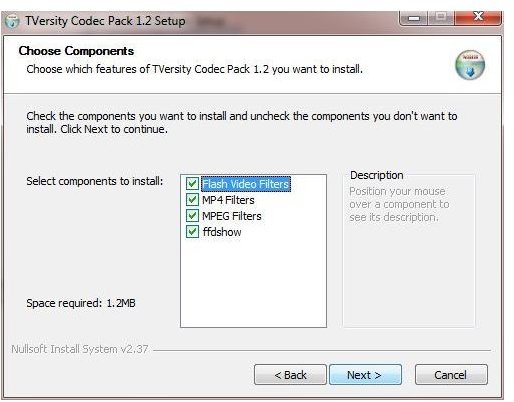
It’s a thankfully straightforward task to install TVersity in Windows 7. The installer wizard runs through all of the usual settings and configuration options, as well as checking your system for the most recent codecs (which on a new install of the Windows 7 OS you probably won’t have) and installing these.
Once you’ve got Windows 7 setup on your home network (the new OS features the same network detection tool as Vista, making this as easy as possible) you will of course need to configure TVersity to detect your media sharing device in the Settings screen.
This shouldn’t take too long to do – once you’ve added your media folders into the TVersity Library, you’re literally ready to roll!