Moodle is an open source virtual learning environment (VLE). But how easy is it for an educator without experience of web technologies such as PHP and MySQL to use? This article reviews how to personalize a Moodle installation through the use of themes.
Moodle
Moodle is an open source virtual learning environment (VLE) or course management system (CMS). One of the challenges in using Moodle to develop commercial e-learning projects is to establish a distinctive visual brand or image for your e-learning products. A powerful facility in Moodle is to adapt or develop your own theme to give your site its own visual identity. However, creating your own theme from sacrtch can be difficult, so here’s a simpler way to personalize your Moodle site using a bespoke theme.
How to Personalise Your Moodle Site
Moodle has a powerful themes system that provides a variety of visual effects through the use of XHTML and CSS. It has been significantly developed in the more recent versions of Moodle. It is increasingly possible to define your own themes through a knowledge of CSS without knowledge of PHP.
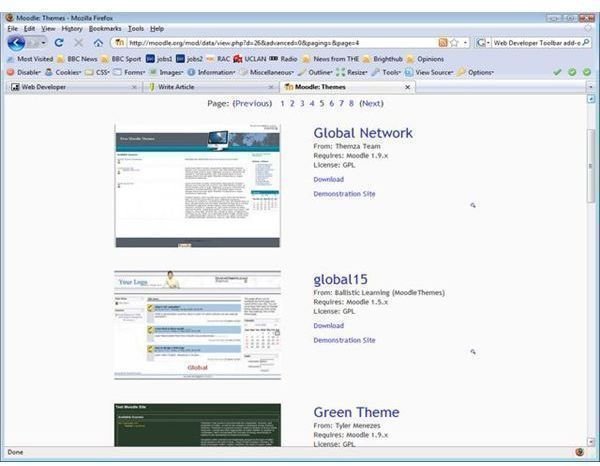
The starting point for any new developer is the standard themes supplied with Moodle. For more options visit the database of available Moodle themes at https://moodle.org/ . These may be downloaded and used in your own installation in three steps.
1. Download and extract the .zip file to an empty local directory.
2. Upload the folder to your web server as a subfolder of the /moodle/theme/ folder using the name of the theme you have downloaded as the name of the subfolder. You will need to ensure that the new theme folder and its contents are readable by the web server by ensuring that the Read and Write permissions for the files and folder are set to 755 - Owner read/write/execute, Group read/execute, Everyone read/execute. If the incorrect permissions are set incorrectly, this may prevent display of the newly installed theme.
3. Choose your new theme from within Moodle via Administration > Appearance > Themes > Theme selector.
How to Personalise Your Moodle Site Using The Chameleon Theme
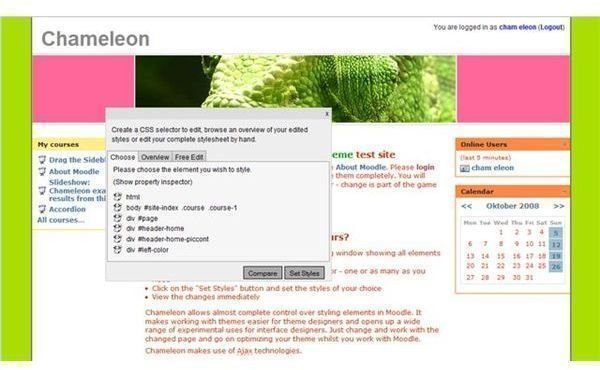
You can set up your own theme from scratch, but a better option for most users, available since version 1.6 is to use the Chameleon theme. This theme uses Ajax technology to provide a customizable theme. To change the settings for any element on the screen, you can follow four simple steps:
1. Shift-click anywhere on the page to open a new floating window showing all elements under the mouse
2. Click on elements in the list to create a CSS selector - one or as many as you need
3. Click on the “Set Styles” button and set the styles of your choice
4. View the changes immediately
You can try it out a demonstration at https://chameleon-theme.unodo.de/ using chameleon as both the username and password to login.
The Web Developer Toolbar in Firefox: a vital companion
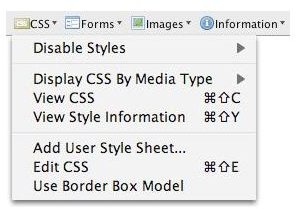
I found the Chameleon theme particularly helpful when developing a bespoke visual style to match a corporate look for a client. The theme provides almost complete control, and is CSS based so is intelligible to many web users. However, in a real implementation keeping track of all the different elements can be difficult. I used the Firefox Web Developer Toolbar add-on to help ensure that I had identified the correct element to be changed, specifically the “View Style Information” Option on the CSS menu.
Download the Web Developer Toolbar add-on from https://chrispederick.com/work/web-developer/.
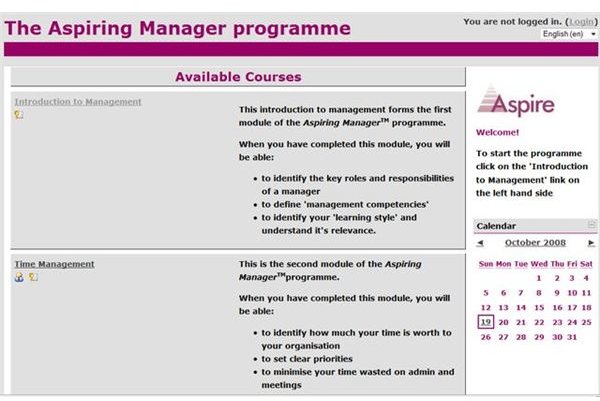
The final image at the bottom of the page shows the results from my bespoke development using the Chameleon theme
Images