Using the Mail Merge Facility in Microsoft Word to Generate a Whole Web Site
Introduction
Most simple web sites are made up of a series of pages which are quite similar. In many cases only one or two elements change. In this scenario, we can use the mail merge facility in Word to generate a whole site from a style sheet to contain the formatting information, a mail merge template to contain the common HTML elements and a data source to contain the information which is page specific.
First produce a single page either using the methods described in previous articles or using your favourite HTML editor.
To see the underlying code, use the View > Page Source in Firefox, or Page > View Source in Internet Explorer.
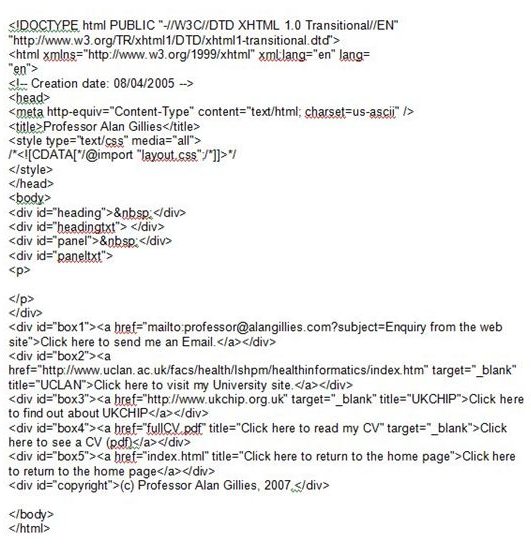
It’s part of the news section of a previous incarnation of my personal website. In order to populate the whole site I need to create the individual news items. For each page, the header, the style sheet and the navigation and copyright HTML are the same. The only variables that change are the title and text for the main panel.
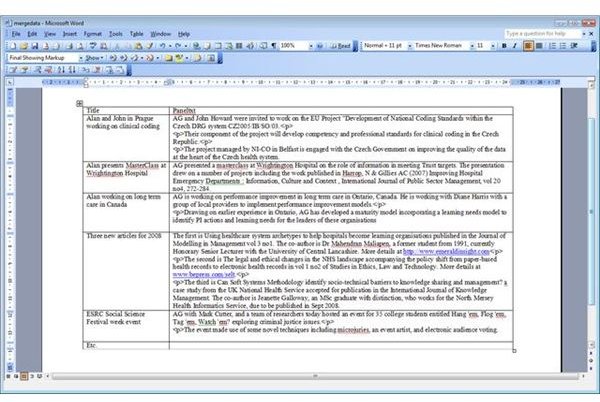
We can create a table in Word with this information. We need only two columns, one for the titles and one for the text to appear on each page. Before we save the table we need to add tags to retain the carriage returns when we save to HTML. Select the text column and go to Edit > Replace.
In the Find What box type: ^p
and in the Replace with box type:
^pSave your table as mergedata.doc
The mail merge
A mail merge in Word (2003) requires two documents. The first is the template, the second is the data to be merged. We shall use this to generate multiple Web pages.
Open a New Document in Word
Copy and Paste in your HTML with blank space for the title and the main panel text.
In Word (2003), Go Tools > Letters and Mailings.
Select Show The Mail Merge Toolbar.
Click on the left most toolbar button (Main document setup)
Select Normal Word document
Click on the next toolbar button (Open Data Source)
Your saved table is usually in the Recent Documents list. Select mergedata.doc
Now put your cursor after the
Next, move your cursor to after the div id=“paneltxt”> tag and repeat the process, only this time select the paneltxt field to insert.
Now you can carry out the merge. I use the button labelled “Check for Errors” and select the middle option, carry out the merge, pausing to report each error as it occurs.
Word obliging produces a page for each row of your table.
To save as a web page, I open Notepad. Then I go to page 1 of my merged document, select the text on the first page, and cut it before pasting the selected text into Notepad.
From Notepad, use File > Save As to save the file. Give it a filename with a .html extension. You can see my results here
To save the next page, delete the page break in your merged document and repeat the process.
This way you can quickly construct a whole raft of similar pages.
