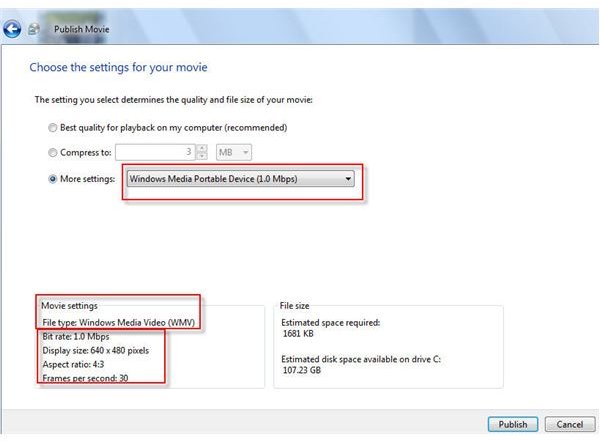
There are a lot of things to consider when saving WMV media from your Windows PC to a mobile device, including bit rate, display size, aspect ratio, and frames per second.
Moving WMV Movie Files to a Mobile Device
If you’ve made movies on your PC of your family’s outings, weddings, camping trips, recitals, or other interesting family events, you can take those movies with you on your PDA or Pocket PC. You can also take it with you using newer models of cellular phones. Whatever you choose, you’ll be able to show your movies on the go, at parties, family reunions, office events, and other galas. There are ways you can improve the quality, display size, and physical size of those videos so that you get the best bang for your buck with the resources available on your mobile device.
Generally, you’ll create Windows Media Files (WMVs) when creating movies on a PC, and you’ll drag and drop them from your PC’s hard drive to the appropriate folder on the connected mobile device, or, you’ll sync them. However, WMV files can be created with a myriad of settings for bit rate, display size, aspect ratio, and frames per second.
The Terms
Let’s look at the terms first, and then you can decide what choices are best for you:
Bit rate: The rate at which bits of data pass through a given transmission medium at any time. Kbps, kilobits per second, describes the number of kilobits passed through a given point per second. For media, you’d want to have as many bits per second as your mobile device could manage while staying within file size limitations.
Display size: The physical size of the movie as it is configured to show on the device. Larger display choices create larger file sizes.
Aspect ratio: Describes the proportional relationship between the width and height of an image. Most computer devices display images at a 4:3 aspect ratio. Media centers may display at a 16:9 aspect ratio.
Frames per second: Movies are created using frames, and a frame is a still image. Displaying frames in succession gives the illusion of a movie. The more frames per second you can have, the smoother the movie will look.
Compare Settings for WMV Files
Video for Pocket PC
Bit Rate
Display Size
Aspect Ratio
Frames per Second
Advantages over Other Choices
Disadvantages Compared to Other Choices
143 Kbps
143 Kbps
208x160 pixels
4:3
8
Smallest file size
Least amount of fps, resulting in the lowest quality
218 Kbps
218 Kbps
208x160 pixels
4:3
20
Relatively good file size
Small display size
Full screen 218 Kbps
218 Kbps
320x240
4:3
15
Relatively good file size, good display size
Lower fps, than most other options
2003 348 Kbps at 24 fps
348 Kbps
320x240
4:3
24
Good file size, good fps rate
Large file size
2003 348 Kbps at 30 fps
348 Kbps
320x240
4:3
30
Good file size, good fps rate, best quality
Large file size
Images
Additional Articles You May Enjoy
Vista’s Sync Center - It’s OK, but use something else if you can
Vista’s Sound Recorder - There isn’t much to it


