AutoImager converts and processes images at a faster rate. Batch processing with AutoImager is almost instantaneous. Resulting conversions produce images of great quality. Desktop Publishers will welcome the software’s quality and flexibility. This review explores AutoImager’s usefulness to DTP.
AutoImager Overview
AutoImager is a simple tool for image processing and conversion. It provides features for converting single or multiple files. You can run conversion and processing operations in just a few mouse clicks. The processing is done automatically by selecting the images and choosing the filters or file format.
Screenshot-1
Installation and Setup (5 out of 5)
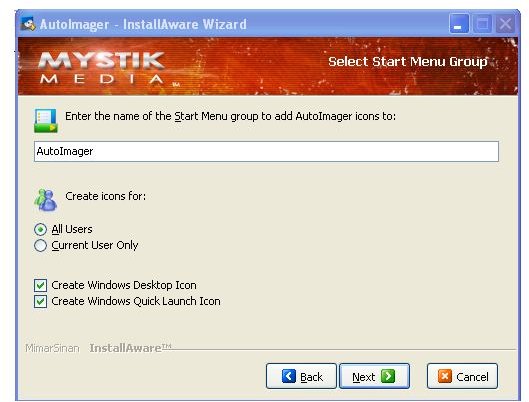
Since you are quite familiar with downloading and installing software from internet, this is not at all a problem. There is noting new or complex in the installation of AutoImager. The file size is only 25MB and can be quickly downloaded.
Screenshot-2
User Interface (5 out of 5)
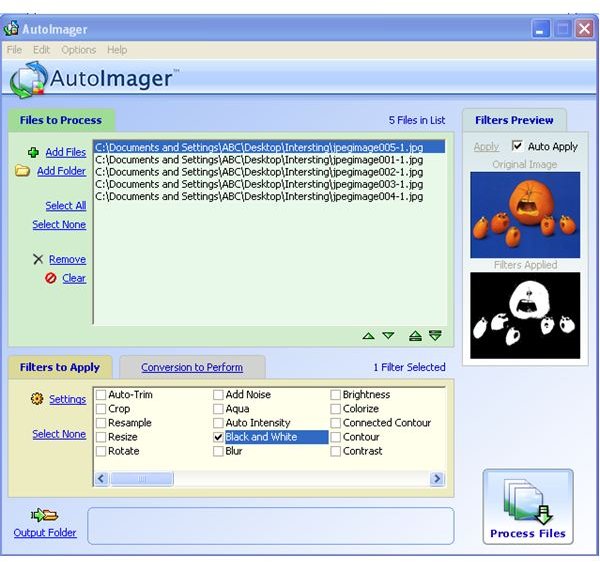
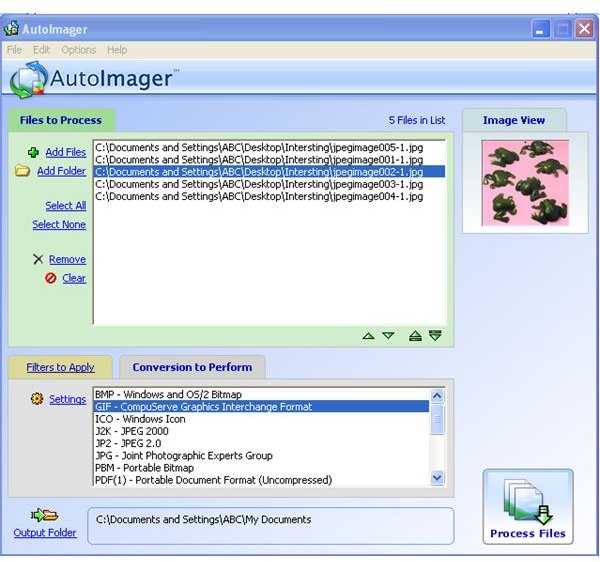
The user interface of AutoImager is cute and simple. The menus provide all commands required for image conversion and processing. But the command buttons provided in the main window are easier to operate. The source image file and the result after processing are shown in the main window. All the files selected for processing can be managed easily in the main window itself. The Select All, Select None, Remove and Clear buttons are used for managing the files for processing.
Screenshot-3
Features (4 out of 5)
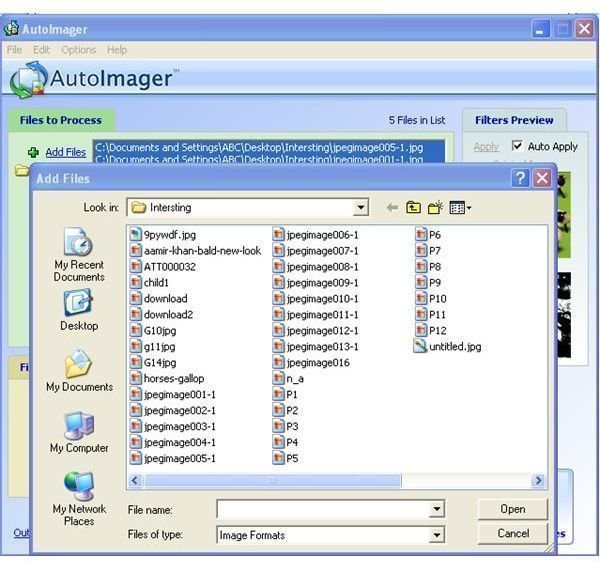
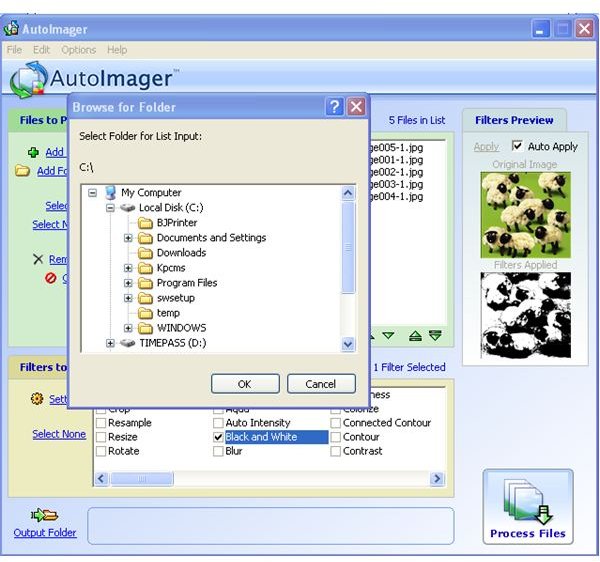
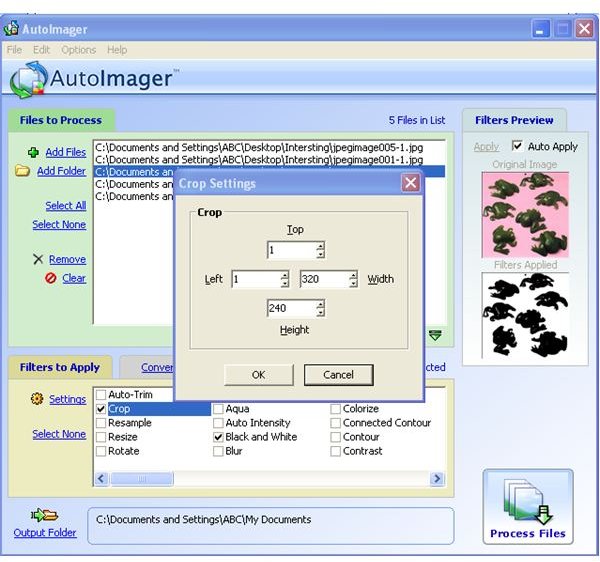
Image files can be added for processing and conversion using the Add Files or Add Folder button. The Add Folder buttons allows you to choose all files in a folder. The added files are listed in the Files to Process list. The updated result can be immediately seen in the preview window by using the Apply button. Checking the automatic button shows automatic preview.
Image processing is done by selecting a file and setting up the relevant filters on. Sometimes additional setting has to be done for a filter. For example you have to specify size for cropping an image. The Setting buttons enable you to enter additional parameters required for a filter.
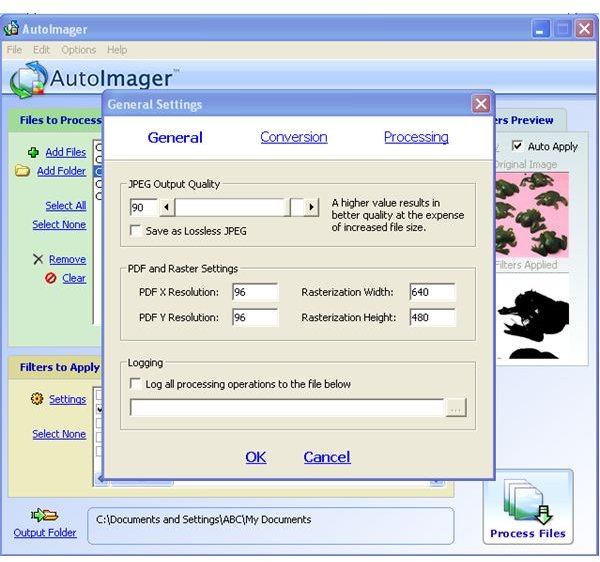
The processing operation can be initiated by clicking the Process files button. You have to specify the image quality and resolution to proceed. The file type and way in which a file is saved are also specified here.
AutoImager supports around 70 image file formats. The conversion facility can be used for changing a file format to another type. For conversion Perform tab can be used to select a format type. You have to select the file and file type for conversion first. The Process File button converts the files and stores in the specified folder.
Screenshot-4
Screenshot-5
Screenshot-6
Screenshot-7
Price To Value (3 out of 5)
The price of $60 is a bit high for this simple software. The features provided by the software are great and simple to use. But there are many freeware and licensed software available with better features and at better pricing. The individual license does not permit the usage of the software in other computers.
Performance (4 out of 5)
AutoImager has the ability to convert and process images with great speed. It is also compatible with most of the Windows versions you use. AutoImager supports a wide range of file format and filters. This makes the conversion operations more flexible.
Image processing can be done only using the predefined image filters provided by AutoImager. It is a great time saving utility.
Final Tag
The AutoImager image processing software is quite handy for processing images. AutoImager provides automatic processing and conversion of images. There is no flexibility with the filters as they are predefined. But for image file conversion AutoImager offers more options. So it is a sure recommendation for all those who want to save time for processing the images.
Screenshots