PageStream is a must-have tool for any publishing business. It can help you speed up the entire DTP process, saving you time and money. It is also a great tool for designing cards, brochures, and newsletters. You can even use Pagestream to publish technical books with ease and panache.
PageStream Overview
PageStream is for anyone who loves to design his or her own brochures, newsletters, cards, and so on. It provides all of the necessary tools for quickly and easily designing most desktop publishing projects. You can create business cards as well as most business documentation and customize them according to your requirements using the many tools available with one click. Pagestream also allows you to incorporate smooth and powerful graphic features into your projects, so no more switching between software to get that visual appeal.
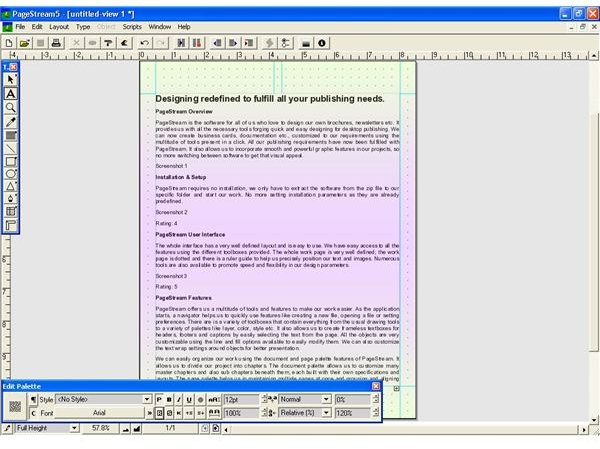
Screenshot 1
Installation & Setup (5 out of 5)
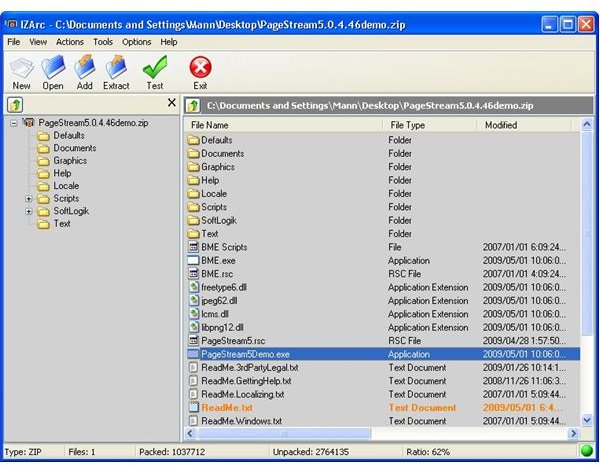
PageStream requires no installation, you only have to extract the software from the zip file to a specific folder and start the work. No more setting installation parameters as they are already predefined.
Screenshot 2
PageStream User Interface (5 out of 5)
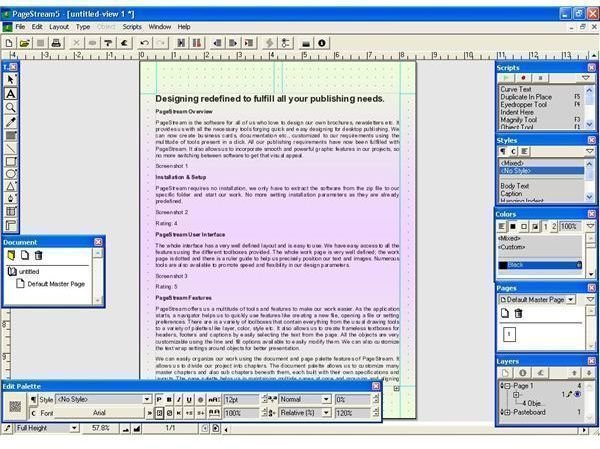
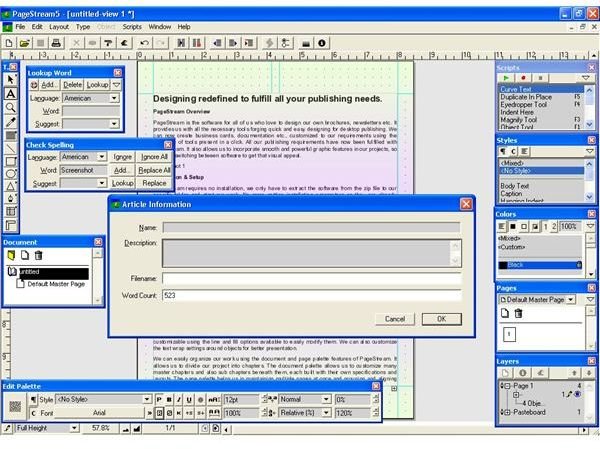
The whole interface has a very well defined layout and is easy to use. The easy access to all the features using the different toolboxes helps to save the time. The whole work page is very well defined; the work page is dotted and there is a ruler guide to help you precisely position the text and images. Numerous tools are also available to promote speed and flexibility in your design parameters.
Screenshot 3
PageStream Features (5 out of 5)
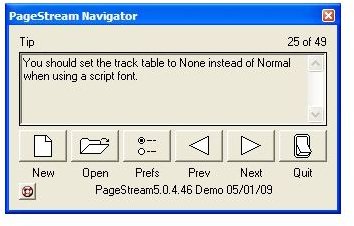
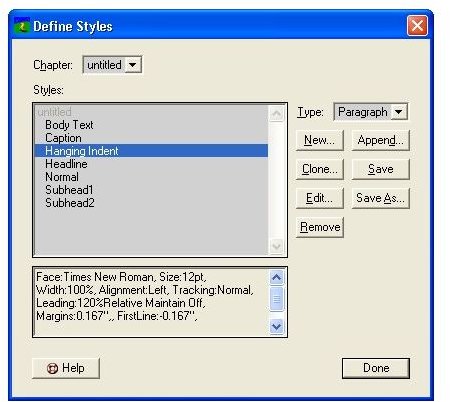
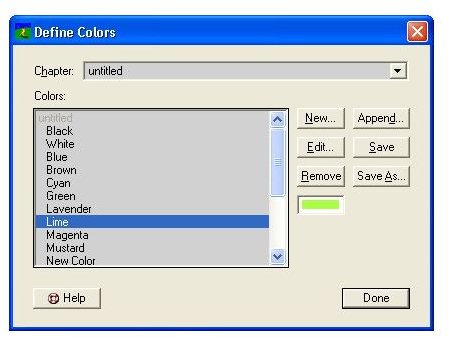
PageStream offers a variety of excellent tools and features to make your work easier. As the application starts, a navigator can help you quickly use features like creating a new file, opening a file, or setting preferences. There are a variety of toolboxes that contain everything from the usual drawing tools to a variety of palettes like layer, color, style etc. It also allows you to create frameless textboxes for headers, footers and captions by easily selecting the text from the page. All the objects are very customizable using the line and fill options available to easily modify them. You can also customize the text wrap settings around objects for better presentation.
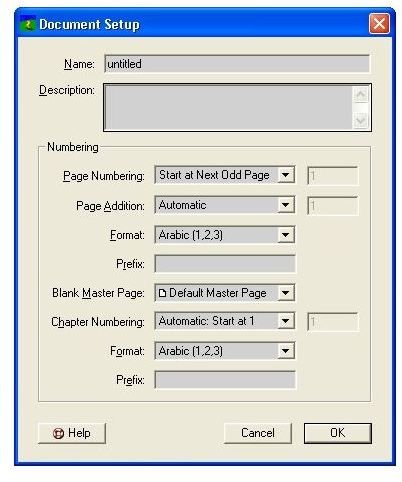
You can easily organize the work using the document and page palette features of PageStream. It allows you to divide the project into chapters. The document palette allow you to customize master chapters and also sub chapters beneath them, each built with their own specifications and layouts. The page palette helps you in maintaining multiple pages at once and grouping & aligning them. With these management features work becomes so much faster and easier.
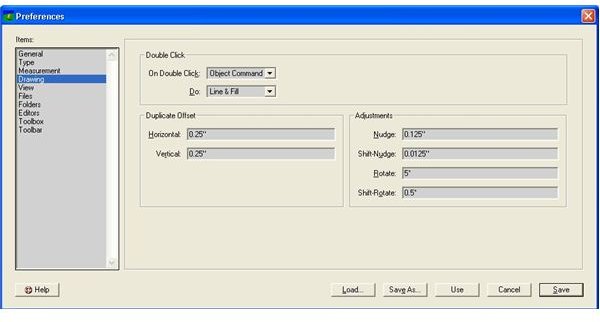
PageStream allows full customizability for the many features it supports. You can easily change any setting right from view settings -> file settings -> drawing specifications, as per your preferences. The feature that shows Pagestream’s flexibility is its ability to support recordable scripts. You can easily record your recurring activities as scripts and then use them using various function keys or from the script palette.
PageStream offers some advanced settings during printing. You can change various printing parameters like setting printer marks, changing angle of orientation of pages while printing, setting frequencies and also some printing methods like color/process/spot separation modes. Thus, you can easily print technical books, newsletters, cards, and so on, according to specifications.
Screenshot 4
Screenshot 5
Screenshot 6
Screenshot 7
Screenshot 8
Screenshot 9
Screenshot 10
Screenshot 11
Screenshot 12
Price to Value (4 out of 5)
PageStream, with all of its professional capabilities, is available in a variety of price zones specific to users’ requirements. You can also buy its updated release for added features. It is priced well and is a good solution for all of your desktop publishing needs.
Performance (5 out of 5)
PageStream is complete and dynamic software in terms of its tools and capabilities. You can rely on it to help you to perform tasks with ease and grace. The advanced printing capabilities can help save a lot of time and money by fully customizing printing formats and specifications.
Final Tag
PageStream is state of the art software that can help in fulfilling all your publishing needs. It offers many professional features to customize every aspect of the work.
Screenshots