Using the power of Adobe Photoshop, you can create coloring book pages from ordinary photographs and images. Even if no children are around, there are many ways to use the coloring book effect Photoshop offers. Here you will learn how to create the coloring book effect.
You will find that the coloring book effect Photoshop enables you to create is both a novel and practical way to present photos and images. In just a few steps, this Photoshop Tutorial will show you how to create a coloring book page from an image file.
To get started, you will need a computer meeting the minimum system requirements for Photoshop and the Adobe Photoshop software. You also will need a photograph or image to convert for use with the coloring book effect.
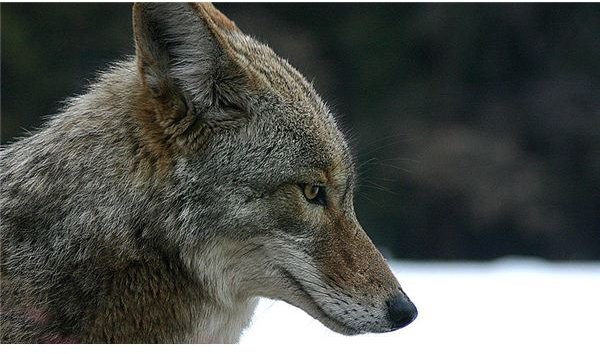
This Photoshop tutorial will make a coloring book page out of the following image using simple image manipulation .
Begin by preparing your image for use with the coloring book effect Photoshop will produce. Here we remove the background so the person coloring the picture can create one.
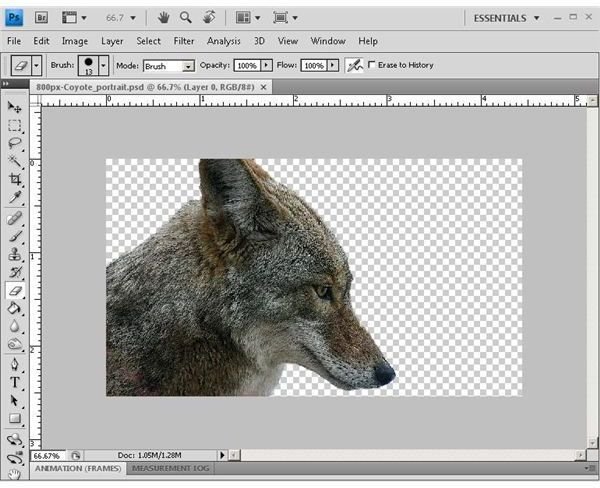
Next, copy the background layer by clicking on “Layer” on the menu bar, then “New” and then “Layer via Copy.” You now will have two layers in your project visible in the “Layers” window.

Now, apply desaturation to the top layer by clicking “Image” on the menu bar followed by “Adjustments” and then “Desaturate.” Your image now appears in grayscale.
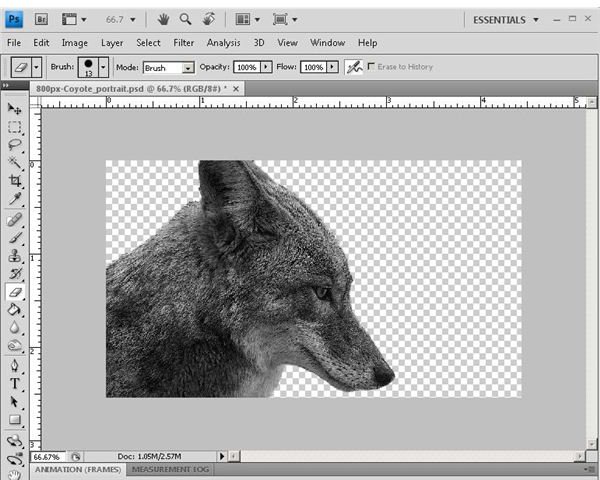
Next, duplicate the top layer. You can do this by clicking on “Layer” on the menu bar, then “New” and then “Layer via Copy.” Make sure you have the top layer selected before you start. You now should have three layers in your project.
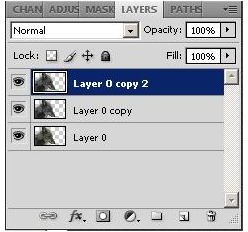
Next, invert the top layer and by clicking “Image” on the menu bar and then “Adjustments” and then “Invert.”
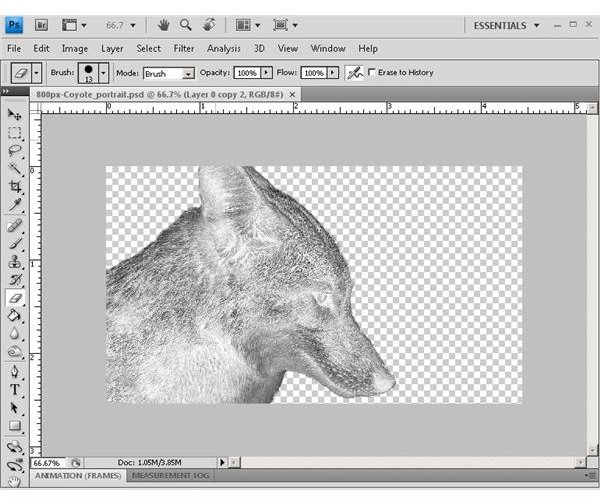
With the top layer still selected, go to the “Layers” window and change the blend mode to “Color Dodge” Select this option via the drop down box at the top of the window.
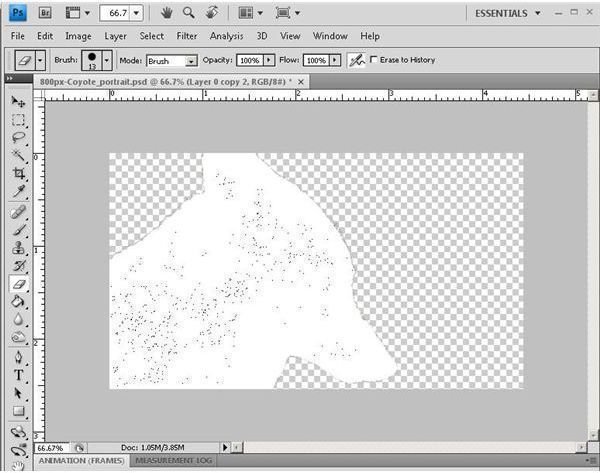
Go to “Filter” on the main menu and then choose “Blur” and then “Gaussian Blur.” Adjust the slider until you have a balance between the image outline and texture.

Image Credit: Wikimedia Commons/Christopher Bruno
Image Credits: Screenshots taken by Bruce Tyson
An Alternate Approach
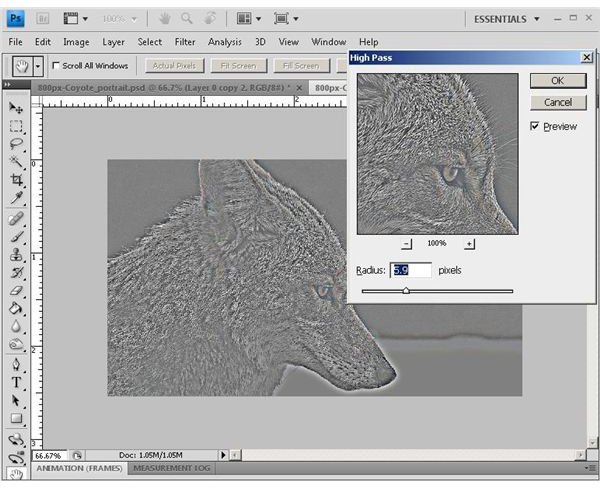
Another coloring book effect Photoshop can create uses the “High Pass” filter. To do this, be sure your original photo is loaded in Photoshop and then click “Filter” on the menu bar followed by “Other” and then “High Pass.” Set the slider to 5.9 (or adjust as necessary).
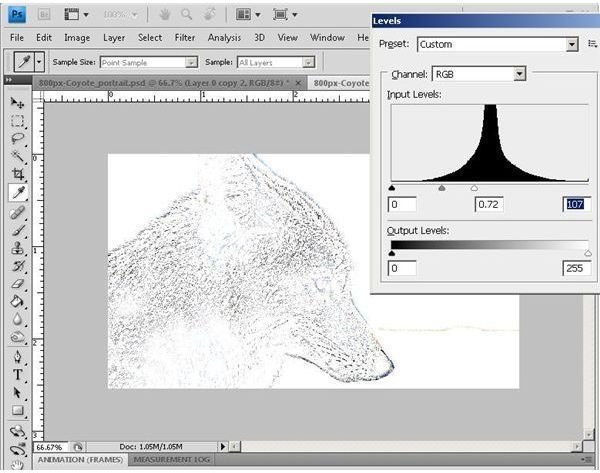
Now, click “Images” on the menu bar and then choose “Adjustments” followed by “Levels.” Set the levels so that you have a colorable outline of your image.
Finally, convert the image to grayscale by clicking on “Image” on the menu bar followed by “Mode” and then “Grayscale.” You now have an image that can be colored with crayons or markers.
Image Credit: Wikimedia Commons/Christopher Bruno
Image Credits: Screenshots taken by Bruce Tyson


