Scribus Free Desktop Publishing Software Getting Started Guide Part 2
Up Next…Text
When we last saw Scribus, we got it up and running, and established a new document. Then, we put our picture in. Now, we move forward yet again.
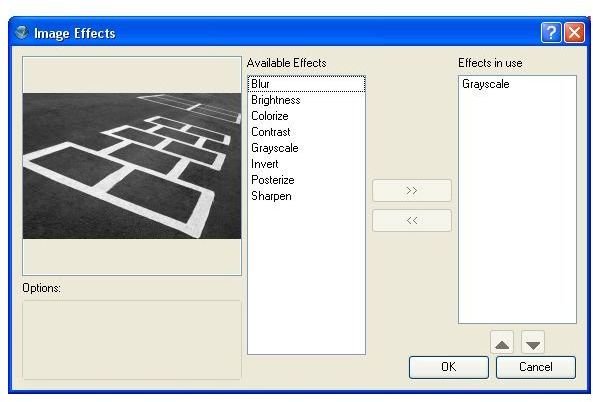
As we saw last time when we adjusted the position of the graphic via the properties dialog box, there are several attributes we can set by right clicking on the object. In this case, right clicking on the graphic gives us access to the Image Effects menu (Figure 1). For important graphics, you would want to handle all of this in a dedicated graphics editor, but for the occasional tweak to an image, these options can come in handy. Setting, grayscale and then boosting the brightness for something that might be photocopied a lot is one example of what you can do in here. Take a look around and then we’ll add our next element.
Adding Text
Scribus is not a word processor. It isn’t even a text editor. That doesn’t mean it can’t handle text. Our publication needs a name. The text box button should be familiar if you’ve used pretty much any program for publishing or image editing. It’s the one with the little “A” in the corner. Press it and then move the cursor to the area where you want the text box. Again, you can drag and drop the box around, but generally it is easier to just throw something out there and position and size it with the properties box like we did with the image box.
To type the text into the box, double click the area inside the box frame. You can just type the text directly into the box. In this case, that would probably be just fine, but there may be times when you are doing a little more typing, or you want to do a lot of fiddling with the text. For these occasions, you’ll want to take advantage of a great feature called the Story Editor.
The Story Editor is Scribus’ answer to the issue that arises when users want to do a relatively large amount of typing within their desktop publishing program. This can happen for many reasons, but generally, trying to use a text box as a word processor leads to unfriendly thoughts and words. So, in the spirit of happy open-source programming, the Story Editor is built into Scribus. You can right click on the text box and choose Edit Text to bring up the Story Editor, or you can use the toolbar button.
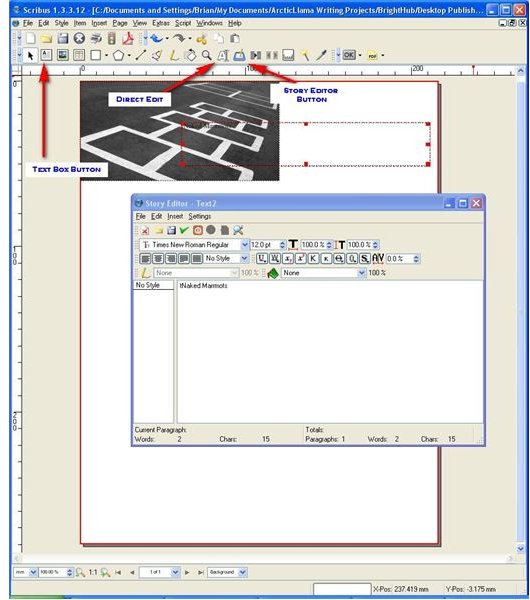
The default toolbar has two buttons for editing text. The first, the A with the non-blinking cursor on its right, and the other looks like the tablet you would use for graphics editing. (See Story Editor Picture) The first one, gives you direct editing inside the text box (like double clicking) the second brings up the Story Editor.
Story Editor
The Story Editor itself works with some of the same concepts of your average word processor. Highlight whatever text you want to select it, and then perform whatever operation on it you would like. We won’t go over every button and menu item right now, but if you’ve done any publishing work before, the concepts should be pretty familiar. Even if you are a novice, one area where Scribus has really come along well is in the interface. The tool tips aren’t just jargon words that you already have to know in order to understand the meaning. So, hover your mouse button over each button to get an idea of what they do and look through the menu selections.
To get our heading text in place, we’ll take the easy road. Highlight the text, use the drop down box to select a font, then a size, and finally a color. Since I’ve never in my life actually been able to use Chartreuse, there it is.
So far, we haven’t done much that you couldn’t do in MS Word, but we’ve got the basics in. Next, we’ll do something fun.
Images
This post is part of the series: How To Use Scribus The Free Desktop Publishing Application
Scribus is a powerful desktop publishing solution. Unlike its very pricey cousins from Adobe and Quark, Scribus is also free. Don’t let its price fool you though. If you know what you are doing, you can do almost anything in Scribus.
