Adobe Lightroom - Photo Editing Software Made for Parents
Adobe Lightroom
There are tons and tons of digital photography software packages out there. They range from super basic to incredibly complex. And, it seems that not one of them is aimed at parents.
Actually, there is a program that works exceptionally well for parents who are digital photographers, Adobe Lightroom. In fact, it is one of the best programs around for parents to use for their photo needs. The problem is that all of the books and manuals for Adobe Lightroom are written with the professional or semi-professional photographer in mind.
The good news is that means the program is capable of handling the most difficult tasks. The bad news is that it can be difficult for parents to see how well the program fits their needs, and more importantly, it can be tough to pull out information a parent needs to use it.
Adobe Lightroom was originally released by Adobe as a “workflow” oriented digital photography program. Already, most parents are leaving the room. But, workflow is just a fancy way of saying what you do with your pictures from the time you get them onto your computer to the time you print or order photos. In reality, a parent’s number one issue is workflow. Most of us just don’t know it.
A Parent’s Needs
As a parent of an amazing two-year old, I have very specific needs compared to my needs as a semi-professional portrait photographer. Adobe Lightroom 2.0 handles these needs in an easy to use, yet very powerful package.
As a parent, you take pictures. You take pictures of your children, your spouse, your family, your surroundings, your vacations, holidays, other people’s kids, and so on. All of that is on top of any photography that you do in a non-parent role. What makes you very different from a professional photographer is that processing these photos is not your main job. You don’t get three hours to process the photos from yesterday’s trip to the zoo. Your little Billy has soccer practice, and Amy has ballet. The bills need paid, the lawn needs mowed, and, oh yeah, it might be nice to spend some time with your spouse.
In order to handle a parent’s digital photography needs, a software program must be able to accommodate their schedule, which means it needs to take care of some of the details quickly and easily, and not be too fussy or high maintenance.
One of Lightroom’s most useful features for the parent photographer is how it handles getting your digital photos from your camera or card reader. Plug your camera or memory card into your PC and Lightroom will do the rest. Take note that depending on how you have your computer set up, a pop-up window may appear whenever you attach your digital camera or memory card to the computer. Just close that window. Manual is better here.
Every photo editing program out there can import your photos. What a parent needs is a program that will not only get the photos, but also organize them somehow. Lightroom uses the information saved by your camera with each photo to handle this organization. You can set Lightroom to do many things with this information and customize how it handles your photos. For now, let’s just focus on getting them onto the computer.
It’s Wednesday evening, and you finally have some time to work with your digital photos. You have a 2GB card in your camera, so you don’t have to change it out or unload it all of the time. This is a double-edged sword. While you are never stuck out in the world with no room to shoot the perfect picture, you also end up letting photos build up on the card. Last weekend, the family went to the zoo. You shot a bunch of pictures there. Then, on Tuesday, you took pictures at Amy’s play. On Thursday, you got some great shots on your bike ride, and then on Friday, you took some memorable photos of the free concert in the park. All told, you have more than a hundred pictures on that card.
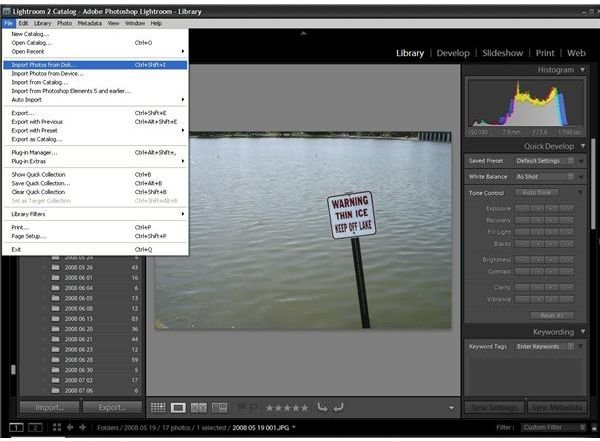
No problem. Click on the File menu, and then choose Import. By default, Lightroom will bring in all of those photos you have on the card. But, that isn’t all, it will also put them into directories with the date, so they are already a little bit sorted. This is good news because that free time you had just disappeared, Bill remembered that it is his turn to take cupcakes to class tomorrow. So, you put the memory card back in the camera and head out to the grocery store. Looks like we’ll have to worry about those pictures later. But, no matter how long it is before you get back to your photos, Lightroom has already started taking care of you. Each picture sits waiting on your disk in its dated folder.
Next Up: Customizing Adobe Lightroom For The Parent Photographer
This post is part of the series: Adobe Lightroom For Parents
In a world with five thousand digital photography programs, how come it seems like none of them are made for parents? Actually, Adobe Lightroom is perfect for the parent photographer. It’s just that all the manuals are not. Get everything you need for your digital photos with Adobe Lightroom.
