Digital Scrapbook Artist 2 allows you to import images and graphics that you can use as backgrounds, materials, embellishments, and other scrapbook items. Learn how to import these new images so you can start building your own custom layout and design.
Getting New Scrapbook Materials
No matter how large your collection of background patterns and other scrapbook images is, it’s always fun to get more. There are lots of ways to do this for Digital Scrapbook Artist 2 – for starters, you can either purchase or download free digikits and materials from DaisyTrail.com or other sources, you can create your own images using the basic tools in DSA 2 , or you can import other types of image files and arrange them into categories recognized by DSA.
In this guide, we’ll take a look at how to do the last item on that list. We’ll start out by showing how you can import graphics that can then be used over and over again in your own custom digital scrapbook projects.
Importing Graphics for Digital Scrapbook Artist
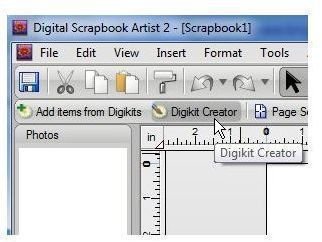
Step 1: Start the Digital Scrapbook Artist application and create a new blank scrapbook. Then, click on the Digikit Creator button as shown in the screenshot below. (Click any image for a larger view.)
Step 2: When the Digikit Creator window opens, click on the type of item that you would like to import from the list of categories on the left-hand side of the window.
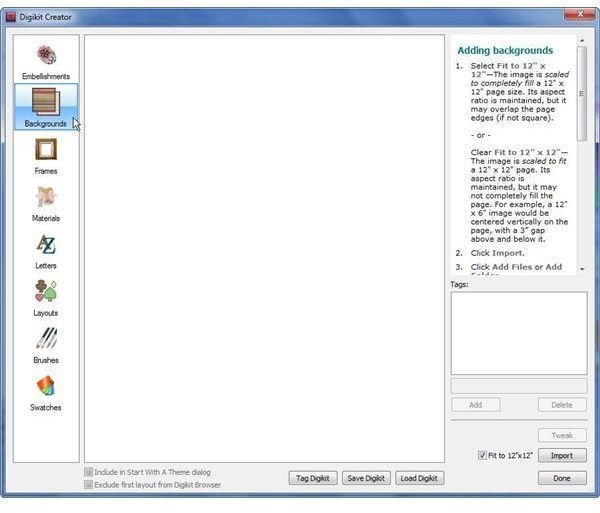
As an example, we want to import a pattern to use as a scrapbook background, so we’ll select the Background category.
Step 3: Detailed instructions will appear in the box in the upper right-hand corner of the Digikit Creator window, but basically the next step at this point is to click on the Import button found in the lower right corner.
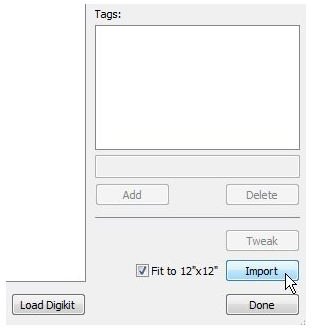
Note that if you are choosing to import an image to use as a background (as we are in this example), there will be an option next to the Import button labeled as Fit to 12" x 12" with a box next to it. Check this box if you want the image you are importing to be resized and scaled to fit a 12" x 12" scrapbook page.
Step 4: After clicking on the Import button, you will have the options Add Files or Add Folder. Select Add Files if you want to import individual images, one at a time, and pick Add Folder if you want to add an entire folder of images at once.
In this example, we’ll pick the Add Files button. Then, another window will pop up, allowing us to browse our hard drive for the files that we want to add. You can add multiple files at one time by holding down the Ctrl key as you select items.
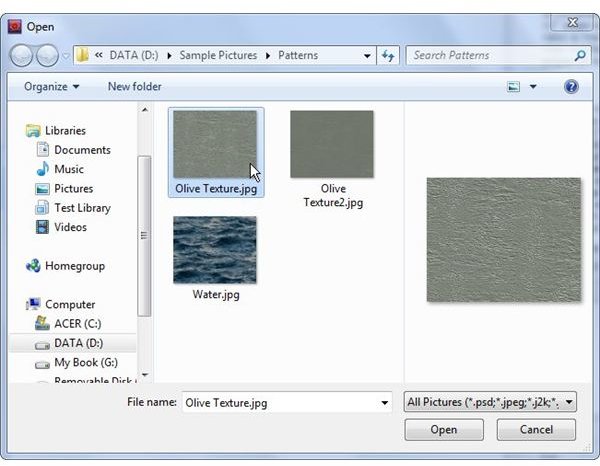
Once you’ve selected all of the files you want to add, click Open to continue.
At this point, you can continue to import other images by selecting the category to which they belong and repeating steps 3 and 4.
Step 5: After importing the images, they will all be accessible in the current open scrapbook. Now, you can either click the Done button in the lower right corner of the Digikit Creator and save your imported items later, or you can save them now before returning to the main Digital Scrapbook Artist interface. I recommend the latter so that you don’t forget to save the items later.
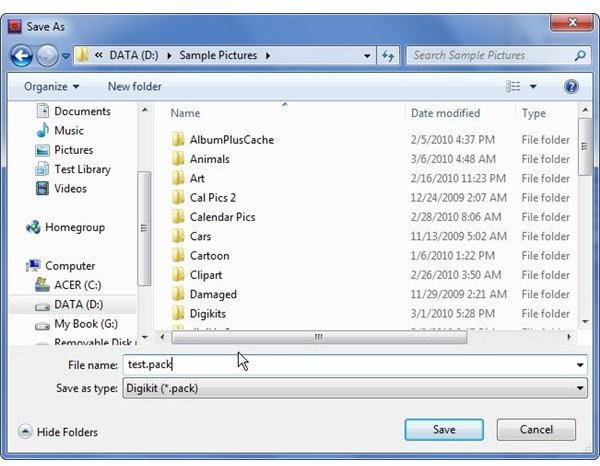
When ready to save, click the Save Digikit button found in central bottom area of the Digikit Creator window. Navigate to a directory in which you want to save the files, select a name, and click the Save button.
Now, click the Done button to return to the main Digital Scrapbook Artist window.


