Learn How to Watermark a Photo in 5 Easy Steps: Corel Paint Shop Pro Tutorial
Why Add Watermarks to Your Images?
To learn the benefits of adding watermarks to your images and to find out what information you should include and where to place the watermark, please read What is the Purpose of a Watermark? The Benefits of Watermarking Photos.
How to Watermark a Photo
Step 1
Open Paint Shop Pro Photo X2.
Create a new image in one of three ways:
· select File, and then New… from the drop down menu
· click on the blank paper icon located in the top left corner (under File)
· or press Ctrl + N on your keyboard.
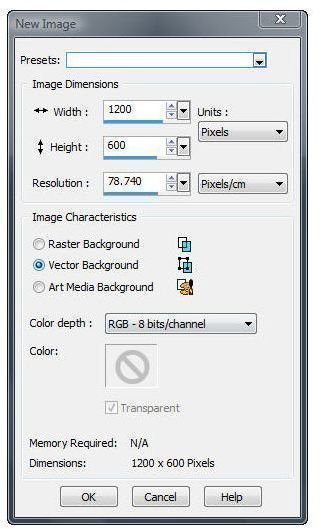
You’ll now have a window open, called New Image.
(Click to enlarge)
Step 2
In this window, you will notice three options under Image Characteristics: namely Raster Background, Vector Background and Art Media Background. For creating a simple text watermark, it doesn’t really matter which you choose. I’m going to select Vector Background. If you like, take the information from the screenshot above and copy it into your window.
The Image Dimensions can be set to whatever you like. This determines how large your workspace is.
Regardless of what settings you decide, the only thing you need to be sure of is that the image background is transparent. To do this, check to see that the transparent box is selected, or, if you’re using Art Media Background, make sure the Enable fill color box is unchecked.
Once you have everything to your liking, click on OK.
Step 3
Next, select the Text Tool by either clicking on the text icon from the toolbar on the left or by simply typing the letter t on your keyboard.
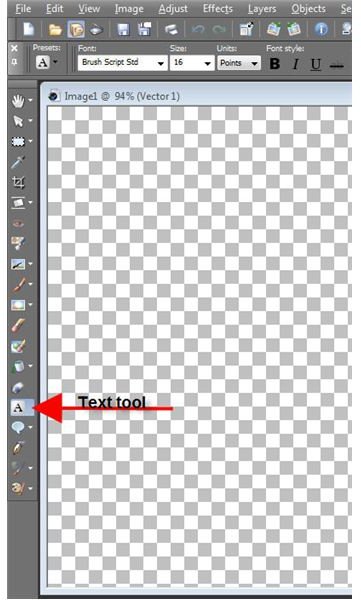
Click somewhere within your image background to activate the Text Tool. This will be where the text is placed. Once you do this, a new window will open called Text Entry.

Type the text that you want to include in your watermark.
If you’d like to include the copyright symbol (©), the keyboard shortcut for Windows is Alt + 0169. Using the number keys that are above the letter keys will not work, you must use the numeric keypad to the left of your keyboard.

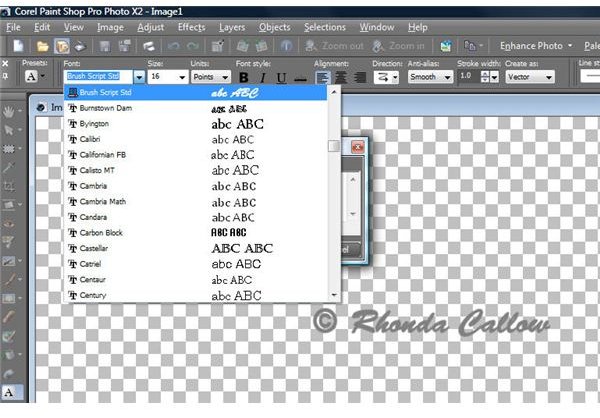
Now, customize the text to your liking. Highlight the text within the box that you wish to change. If you’d like the changes to be applied to all of the text within the box, simple click Ctrl + A on your keyboard.
Once your text is highlighted, you can change the font and size by selecting your preferences from the dropdown menu located in the toolbar above your image.
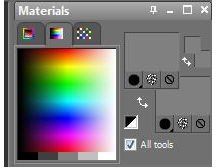
You can also change the text colour using the options in the Materials box on the right of the main window.
When everything is to your liking, click on Apply in the Text Entry box.
Step 4
The next step is to get rid of the extra background. Yes, it’s transparent, but we want to cut it down so when it’s placed on a photo, it can be placed close to the corner without difficulties.
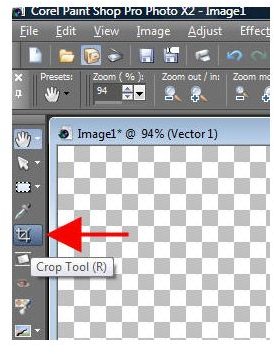
To do this, select the Crop Tool by clicking on the crop icon to the left or by typing r on your keyboard.
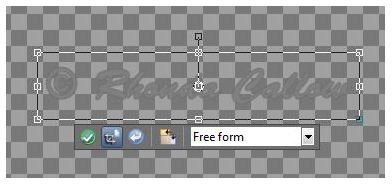
Be sure the crop tool is set to free form, and adjust the crop area to surround your text. Click on the green checkmark to complete the crop.
Step 5
We’re now ready to save our image. It will need to be saved as either a PNG file or a GIF file so we don’t lose our transparent background. To do this, select File, and then Save As… from the drop down menu (or F12 on your keyboard).
Select the correct file format from the list, navigate to where you’d like your image saved to on your computer and change the file name to your liking.
Click on Save. You’re done!
Additional Tutorials
Did you find this tutorial helpful? Bright Hub’s Digital Photography channel has several Paint Shop Pro tutorials ideal for beginners and advanced users! You’ll find resources on everything from using layers to reviews of the best free plugins compatible with Paint Shop Pro by visiting our master list of Paint Shop Pro tutorials and resources.
This post is part of the series: Watermarks and Corel Paint Shop Pro Photo X2
Creating and adding a watermark to your digital photos is really quite simple. This tutorial series will teach you how using Corel Paint Shop Pro Photo X2.
