The mobile Facebook website offers a decent browsing experience for various handhelds, but it lacks some of the most prominent features offered by the Microsoft Facebook Application for Windows Mobile.
Application (4 out of 5)
Those who are regularly using the 6.0+ version of Windows Mobile and also own a Facebook account can now reap the benefits of the alternatively developed Microsoft application, which offers a unique Facebook experience absolutely free of cost. Several users may rightfully argue that the Facebook mobile site offers a decent browsing alternative for various handhelds, but it is no secret that the standard Facebook mobile site lacks the option for some of the most prominent features that are subsequently offered by the Microsoft Facebook Application.
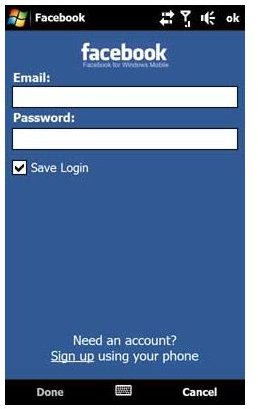
The Windows Mobile application provides quick access to the most useful features through an easily accessible interface and intuitive design, this unique interface is perfect for users and professionals who are always on the go.
There are a host of other Facebook applications for Windows mobile but what makes the Microsoft Facebook application stand apart from the rest of them?
We are going to explore the aforementioned interface and features and see why you should be using the Microsoft Facebook Application for Windows Mobile.
Features and Benefits of Microsoft Facebook Application (4 out of 5)
There are a number of benefits to using the Microsoft Facebook application for Windows mobile. Let’s have a glance at some of the most prominent ones:
- You can update your personal Facebook status at any time.
- You can browse an easily accessible, and navigable, news feed, which lists recent personal and friend activities.
- You can browse personal and friend photos easily.
- You can stay in touch with friends and relatives by sending messages in various ways; including writing on walls, leaving comments on links and posts, and sending and receiving personal Facebook e-mails.
- If you so require, you can directly dial any Facebook friend using the “dial/phone” tab (unique to Microsoft App).
- You can browse your entire contact and Facebook friend list.
- You can easily Record and Upload Videos directly through the application (unique to Microsoft App).
- You can easily Capture and Upload Photos directly through the application.
- You can view full, mobile optimized, versions of your friend’s profiles.
- You can even search Facebook for new friends and people you know, on the go!
Windows Mobile Microsoft Facebook - Interface (4 out of 5)
For those of you who have never used the Microsoft Facebook Application before, here is a complete breakdown of the individual Facebook tab and sub-menu system.
The user interface is designed with a top task-bar which is separated into individual tabs; each tab has its own sub-menu system and hot-key option. Users navigate by selecting the corresponding tab, and each sub-menu can be accessed by pressing the arrows across the edge of the task-bar or alternatively by swiping your finger left or right across the screen.

Home - This is the first tab in the top task-bar. You can browse all recently posted information and photos by easily scrolling through the provided list. The menu system for the Home tab is as follows (from left to right):
- News Feed.
- Status Updates.
- Photos.

Profile – This is the second tab in the top task-bar. It allows you to browse all aspects of your personal profile including personal information and lists, recent activities and posts and personal photos and albums. The sub-menu system for the Profile tab is as follows (left to right):
- Wall (Personal).
- Info (Personal).
- Photos (Personal).

Friends – This is of course the third tab in the top task-bar. It gives a basic top to bottom list of your entire Facebook friend collection. From this tab you can browse, and search for specific Facebook contacts. The listing also shows the most recent status update for all contacts (filtered by the most recent posts). Users have the option to filter the list into everyone in Facebook contacts, everyone with their most recent status updates, and only friends with recent status updates (filters out everyone else).
- Everyone- Shows entire Facebook friend list, status updates only show for those who posted recently.
- Everyone w/ Updates- Shows entire Facebook friend list, the most recent status update shows for every person even if the update was posted before an expired period.
- Only Status Update Friends- Filters the list to only show friends who have recently posted a status update.

Inbox – This tab is the fourth tab in the top task-bar. The inbox tab is mainly used for private communication and interaction. The Inbox sub-menu system is as follows:
- Inbox- Shows all private messages which have yet to be deleted, both read and unread.
- Sent- Shows all recently sent private messages.
- Notifications- Works like the Facebook Notifications tab, provides all recent posts and activities which pertain to you.
- Requests- Displays all pending friend requests.

Phonebook – This is the fifth, and last, tab in the top task-bar. The Phonebook tab is basically a long list of personal contact numbers for Facebook friends. While browsing through the list users can either call a contact directly, send an SMS or text message, or even send an MMS or media message.
Other Microsoft Facebook Application Features (4 out of 5)
- Microsoft offers a universal single cab-installer that allows installation of the application on both Windows Mobile standard and Windows Mobile Professional devices.
- The color scheme gives you the look and feel of the real Facebook website (Blue, Grey, Light Blue).
- The tab settings on the application have been cleverly developed to provide quick access hot-keys.
- The structure interface, be it the interaction and communication or the information overview, reflects a social level interaction.
- Users can share regular updates across the whole range of Windows Live Services, not just Facebook.
- The application can be refreshed at any given time using the “refresh” hot-key on the home tab.
- The application uses little to no phone memory and can be minimized in the background safely (it does use a substantial amount of data however).
- All photos and images are scaled for viewing on a mobile screen.
- The information and profile system is simplified for quick viewing and easy navigation.
Get Facebook for Windows Mobile! (4 out of 5)
If you are an avid user of both Facebook and Windows Mobile, then you will want to install this application as soon as possible. As Facebook grows in popularity and social networking becomes a much larger part of everyone’s normal lifestyle, this application will become something of a necessity for Windows Mobile users. It stands to reason that the Microsoft Facebook Application for Windows Mobile includes a plethora of unique features and options that are not accessible through the mobile browser version of the official site.


