Can YomoMedia top Viigo as the best RSS, podcast and online media management app for Windows Mobile and go straight to the top of the class?
What Media?
If you’re looking for a slickly designed RSS newsreader that also manages the download of podcasts, audio & video, then YomoMedia might well be the Windows Mobile application that you’re looking for.
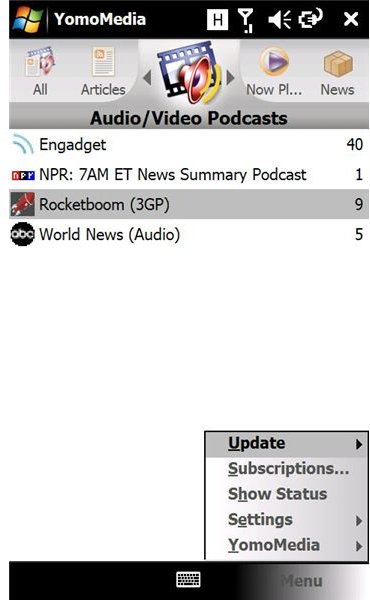
Coupling a web-based management interface with attractive touch sensitive controls on Windows Mobile 6.1, this application brings enhanced download management to Windows Mobile for the first time, allowing the micro management of RSS feeds, podcasts, weather reports and video content.
Put simply, it turns any Windows Mobile device with sufficient storage memory into a dynamic portable media content repository allowing for realistic (depending on data plan) download of syndicated entertainment.
Web-based Management
YomoMedia is managed at first from a desktop browser – signup is quick and easy, and the software weighs in at 872kb. This can either be downloaded as a CAB file via m.yomomedia.com or directly to your PC via www.yomomedia.com – the former option will require running directly from your Windows Mobile device while the latter choice will require you to run the EXE on your PC with your Windows Mobile handset connected via ActiveSync.
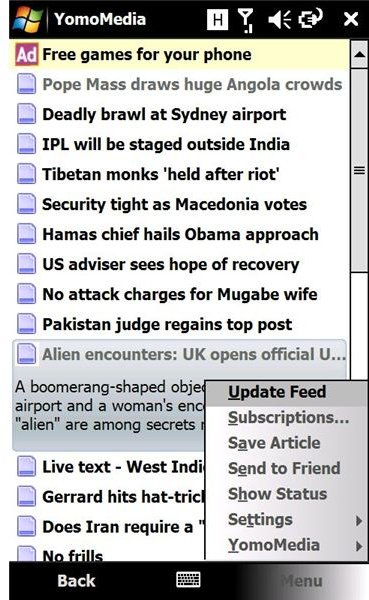
Once installation is complete, run the app on your handset – you will be asked fro an email address as an account name, and as long as your Windows Mobile device is connected to the web it will issue a password to that email address while it launches. At this stage, have a browse through the pre-configured RSS feeds and available content – this can all be removed and tailored to the requirements of each individual user.
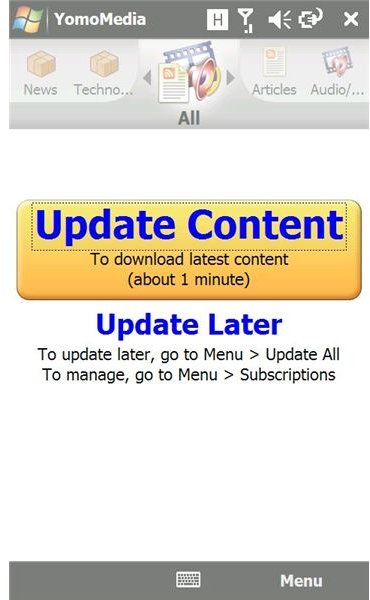
Back on the desktop, check your email for your password, then open your browser and go to www.yomomedia.com if you’re not already there. Once logged in, it’s time to manage the existing options – amend, append or delete, the choice is yours! OPML files can be imported from your desktop RSS reader, while video and audio content can also be added. Once your changes are made, remember to select Menu > Update from your mobile client – this will ensure a manual synchronisation between your device and the website where your content is managed.
YomoMedia Snaps
Quality (5 out of 5)
YomoMedia is easily the best RSS reader and podcast manager that I’ve encountered so far on Windows Mobile.
Unlike Viigo, YomoMedia knows exactly what it wants to be and sticks with it. The service is reliable, stable and in many ways it is better than the majority of desktop RSS readers as well. There is potential for consistent and in-depth use of this application, resulting in a lot of good quality media being synchronised!
So do ensure before using this application that you have a generous data plan with your network provider, or are using over WiFi connection - and then go and download it, it’s great!


