Sony Ericsson Xperia X1 X-Panels
What are X-Panels?
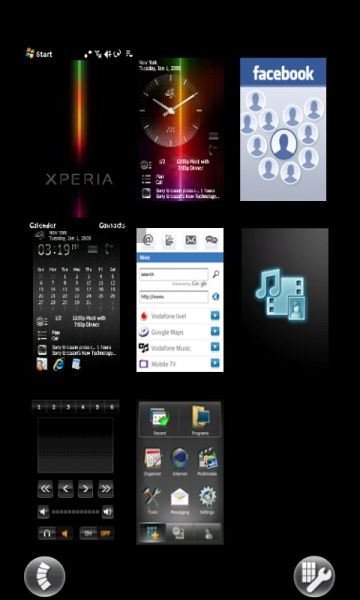
X-Panels are the superb, switchable user interfaces that come pre-installed on the Sony Ericsson Xperia X1 Windows Mobile 6.1 smartphone.
By clicking the X-Panel button on the lower-left side of the handset, the user is taken to a new screen where they can choose from a selection of alternatives to their current “desktop style”.
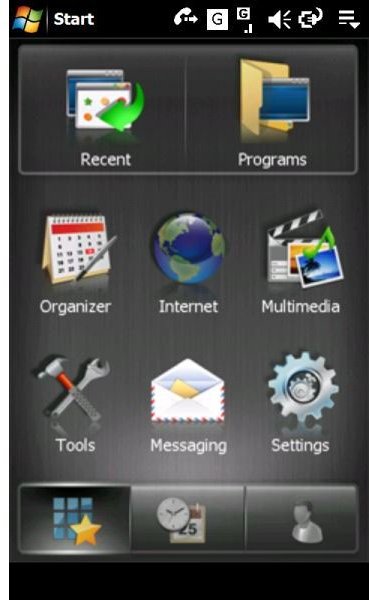
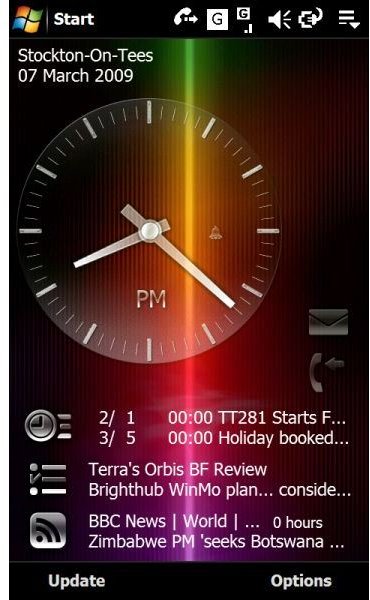
These alternatives range from the device radio and media players (cleverly preventing simultaneous browsing thereby maintaining battery life) to variants on the Windows Mobile 6.1 desktop, that present the standard time, calendar, appointments and to-do list in a different manner.
Most networks ship the Sony Ericsson Xperia X1 with 7 panels installed and active, while the phone can handle up to 9 X-Panels available at any one time. More panels can quickly and easily be downloaded and installed however, from a free version of the Spb Mobile Shell to a smooth, slick specialised Facebook interface.
X-Peria X1 X-Panels
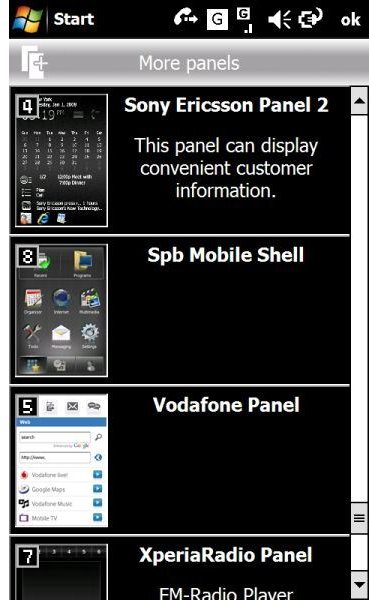
Download and Install New X-Panels
To begin – you need to decide which new X-Panel you want. Visit the Sony Ericsson site (click Fun & Downloads, then Panels on the left-hand menu) to choose your new Panel – or download them all!
Each panel has its own screen, with information on how large the download file is. The files (downloaded as .CAB files) range from 4.5MB for the Spb Mobile Shell down to 808kb for the Facebook X-panel and 807kb for the slideshow X-Panel.
Installation of the panels is simple – a case of copying them to a dedicated folder on your Windows Mobile Sony Ericsson Xperia X1 (you might call it “X-Panels”) and then from the phone browsing to the folder and running each .CAB to install the X-Panel.
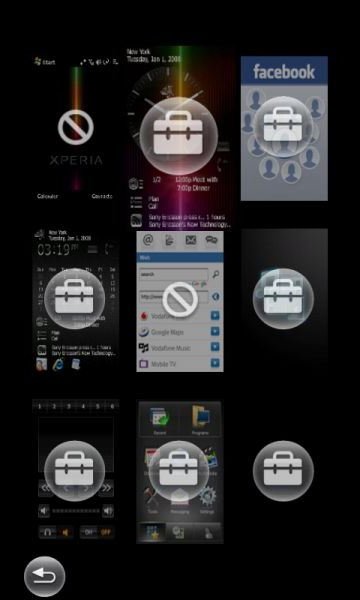
Up to nine are available from the X-Panel screen at any one time – if you have more than this installed, you will need to use the X-Panel configuration screen to choose which ones you want active.
To choose more panels, simply choose the X-Panel configuration icon in the bottom right of the X-Panel menu. From here, browse through your various installed X-Panels and select the one you want. Note that the default Windows Mobile 6.1 desktop takes up one X-Panel place that cannot be removed, while your network provider may have locked other panels.
Fun and Versatile
The X-Panels are a fun and interesting method of delivering content from weather, music and radio, RSS feeds and calendar to social networking tools and slideshows.
With Sony Ericsson Xperia X1 users everywhere on the lookout for new X-Panels, the collection looks set to expand, and already there are groups developing new X-Panels. As collections grow, they’re bound to attract swappers. If you have basic XHTML knowledge, you could even build you own X-Panels, possibly using the interface to collect RSS feeds, keep all of your most-used Windows Mobile apps in one easy to use menu or just to say you’ve done it!
