1Password touch is a must-have app that securely stores your important data on your iPhone.
Overview
One application I use regularly on my iPhone is 1Password touch from Agile Web Solutions. This utility keeps track of passwords, credit card information and secure notes and stores them in a secure database on my iPhone. There are currently two versions of 1Password touch for the iPhone. My review is for the basic version of the app, which I am currently using. For users looking for more features, 1Password Pro is available at the iTunes App Store. Details on the features of both versions can be found at the 1Password touch website .
Interface and Ease of Use (4 out of 5)
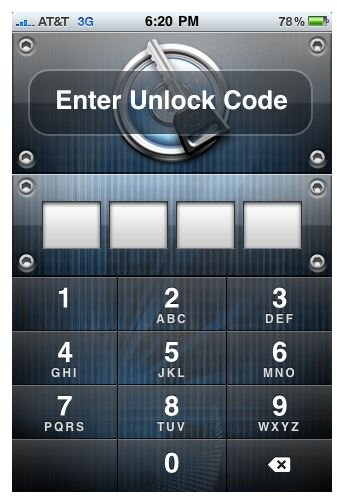
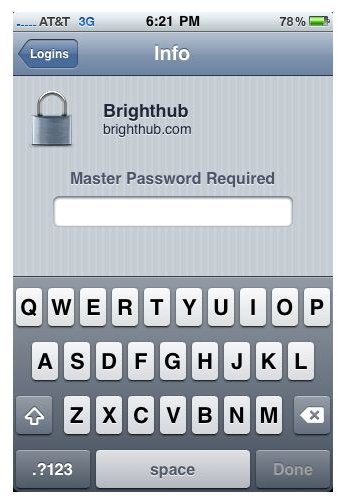
After installing 1Password touch, launching the app will allow you to setup an Unlock Code and Master Password. The Unlock Code is a 4-digit code that will be required to open the application in the future. The Master Password is a longer, more secure pass code meant to safeguard more secure data. You have the option to require the Master Password for accessing all information or only for certain information like banking logins and credit card numbers.
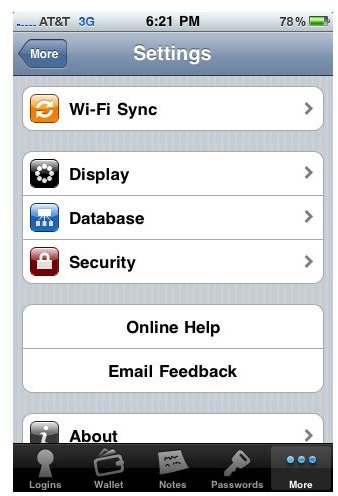
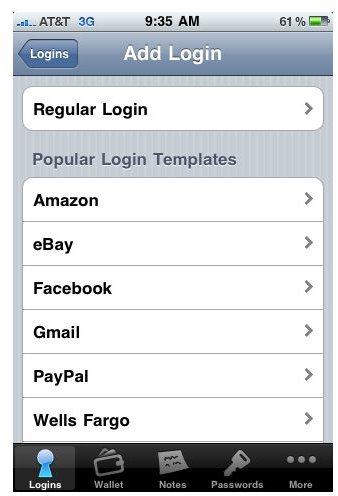
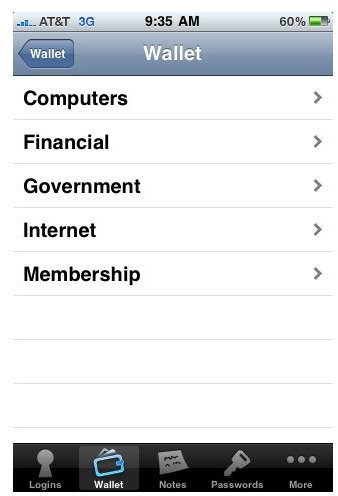
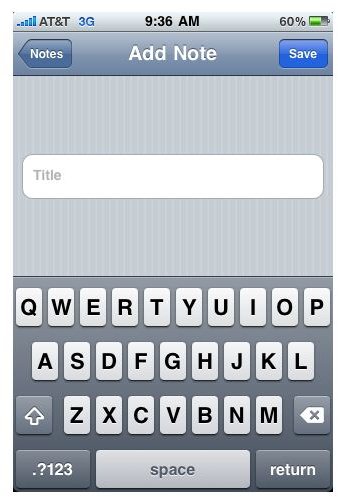
The next step is to add information to the 1Password database. There is a Logins section for storing website usernames and passwords, a Wallet for credit card and banking numbers, and a Notes section for miscellaneous items. The process is simple and intuitive and 1Password has included templates for adding popular information such as Gmail and Amazon logins. To access websites with stored login information, 1Password touch has a built in browser that takes you to the website and automatically fills in the stored username and password.
While the user interface of 1Password touch is simple and straight forward, there may be a slight learning curve to getting familiar with the features available for this useful application. To make getting up to speed easier, I recommend taking a look at the informative 1Password touch user guide available at their website.
Usefulness and Value (4 out of 5)
1Password touch is a great utility for iPhone users that want to always have access to their personal information. With the built in security features, this information is not only accessible but also safe and secure. Even with the slight learning curve associated with using this app, the features and functionality it provides make it a must-have in my book.
The basic version of 1Password touch I am using is available in the iTunes App Store for $4.99. A Pro version that adds better integration for mobile Safari and copy-and-paste features is available for $7.99. From comparing the features of the two versions, my recommendation is to get the basic version unless there are features in the Pro version you must have.
1Password touch Screenshots by Agile Web Solutions