iPhone 4 Upgrade Instructions
Syncing iPhone 4 to the Computer
Before you can complete an iPhone 4 upgrade you’ll need to sync your iPhone to your computer. In order to successfully sync your iPhone to your computer you’ll need a USB cable for your iPhone and the most current version of iTunes installed on your computer. Plug the USB cable into your computer and connect it to your iPhone 4. iTunes should automatically open when your iPhone 4 is connected to the computer. If it doesn’t, open iTunes and allow your phone to sync to the computer. Click the link above if you need step by step instructions about how to sync your iPhone to the computer.
Checking for iPhone Software Updates
If you don’t stay up-to-date with tech news, how are you supposed to know when an iPhone 4 upgrade is available? Easy! Syncing your phone regularly will check for iPhone software updates automatically. Once plugged in to your computer, iTunes should open. If an iPhone update is available, the following screen may pop up:
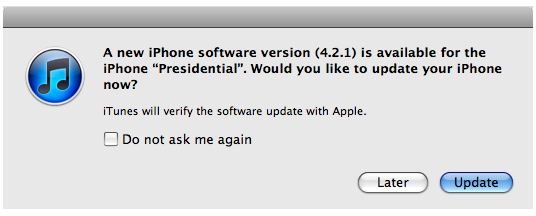
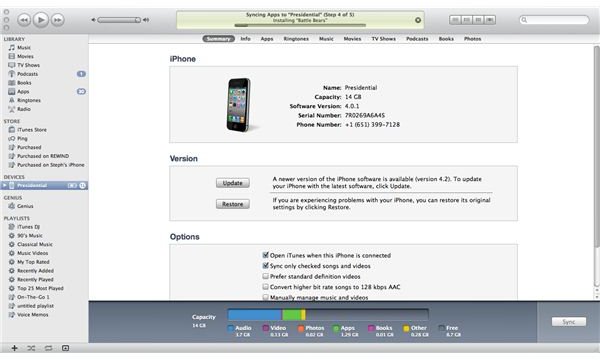
If the pop up window does not appear, it doesn’t necessarily mean that no software update is available. iTunes is set to check for updates periodically; it will not check for an update every time you sync. To manually check for updates before the next set time you’ll need to sync your phone and open iTunes. Select your device along the left side of the screen. In the “Version” section of the middle of the screen, you have the option to check for an update. The same section will also tell you when iTunes is set to automatically check for an update again. To check before the date listed just press the “Check for Update” button. When iTunes has detected that a new iPhone version is available, it will change to the screen below:
Steps for iPhone 4 Upgrade
After checking for new iPhone 4 updates, completing the upgrade will be easy. While still synced to your computer, press “Update”. If you got the pop up box notifying you that an update is available, press “Update” directly from the box. If you checked for an update from iTunes and found a new iPhone software version available, press “Update” from the iTunes summary page for your device. Once you have directed iTunes to update your iPhone 4, the following confirmation box will pop up:
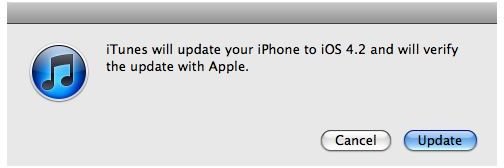
Press “Update” again to confirm the iPhone software upgrade. As soon as “Update” is selected from the confirmation box, iTunes will automatically take your phone through the steps to perform the software update. You will see the following screen appear first, notifying you that iTunes is preparing your phone for the update and extracting the current software version:
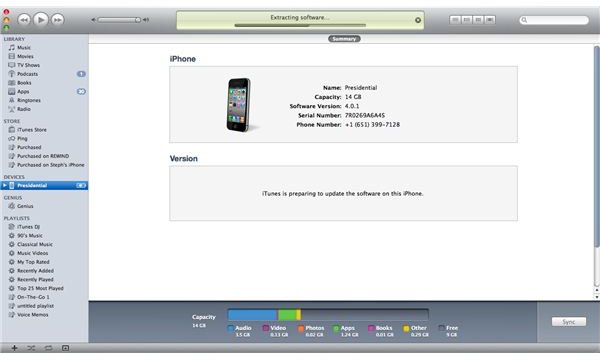
When this step is complete, iTunes will then begin installing the newest iPhone version available. The following screen will appear:
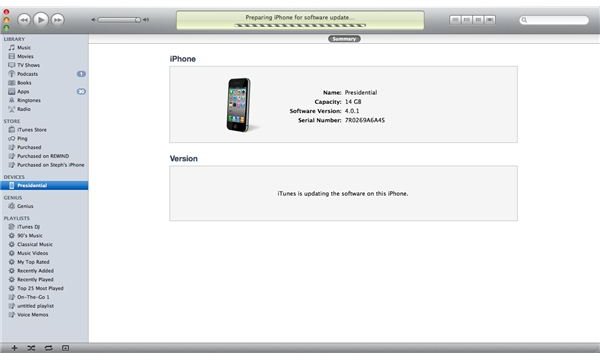
You will need to wait several minutes while iTunes restarts your device and installs the newest iPhone upgrade. When the update is complete, your device will automatically sync to the computer again. After the sync is complete iTunes will tell you that it is safe to disconnect your device. You have updated your iPhone’s software and may now disconnect from your computer. Your iPhone 4 upgrade is as easy as that!
