Missed Call for Google Android is actually a rather misleading name. While the program does in fact notify users of missed calls, it also provides various other hardware and application notifications as chosen by the user. Keep reading for our full review.
Overall Use (4 out of 5)
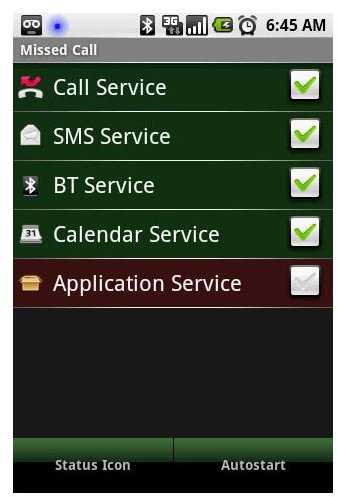
Missed Call can notify users of missed calls and text messages, bluetooth services being used, their calendar service and even application services.
On your standard device option only a green LED light is shown to notify a missed call or SMS, many times users will miss the light and therefore take a while to realize a missed call or SMS has occurred, this program solves that problem while also offering other useful notifications. Let’s take a closer look.
First, I started by clicking on the checkbox for each type of notification (to enable all options for testing purposes). Each notification features a simple checkbox on the main screen of the application.
For each type of function (missed calls, BT Service, etc.) the notification screens are different. I started with the Missed Call screen which offers two tabs “Missed Call” and “Incoming Call” this allows different notifications to be used for both functions. Thankfully the notification options are the same so once you figure out one screen you can mimic that setup for the others if you choose or set new notification types for each. Here’s the screenshots for both of the call tabs.
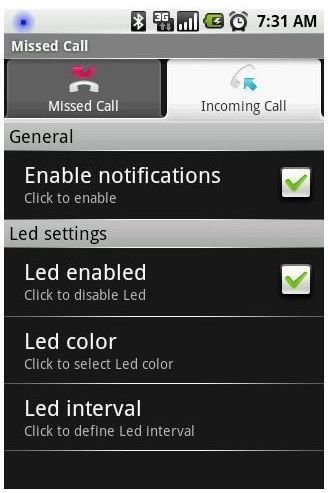
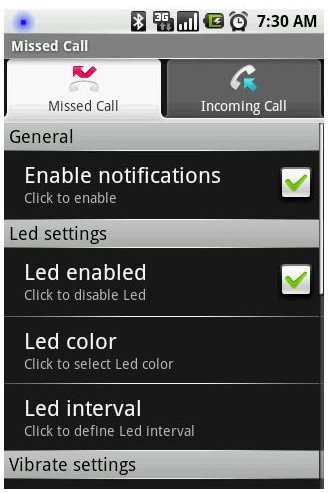
The options are self explanatory, you can enable notifications, choose if LED notifications should be used, set the LED color and then set an interval along with vibration settings, it’s all very straight forward and nicely customizable.
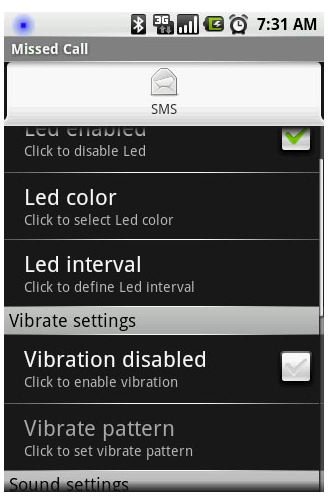
Next I set the SMS screen for notification, again I could choose the same options which also includes vibration patterns and sound settings (also available on the missed calls screen) which come in handy for further customizing the notifications section of the application.
The Bluetooth screen also offers two notifications just like the Missed Call screen. The tabs for this section include Bluetooth Enabled Notifications and a Bluetooth Device Connected notification. Again both of the options for each are the same on each tab, but nicely setup so you can receive notifications for both options independently setup from one another.
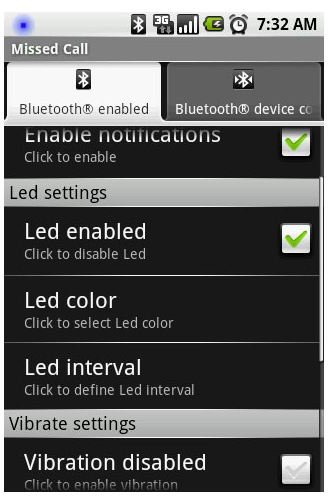
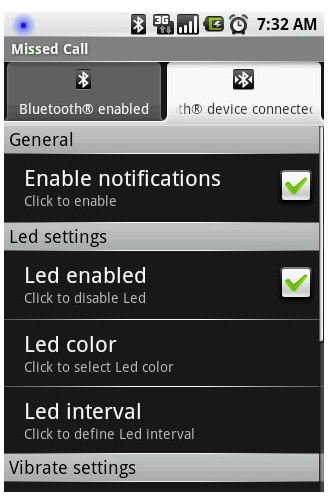
Next I set the Application notifications, again usings the same notifications I had used in the other options and then I set the calendar options using those same functions. I’ll save you from those screenshots, they are the same as the others, featuring their own titles and icons.
Once my options were setup I really enjoyed that the program launched at reboot and that it ran in the background at all times without causing too much of a battery drain on my device thanks to the programs small footprint.
Conclusion
Missed Call is a great application if you need constant reminders of important calls, text messages and device functions. I really like that each function has it’s own notifications, even functions within the same category.
The program offers a sleek interface, intuitive design and just the right mix of notification types to make sure you don’t miss important calls, messages and device options as they occur or at least just after they happen.
The program is free from the Android Market and I recommend it to anyone looking for a simple, yet ultimately effective notification program.


