Shortcuts Vs Widgets - How To Use Android Widgets
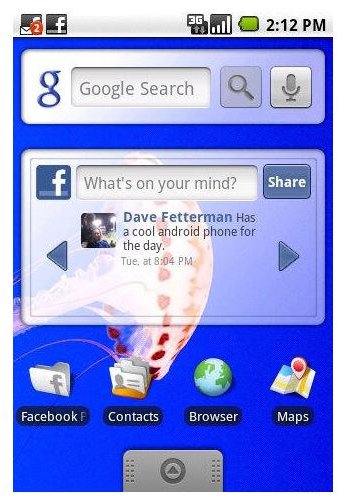
The Android mobile operating system is designed to deliver information as quickly as possible to your fingertips, via a selection of widgets.
Like shortcuts, Android widgets can be found on your mobile Home screen, but unlike shortcuts, widgets feed information to you from their applications. For instance, a Facebook widget will feed friend updates and so on to a visible area on your phone, letting you avoid the need to run the full Facebook app (see our list of the Best Facebook App for Android to find out which app we recommend).
Android also comes with a selection of built-in widgets, capable of giving you some extra information, such as access to your Google Calendar, or a clock. Additional widgets can also be purchased via the Android Market.
(Image credit: www.theunwired.net)
Shortcuts vs Android Widgets
While both can be found on your Android Home screen, shortcuts are quite different to widgets. Put simply, an Android widget will provide you with information, perhaps a stripped-down interface into the main app. By contrast, a shortcut is simply a way of running an application that doesn’t involve opening the menu.
To create a shortcut, hold-tap the Home screen on your Android phone, and select Shortcuts from the Add to Home screen menu. Note that shortcuts to folders can also be added by choosing the Folders menu item.
The list of shortcuts available are grouped into applications, bookmarks, contacts and music playlists, but don’t be surprised to see the odd misplaced application shortcut appear here. Shortcuts can be added from whichever menu, although application shortcuts can also be dragged from the Application Menu by holding it down and dragging to the portion of Home screen that is displayed behind.
Setting up Android Widgets
Depending on the applications you have in use, you’ll have access to a varying amount of actual widgets. To add a widget to your Home screen, hold-tap and select Widgets from the Add to Home screen menu.
For instance, in my list of Widgets, I have Facebook, Last.fm and Twidroyd. If I want quick access on my Home screen to my Last.fm playlist I can choose this. If I want to be able to make quick Twitter updates from my Home screen, I will choose the Twidroyd widget. With the Facebook app widget, I can update and check updates from friends, all from the Home screen without running the full app. This can save resources as you are only running a stripped down portion of the app rather than the full app!
Note that you will need space on your Home screen when adding a new widget – Android will tell you if the chosen widget will not fit, and you may need to rearrange or switch to one of your other Home screens. Alternatively, you might use an app like aHome Lite, a desktop expander for Android.
However, you might prefer to stick to the basic number of screens. To tidy your existing Android widgets and shortcuts, hold down the icon and wait for the bin icon to appear, before dragging the icon into it.
