Whether you use a Mac or PC you can now transfer files from your BlackBerry to your computer using just your Wi-Fi connections and your computer’s web browser. It’s a streamlined application that power users will love and multimedia fans will go gaga for. Keep reading to learn more.
An Introduction to WiFi File Transfer
If you’re new to this application it’s extremely simple to set up and requires NO PC or MAC Software!
1. Install the application on your BlackBerry and connect to the same Wi-Fi network that your PC is connected to.
2. Next launch the app and once launched you’ll be provided with a pop up screen that provides your device’s IP address.
3. Launch your computer’s web browser and type in that IP address. You’ll now see that you’re connected to your BlackBerry smartphone.
It’s that simple to get started. Now let’s take a closer look at the app and some of the screenshots for the program provided by BlackBerry AppWorld.
Overall Use (4 out of 5)
As I previously mentioned the application offers a very simple “connect” interface. Once the application has been launched with a connected WiFi adapter it will pop up an IP address window:
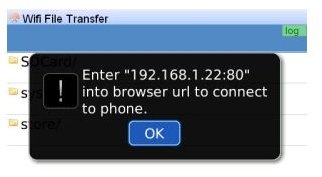
Before clicking okay on that window I would suggest entering the URL in your PC browser or writing it down. Then click okay and launch the IP address directly from your browsers URL address bar.
Once you launch the applications IP address via your web browser you should now see the same type of Blackberry file folders you would see if syncing your device to your computer via USB cable, Bluetooth or any other type of connections.
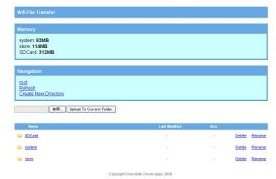
As you can see from this menu you can now search your SD card and find other files on your Blackberry. I personally tested the application by moving several movie and audio files directly to my Blackberry and I found that the SD card with it’s larger file storage size was the idea solution.
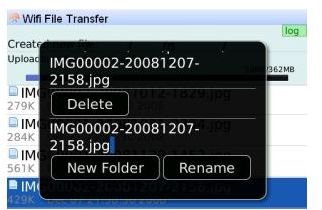
To upload files I simply chose the “Upload” option on my browser once I was in the SD Card section and then chose the file from my computer. The program if the file already exists will automatically ask you if you want to continue or rename the folder, while also asking you to confirm the file transfer.
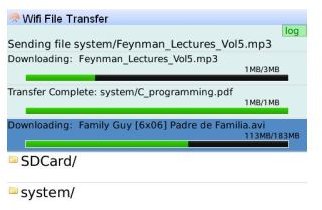
You’ll also notice when using the application that it offers a program bar not only for one file at a time, but for multiple file uploads and downloads that you may be performing at once. Just like your computer file transfer it shows the amount uploaded/downloaded along with the total file size, although sadly no “time remaining” option is displayed.
Conclusion
WiFi File Transfer is a very useful application. Because it doesn’t require PC or MAC software it meant I could test the program on various computers at different locations. This can be most useful for traveling business people who want to grab files from colleagues on the fly.
I also enjoyed that the user interface, although simplistic graphically it offered easy to navigate screens that made file transferring extremely simple to perform.
Overall this is a must have application for any BlackBerry user who wants to transfer files without needing to deal with USB cables or Bluetooth connections, which are still lacking on many older PCs and Macs.
Overall a great option that I highly recommend you find and download from the BlackBerry AppWorld, at $4.99 it’s well worth the cost of the download for advanced and beginner users.
References
BlackBerry App World, https://appworld.blackberry.com/webstore/content/1975


