Take screenshots from your BlackBerry device with this handy little tool that lets you grab screen images and save them in a variety of image formats.
Save Images
Available from www.oppitonic.net , BBScreenShooter is a PC-based application that utilises the desktop manager connection with your Blackberry and sends the image to your desktop, allowing you to save images for use later, perhaps for use in a tutorial or a review.
Tools such as this are very useful for all manner of purposes, but the most important thing to note is that BBCScreenShooter is both very good and free to download and use. It has a range of useful options, security code for use and even an update procedure that checks for new versions of the tool.
Download and Install
Via this link to www.oppitonic.net , follow the download link to get a copy of the application. The application is a PC-based .EXE file, and doesn’t require installing – simply save this file to the location you wish to run it from, and consider perhaps sending a shortcut to your desktop (right click the bbscreenshooter.exe file, and select Send To > Desktop (Create Shortcut) on the menu) for ease of use.
Note that you must have both a copy of JavaLoader.exe and Blackberry Desktop Manager installed and running on your PC before you can use BBScreenShooter.
Your Blackberry must be running v4.0.2 or higher to use this tool.
Menu Items
Using BBScreenShooter
To use the tool, connect your Blackberry to your PC via USB connection, checking that it is switched on. Once connection has been established, double-click the BBScreenshooter icon to load the application. You will be prompted to find a copy of JavaLoader.exe if this isn’t already installed as a component of the Blackberry JDE (available from www.blackberry.com ).
BBScreenshooter also prompts for your device PIN number, so enter this to establish a connection.
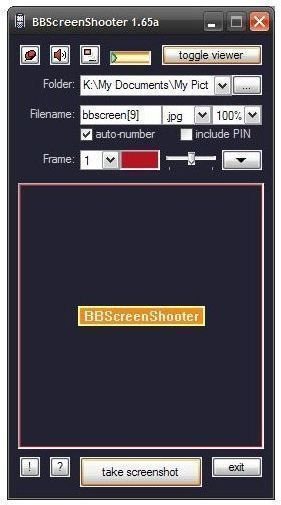
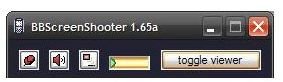
As you can see from the application screenshot above, BBScreenShooter is fully feature packed. Starting in the upper left corner, the application can be toggled on and off as the upper-most window via the drawing pin icon; sound can be disabled on the next icon; a hotkey can be set from the third icon, and the window display size can be increased via the Toggle Viewer button.
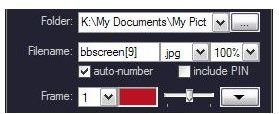
Next, the save destination folder can be set, while after that BBScreenShooter asks for a filename convention, filetype (.jpg, .png or .bmp) and image size for saving. The auto-number check box if ticked will add a number to the end of each filename for each image grabbed from your Blackberry.
A frame can also be set, allowing grabbed images to be given a 0-9 pixel frame of any colour with an adjustable shading effect.
Finally, a manual Take Screenshot button exists at the foot of the application window – and a manual is available via the ? button.
Screenshots via BBScreenShooter
Solid (4 out of 5)
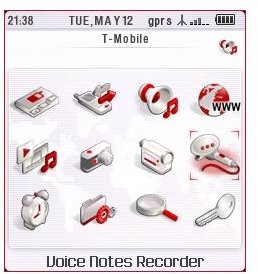
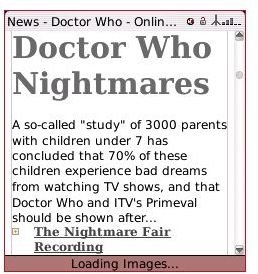
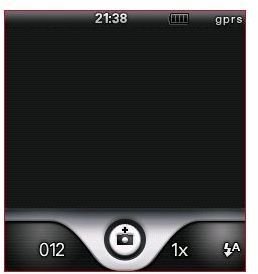
As you can see from the screenshots taken for this article with BBScreenShooter, the application is solid, reproduces colour well and is really useful for creating reviews and tutorials.
Interestingly, however, BBScreenshooter will not grab images from your onboard BlackBerry camera, although the camera software chrome does copy. This is true of all devices from the BlackBerry Pearl onwards.
As a free application it shouldn’t be missed by anyone wishing to grab images from their BlackBerry device for whatever purpose they can think of.


