Turn Off IE Enhanced Security - What Steps Do You Need to Take?
Overview
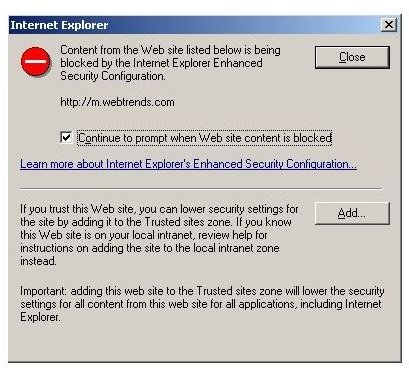
Microsoft introduced the Internet Explorer Enhanced Security Configuration (ES) with Windows Server 2003. The Enhanced Security configuration alters the security settings in Internet Explorer to lock down the application so it is more secure. When a user tries to go to a site with ES turned on, they are typically asked if the site you are attempting to access is trusted (See Figure 1). If you trust the site, you can add it to a list of trusted sites so you don’t get prompted the next time you go to the same site, or you can click the Close to close the dialog box. In any case, it can be annoying and time consuming to deal with these warning messages. This article will show you how to disable IE Enhanced Security.
Disabling Internet Explorer Enhanced Security
Before I show you how to disable ES, you should take a moment to think about why Microsoft would enable this feature by default. It all comes down to best practices: you should not make a habit of surfing on production servers - it’s too dangerous. It is extremely easy to misspell a URL and end up at a malicious site. As a general rule, any machine worth backing up should keep ES enabled. Any surfing needed (for downloading patches or service packs) can easily be done on a client computer.
If the machine you are using is used for simple testing or requires frequent access to various web sites, by all means disable ES.
When it comes to disabling ES, you have two options – disabling it for all users on the server, or only users in the Administrators group. In this example, I’ll keep it enabled for users, but not Administrators.
-
Open up the Control Panel by going to Start, Settings, Control Panel. Double click on Add or Remove Programs.
-
Click on Add/Remove Windows Components.
-
Scroll through the list of Windows Components and double click on “Internet Explorer Enhanced Security Configuration”.
-
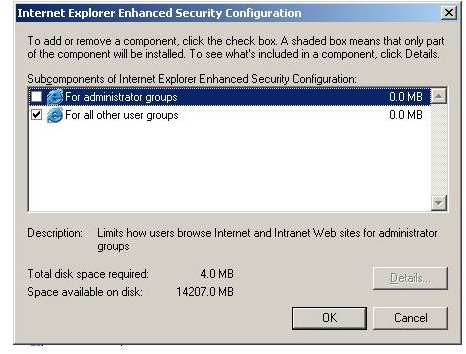
Check or Uncheck the items you wish. In this example, we’ll uncheck the “For administrator groups” checkbox, leaving “For all other user groups” checked (Figure 2). Click OK.
-
Back in the Windows Component Wizard, click Next and then Finish when the operation completes. Restart Internet Explorer.
Additional Information
The Enhanced Security Configuration really doesn’t add anything new to Internet Explorer that wasn’t already there – it simply modifies some of the default settings IE used to use. Below is a list of the items that the defaults are changed for. The following list and additional information about Internet Explorer Enhanced Security can be found by going to this local URL using Internet Explorer on a Windows 2003+ server. Here is a list of items whose default values are modified in the Enhanced Security Configuration:
- Displays dialog box notifying you when IE attempts to use scripting or ActiveX
- Disables all non Microsoft browser extensions
- Disables installing IE and web components on demand – if needed by a web page
- Disables the Microsoft Virtual Machine compiler
- Disables playback of media content including sounds, animation and video clips
- Checks a web site certificate (if present) to see if it had previously been revoked
- Verifies identify of programs you download
- Disables saving secured information in the Temporary Internet Files folders
- Clears the Temporary Internet Files folders when the browser is closed
