Adding Google Analytics to Squidoo lenses had not been possible in the past, as Squidoo does not allow the JavaScript codes used by Google Analytics on its lenses. This step-by-step guide will show you how to install Google Analytics tracking codes without JavaScript on the Squidoo lenses.
Adding Google Analytics to Squidoo Lens
While Squidoo already has its own statistics trackers available under Stats or My Toolbox, where you can view the number of visitors, traffic sources and keywords, you might still want to install Google Analytics Tracking Code into your lens, as it gives more comprehensive details about your visitors, such as the countries and cities of your readers, how long they stay on your lenses, and whether they visit your other lenses.
Google Analytics is one of the world’s most widely used web tracking system. In 2005, Google acquired a software company called Urchin, renamed it Google Analytics and offered it for free to users.
The Google Analytics tracking system uses a page tagging technique to collect visitor information using a combination of JavaScript and cookies. However, this poses to be a problem for sites that do not allow JavaScript to be installed on them, like Squidoo.
In this case, we will have to get past this problem by adding a plain html version into your default bio. This has been made possible with NoJSStats, which uses Google App Engine, that allows you to track your visitors using image or CSS background image requests.
Step-by-Step Guide to Add Google Analytics to Squidoo Lens
Follow these step-by-step instructions carefully to install Google Analytics Tracking Codes to your Squidoo Lens.
Step 1: You will need to have a Google Analytics Account. You can sign up one for free at https://www.google.com/analytics . Log into your account, if you already have an existing one.
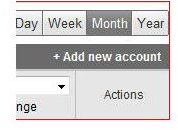
Step 2: Once you have signed into Google Analytics, on the top right hand corner, click on Add new account and sign up for a new website profile.
Step 3: Enter www.squidoo.com as the website URL and account name and click Continue. After that, enter your first name and last name and click Continue. Check Yes to agree to Google Analytics terms and conditions, and click Create New Account. When you get to the tracking codes page, and just click Save and Finish.
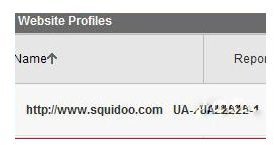
Step 4: You will see a unique code right beside https://www.squidoo.com , looking like this UA-XXXXXX-X.
Step 5: Next, sign in to your Squidoo Account, and click on Edit Profile.
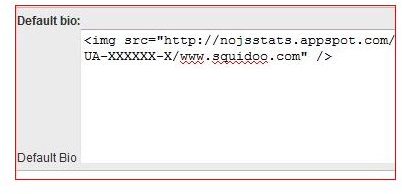
Step 6: Paste the following into your Default Bio and Save.
These codes are invisible once you have clicked the Save button.
Google Analytics will start tracking your Squidoo lenses in about 24 hours. After adding Google Analytics to Squidoo lens, the next time you want to view your lens statistics, just log into your Google Analytics account and click View Report.
References
- Google Analytics Official Website: https://www.google.com/analytics
-
NoJSStats: https://nojsstats.blogspot.com
Advertisement -
The SquidU Forum: https://www.squidu.com/forum/viewtopic.php?id=60035
-
Squidoo Lens: https://www.squidoo.com/google-analytics-on-lenses
Advertisement -
The Official Google Analytics Blog: https://analytics.blogspot.com


