Understanding Google Mobile Calendar
Google Mobile Calendar - Features
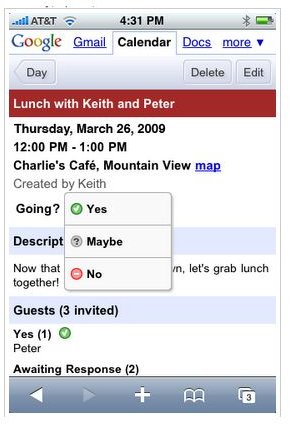
Google Mobile Calendar is a powerful mobile service with several useful features. It lets you access your events scheduled on your Google Calendar as well as manage those events and set reminders when the event is about to happen.
Google Mobile Calendar supports most popular handsets and devices including iPhone, Android, BlackBerry, Nokia/Symbian, Windows Mobile, and other mobile platform.
Some of these devices have Google Mobile Calendar as default program while some requires you to set-up your account from the web to synch it with your mobile devices. While some mobile phones with their own calendar app will require you to tinker with the phone’s setup to make the default calendar connect with your Google Calendar account.
To get Google Mobile Calendar on your device, simply point your mobile phone’s browser to m.google.com/calendar. You simply login with your Google credentials and start scheduling your daily, weekly, monthly, and even yearly activities.
Google Mobile Calendar on the Top Three Smartphone Platforms
For Android phones - You can access Google Calendar through the phone’s Calendar app or via the phone’s browser. Google Mobile Calendar for Android features integrated reminders, auto-sync and supports editing, creating and deleting events, and multiple calendar accounts.
For BlackBerry - To use Google Mobile Calendar on your BlackBerry devices, you either access it through the phone’s browser or by syncing your phone’s default calendar app with Google Calendar.
For iPhone - Similar to BlackBerry, you can also access Google Calendar on your iPhone via the Safari browser or by syncing with the iPhone’s native calendar or via Apple’s CalDAV.
The same process is true for using Google Mobile Calendar on your Nokia/Symbian phones, Windows Mobile Phones and other mobile platforms. Most often than not, you will need to sync your Google Calendar with the default calendar applications of these mobile phones.
If you access Google Mobile Calendar on mobile phones other than Android, iPhone, or BlackBerry you will be directed to the basic version of the Google Calendar optimized for mobile web browsers. This will allow you to view your calendars in the Agenda view as well as add new events through “Quick Add” option.
When viewing your Google Calendar account on your mobile phone’s browser, the browser shoud be XHTML compliant. You can check if your mobile phone is XHTML compliant by visiting https://www.google.com/xhtml and performing a search. If the search doesn’t work, it means that your phone’s browser is not XHTML compliant.
In addition, you phone’s browser should also have cookies enabled. Likewise your network should also allow cookies. You can check for your phone’s browser settings or ask your mobile carrier if it allows cookies on their network.
Finally, you should also ask your mobile carrier if SSL traffic is allowed within the network. After you’ve settled all these issues, you can start using Google Mobile Calendar on your mobile phones.
